
Make Jira Cloud projects read only for a migration cutover, then put every project back

17 min readNovember 5, 2026
Key takeaways
- END STATE: a file with each project's permission scheme from before the freeze, a read-only scheme on the projects you're moving, a test that proves writes fail, and a revert that puts each project back. On our 64-project test site the diff between the before and after exports was empty.
- Jira Cloud has no read-only switch. Data Center got one in 10.3.23 and 11.3.8, and the Cloud request for it (JRACLOUD-1924) has 292 votes and dates from 2003. In Cloud you swap permission schemes, one PUT per project, because there's no bulk endpoint (JRACLOUD-37941, 197 votes).
- Jira stored 40 grants we didn't send (seen once, on our test site). We sent 5 and it stored 45. The extra 40 hand the atlassian-addons-project-access role, which Automation for Jira and apps act through, all of the write permissions too. That means automation rules and apps can probably still create and edit issues while your users can't.
- We hit two literal errors on the way: 'Please select a valid application access permission.' (the role key is jira-software; jira-software-users isn't a role key) and 'Next-gen projects can't share their configuration.' (team-managed projects can't take a permission scheme). 11 of our 64 projects are team-managed.
- The freeze held against the site admin too. With Administer Jira on the account, creating an issue failed with 'You do not have permission to create issues in this project.', comments failed, and the transition list came back empty.
- Ask before you run this on anyone's production site. A revert that works perfectly doesn't make an unsanctioned freeze OK, because approval is what authorises a change.
Jira Cloud has no switch to make a project read only. So to freeze a site for a migration cutover, you give the projects a read-only permission scheme, and afterwards you put each project's original scheme back. On a site with 300 projects that's 300 separate API calls each way, and the way back only works if you wrote down where each project started. I think that way back is the part people underestimate.
We ran that whole loop on 5 November 2026 on our test site, a Jira Cloud site with 64 projects, using the freeze tool from our open-source Jira admin toolkit. The freeze went onto 12 projects that share one scheme, plus one team-managed project to see what breaks. Then we reverted. Comparing the export from before with one from after gave an empty diff: 64 of 64 projects back on their original scheme.
Two errors came up along the way, and so did one thing we didn't expect. Jira added 40 grants of its own to the read-only scheme on our site. Going by Atlassian's documentation, those grants leave automation rules and apps able to write while your people can't, although we didn't run a rule to watch it happen. The steps below are in the order I'd run them on a real cutover night, with the output the tool and Jira printed. The commands are written to run from the tool's folder. We ran them from a separate working folder as node ../repo/set_read_only_cloud/set_permission_scheme.js, with the same flags.
The toolkit is ours (LeanZero's) and it's on GitHub under Apache 2.0, with a short portfolio page. You don't need it to follow along, since the steps are plain REST underneath, but it saves you writing the loop yourself. A note on words: Jira Cloud's admin screens now say "space" where the API says project, and "work item" where it says issue. Same things.
Prerequisites — a Jira Cloud site on a paid plan (the permission scheme PUT returns 403 on Free plans); an account with the Administer Jira global permission and an Atlassian API token for it; Node.js 14 or later; curl and jq. We tested with Node v24.15.0, npm 11.12.1 and jq on macOS against our test site on 5 November 2026, at toolkit commit 18a3333.
- 1
Save every project's permission scheme to a file with snapshot.sh, before anything changes.
- 2
Dry-run the freeze across the whole site and read the summary for team-managed projects and miscounts.
- 3
Create the read-only scheme and freeze the projects with lockdown, using the role key jira-software.
- 4
Read back the grants Jira stored and decide what to do about the app role.
- 5
Test the freeze with the permissions call, a create, a comment and a second export.
- 6
Revert and diff, then delete the freeze scheme and take the banner down.
What we found on the test site
- The export is the undo, and it has to come first. The tool's revert only knows about projects it changed itself. A separate export from before you touch anything is what proves the site came back.
- The toolkit's default role key is wrong for Cloud. Creating the scheme failed with
Please select a valid application access permission.until we passedjira-softwareinstead ofjira-software-users. The dry run doesn't catch it, because a dry run never creates the scheme. - Team-managed projects refuse the freeze.
Next-gen projects can't share their configuration.came back for our team-managed project. 11 of our 64 projects are team-managed, and each one needs its own plan. - Jira added 40 grants for apps and automation. We sent 5 grants and Jira stored 45. All 40 went to the
atlassian-addons-project-accessrole, and Atlassian's own knowledge base says Automation for Jira acts through that role. - The site admin was frozen too. An account with Administer Jira couldn't create, comment, edit or transition in a frozen project.
- The dry run miscounts twice. It said "Processed Projects: 126" for 64 projects, and it reported 2 projects as already frozen because their real scheme ID is 0, the same number the dry run uses as a placeholder.

Why Jira Cloud has no read-only mode for a migration
Data Center got a native read-only mode in versions 10.3.23 and 11.3.8. Atlassian's knowledge base page on it says plainly: "Read-only mode is a native Jira Data Center feature and is not available on Jira Cloud." The Cloud request, JRACLOUD-1924 "Ability to make Jira 'read only'", was created in July 2003, has 292 votes and is still Gathering Interest. A 2016 note from an Atlassian product manager in that ticket says they "don't currently have any plans to support a temporary "read-only" mode".
The migration ticket, MIG-1331 "Jira Read Only Mode for locking projects during a migration", has 54 votes. It's written about the Server and Data Center side, and its description is the workaround everyone uses: remap the migrating projects to a new permission scheme, then remap them back afterwards, which it puts at about two hours for 300 projects.
Atlassian's Reduce your migration downtime page, written for a Data Center source before Data Center got its toggle, gives the same workaround: "For Jira, there is no explicit "read-only" mode". It tells you to set user permissions to read-only so that nobody adds data you'd have to migrate again. The Jira Cloud Migration Assistant checklist and the cloud-to-cloud "Transfer Jira data" page don't mention a freeze at all.
What about archiving? Archiving a project is read only in a sense, but it's on Premium and Enterprise only, archived work items "won't appear in basic or advanced search results", and you can only restore from the UI. Archived work items drop out of search, so archiving doesn't suit a weekend when people still need to find things.
I'd rather Atlassian brought the Data Center toggle to Cloud, but until it does, the freeze is a permission scheme, and the hard part is doing it in bulk: there's no endpoint that assigns a scheme to many projects. What exists is PUT /rest/api/3/project/{projectKeyOrId}/permissionscheme, one project at a time, and the request to change that (JRACLOUD-37941, "Bulk Change of Permission Scheme") has 197 votes and dates from 2014. The Community thread on bulk changes has over 15,000 views.
Other ways to freeze Jira Cloud projects, and what each one leaves out
By hand, Atlassian's knowledge base article Prevent all project edits with a read-only permission scheme in Jira (updated 28 October 2025, for Cloud and Data Center) walks you through creating a blank scheme, giving Browse Projects to the right users or groups, and then switching each project in Project settings, Permissions, Use a different scheme. It says the project "will effectively be read-only for the selected users/groups." It's correct, and it's one project at a time. I'd use it for one or two projects and nothing bigger. It also says nothing about writing down the scheme you're replacing, which is the step that hurts on the way back.
With an app, there are several on the Marketplace. If I did this every month I'd probably buy one. Freeze Mode describes the same mechanism as this tutorial: "a freeze swaps the project's permission scheme for a locked down copy that keeps existing view access but drops every write grant", for company-managed projects, with an optional exemption group, and the original scheme comes back on release. It had no reviews when we looked. In a 2024 Community thread about applying one scheme to 30 projects at once, the asker solved it with a free app called Bulk Change Schemes for Jira. Appfire's command line app and Bulker come up in the same searches. We haven't tested any of them, so we can't tell you how they handle the app role grants from Step 4. If you use one, read back the scheme it creates the same way.
With a script, which is this tutorial, and it's what I'd use for a cutover that happens once. You need an admin token and half an hour. In exchange you get files you can diff and nothing new installed on the site. That last part matters on a client site, since installing an app is its own change that needs its own yes.
An old Community answer still holds, by the way. In 2019 someone asked how to make their Cloud site read only before migrating that same night, and the accepted reply was: "You can't do this, other than by changing every single project to a read-only permission scheme."
Before you start: ask, then plan the window
Ask the site owner before you change anything, and I mean in writing. It's the rule we work by at LeanZero: ask before you change configuration, each time, on each site. On a client's production site that means the person who owns the site says yes to this freeze, on this date, for these projects, in writing. I'd ask for the list of projects in the same message as the date. Get that yes even though the revert works, because a clean undo doesn't turn a change nobody approved into an approved one.
So get the yes first. Then plan the window. Put up an announcement banner (Settings, System, Announcement banner, up to 650 characters) so people know why they suddenly can't edit. Atlassian's knowledge base notes the banner doesn't show on JSM help centers or customer portals, so portal customers need to hear about it some other way.
Set the three variables once in your shell. The commands below read them, so the token isn't repeated on every command line:
1export JIRA_URL="https://your-site.atlassian.net"
2export JIRA_EMAIL="you@example.com"
3export JIRA_TOKEN="your-api-token"
Then get the toolkit:
1git clone https://github.com/leanzero-srl/leanzero-jira-admin-toolkit.git
2cd leanzero-jira-admin-toolkit/set_read_only_cloud
3npm install1added 1 package, and audited 2 packages in 566ms
2
3found 0 vulnerabilitiesYou should see found 0 vulnerabilities. (The tool's README says cd set-read-only-cloud with hyphens. It's underscores.)
Step 1: Save every project's current permission scheme
If the freeze goes wrong, this file is how you put each project back, so take it first. Our freeze tool writes its own before-and-after file too, but that file only covers the projects it touched, and it's written by the same run that makes the change. I want a record taken before anything moves, by something simpler than the tool being tested, and I think you should too.
Save this as snapshot.sh next to the tool:
1#!/bin/sh
2# snapshot.sh <out.tsv>: one line per project: key, style, scheme id, scheme name
3set -eu
4: "${JIRA_URL:?set JIRA_URL}" "${JIRA_EMAIL:?set JIRA_EMAIL}" "${JIRA_TOKEN:?set JIRA_TOKEN}"
5out="$1"; : > "$out"
6start=0
7while :; do
8  page=$(curl -sf -u "$JIRA_EMAIL:$JIRA_TOKEN" "$JIRA_URL/rest/api/3/project/search?startAt=$start&maxResults=50")
9  echo "$page" | jq -r '.values[] | "\(.key)\t\(.style)"' | while IFS="$(printf '\t')" read -r key style; do
10    s=$(curl -s -u "$JIRA_EMAIL:$JIRA_TOKEN" "$JIRA_URL/rest/api/3/project/$key/permissionscheme")
11    printf '%s\t%s\t%s\t%s\n' "$key" "$style" "$(echo "$s" | jq -r '.id // "none"')" "$(echo "$s" | jq -r '.name // .errorMessages[0] // "none"')" >> "$out"
12  done
13  [ "$(echo "$page" | jq -r '.isLast')" = "false" ] || break
14  start=$((start + 50))
15done
16wc -l < "$out"
Run it:
1chmod +x snapshot.sh
2./snapshot.sh before.tsv1 64You should see your project count. It took 16 seconds for our 64 projects. Look at the file before you go on, line by line. It already tells you two things you need for planning:
1AUTOGOV	classic	10006	Default software scheme
2CGL1	classic	10051	CGL1 software permission scheme
3DCAT	next-gen	10872	DCAT: Simplified Permission Scheme
4FSD	classic	0	Default Permission Scheme
5HFADM	classic	11523	Halden Freight permission scheme
6HFBIL	classic	11523	Halden Freight permission scheme
The next-gen rows are team-managed projects. We had 11, and Step 3 shows why they need separate handling. The 11523 rows are 12 projects sharing one scheme. Sharing is what makes "put it back exactly" hard, because you can't restore a shared scheme by editing it. You restore each project's assignment, and this file records them.
(Our first version of this script had no set -eu and looped until isLast was "true". In a shell where JIRA_URL wasn't exported, curl got nothing, jq printed null, and the loop ran for seven minutes writing zero lines before we killed it. That first version made before.tsv. It wrote the same columns. The fixed version above made frozen.tsv and after.tsv. Run again on the restored site, it wrote a file identical to before.tsv in 15.9 seconds. The checks at the top now stop it straight away with JIRA_URL: set JIRA_URL.)
Copy before.tsv off your laptop. I'd put it next to the migration plan. Then I'd open it once more. If the freeze goes wrong and the laptop goes with it, this file is your map back.
Step 2: Dry-run the freeze across the whole site
The dry run lists what would change without creating or changing anything. We passed the toolkit's example key, jira-software-users, here, which is wrong on Cloud (Step 3 shows the error a live run gives). A dry run never creates the scheme, so it doesn't notice. Use jira-software on your own site. We ran it on all 64 projects:
1node set_permission_scheme.js lockdown \
2  --url "$JIRA_URL" --email "$JIRA_EMAIL" --token "$JIRA_TOKEN" \
3  --scheme-name "Cutover freeze 2026-11-05" \
4  --browse-app-role jira-software-users \
5  --admin-group site-admins \
6 --dry-run --output-file lockdown-dryrun-site.json1🔧 (dry-run) Would create read-only permission scheme with:
2 name: Cutover freeze 2026-11-05
3 browse holders: appRole:jira-software-users
4 admin escape-hatch: group:site-admins → ADMINISTER_PROJECTS
5...
6📊 SUMMARY
7=====================================
8Total Projects: 64
9Processed Projects: 126
10Already at Target: 2
11Successfully Updated: 0
12Would Update (Dry Run): 62
13Failures: 0I'd run this dry run on the whole site even if you only plan to freeze part of it, because it's the cheapest inventory you'll get. Of these flags, --browse-app-role decides who can still see the projects, and --admin-group keeps one group able to administer the projects, so you can fix a mistake from the UI without waiting for the script.
I'd think hard about who can see the projects during the freeze, because the freeze scheme replaces whatever Browse rules the projects had. With --browse-app-role jira-software, everyone with Jira Software access can browse every frozen project. On our Halden projects nothing widened. Their original scheme already gave Browse Projects to any user with application access. On a site with restricted projects (HR, legal, a client's private project) a single freeze run would open them up for the weekend. So group your projects by who may see them and run one lockdown per group, with --project-key or a pattern and the matching --browse-group. Agents who only have Jira Service Management access hold jira-servicedesk and not jira-software, so for JSM projects pass --browse-app-role once for each key you need (the option can be repeated). Compare against before.tsv and the original schemes before you run anything. If I wasn't sure who should see a project, I'd leave it out of the first run.
I'd read that summary twice. Two numbers in it are wrong, and you should know which ones before you trust a dry run on your own site. "Processed Projects: 126" counts each would-be change twice (2 + 62 × 2). "Already at Target: 2" is the projects FSD and SCRQ, which sit on Jira's Default Permission Scheme. That scheme's ID is 0, and 0 is also the placeholder the dry run uses for the scheme it hasn't created yet. A real run gets a new ID, so those two projects would be frozen like the rest. Both counts are bugs in our tool, and the JSON has the second one too: FSD and SCRQ are marked unchanged there.
The dry run misses two bigger things. Its 62 "would update" include our 11 team-managed projects, which a live run rejects (Step 3). And it never creates the scheme, so it can't catch a bad role key. You should see the summary above on your own site with your own counts; if the would-update number includes team-managed projects, plan them separately.
Step 3: Create a read-only permission scheme and bulk change the projects to it
For our test we limited the freeze to the 12 Halden Freight projects (fictional seed data on our test site) plus VOYS, a team-managed project, using --project-pattern, which takes a regular expression:
1node set_permission_scheme.js lockdown \
2  --url "$JIRA_URL" --email "$JIRA_EMAIL" --token "$JIRA_TOKEN" \
3  --scheme-name "Cutover freeze 2026-11-05" \
4  --browse-app-role jira-software-users \
5  --admin-group site-admins \
6  --project-pattern '^(HF|VOYS$)' \
7 --output-file lockdown-hf.json1🔧 Creating read-only permission scheme on Cloud...
2❌ Failed to create read-only permission scheme:
3 HTTP 400: {"errorMessages":["Please select a valid application access permission.","Please select a valid application access permission.","Please select a valid application access permission.","Please select a valid application access permission."],"errors":{}}It's there four times, one per permission it tried to give the application role (the fifth grant, for the admin group, drew no error). On our site the application role keys came back as jira-software, jira-servicedesk and jira-customer-service from GET /rest/api/3/applicationrole, so check what yours returns. jira-software-users isn't an application role key on Cloud (on our site the Jira Software access group is jira-software-users- plus the site name), and it's also what our tool uses as its default when you pass no --browse-* flag at all, so the default fails the same way. Nothing gets created when this happens. You can rerun safely.
With the right key:
1node set_permission_scheme.js lockdown \
2  --url "$JIRA_URL" --email "$JIRA_EMAIL" --token "$JIRA_TOKEN" \
3  --scheme-name "Cutover freeze 2026-11-05" \
4  --browse-app-role jira-software \
5  --admin-group site-admins \
6  --project-pattern '^(HF|VOYS$)' \
7 --output-file lockdown-hf.json1✅ Created scheme: Cutover freeze 2026-11-05 (ID: 11527)
2🎯 Processing 13 projects matching pattern: ^(HF|VOYS$)
3📦 Project: HFADM (Halden IT Admin Requests)
4 📋 Current: Halden Freight permission scheme (ID: 11523)
5 ✅ Changed to: Cutover freeze 2026-11-05 (ID: 11527)
6...
7📦 Project: VOYS (Voyager mobile app (scale bed))
8 📋 Current: VOYS: Simplified Permission Scheme (ID: 10866)
9 ❌ Failed to set permission scheme: HTTP 400: {"errorMessages":["Next-gen projects can't share their configuration."],"errors":{}}
10
11📊 SUMMARY
12=====================================
13Total Projects: 64
14Processed Projects: 13
15Already at Target: 0
16Successfully Updated: 12
17Failures: 1
18...
19
20✅ Script completed successfully!You should see one ✅ Changed to line per company-managed project. We haven't timed a 300-project site. The 13 projects took about 11 seconds, so the API calls aren't what fills the window; plan the window for your own checks. One thing I don't like: the tool still says "completed successfully" and exits 0 with a failure in the summary, so read the summary rather than the last line.
The VOYS failure is expected once you know it: each team-managed project has its own built-in scheme (the snapshot shows VOYS: Simplified Permission Scheme) that can't be swapped or shared. Their access is set per project (Open, Limited or Private, plus roles), so freezing one means changing its access settings by hand and writing down what they were. If you'd rather not, leave the team-managed projects out with --exclude-pattern and handle them in your plan.
Copy lockdown-hf.json somewhere safe along with before.tsv, and keep the two together. It records each project's scheme before and after, and the revert in Step 6 reads it. Give every lockdown run its own --output-file. The tool overwrites an existing file without asking, and that file is what revert reads. Don't run lockdown again on projects that are already frozen: that run's "before" would be the freeze scheme, so reverting it only takes you back to the first freeze.
Step 4: Check what Jira actually stored in the freeze scheme
The tool sends five grants when it creates the scheme: Browse Projects, View Read-Only Workflow, View Development Tools and View Aggregated Data for the browse role, plus Administer Projects for the admin group. Ask Jira what it saved:
1curl -s -u "$JIRA_EMAIL:$JIRA_TOKEN" \
2  "$JIRA_URL/rest/api/3/permissionscheme/11527?expand=permissions" \
3 | jq -r '.permissions[] | .holder.type' | sort | uniq -c1 4 applicationRole
2 1 group
3 40 projectRoleIf Jira stored only what the tool sent, you should see 4 and 1. We got 45 grants, and 40 of them weren't ours. All 40 go to one project role, atlassian-addons-project-access. Between them they cover all 40 permissions in the scheme, from CREATE_ISSUES and EDIT_ISSUES to DELETE_ISSUES and EDIT_WORKFLOW. We didn't send them, so Jira added them when it created the scheme. We've seen this once, on our site, so read back your own scheme the same way.
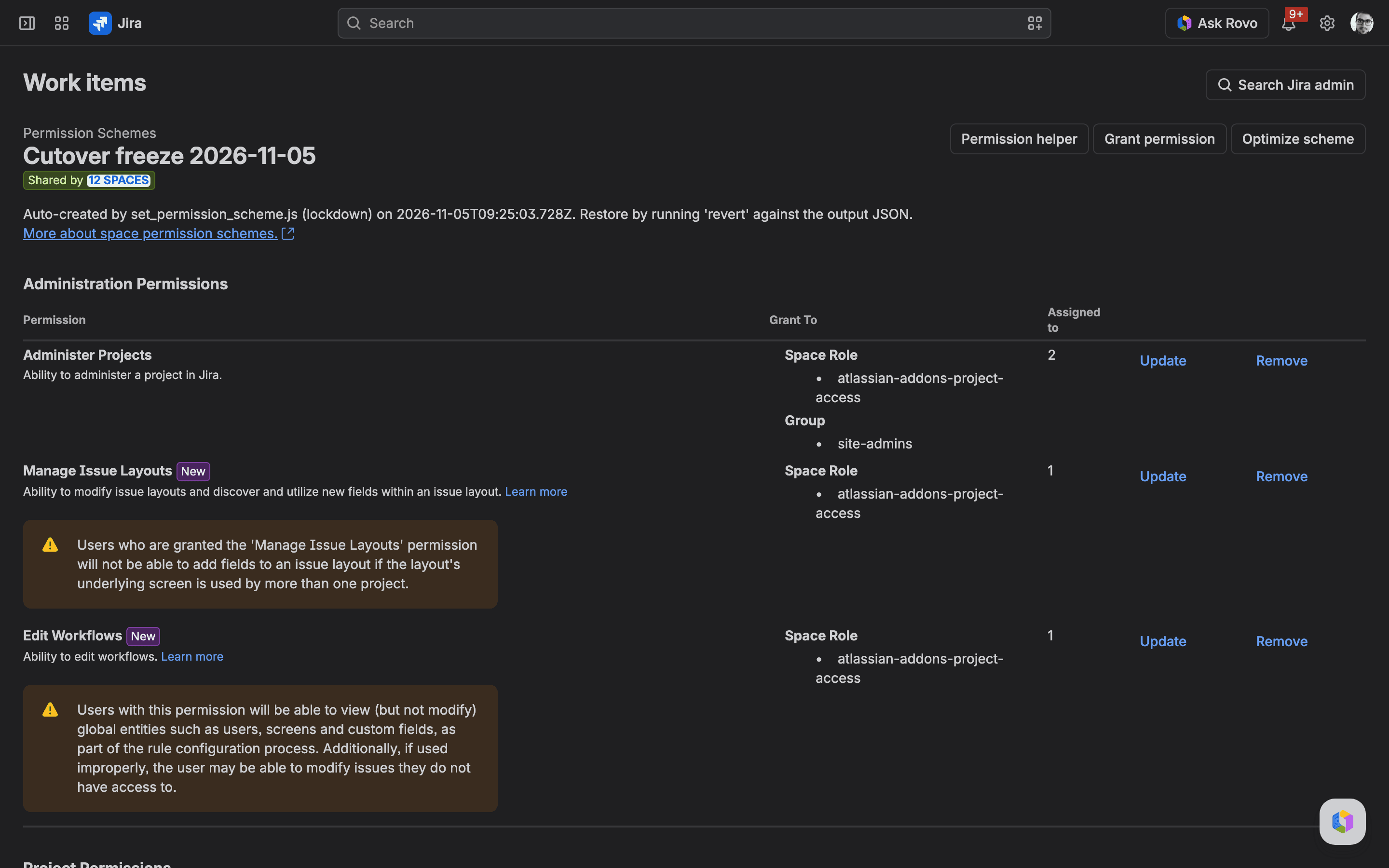
Why does it matter? Atlassian's knowledge base on automation errors says "The Automation for Jira actor will only work if the atlassian-addons-project-access role has the desired permissions", and its JSM article calls it "the project role that grants permissions to apps — including the Automation for Jira actor." So with this freeze your people can't edit, but a scheduled automation rule or an app very likely still can. We didn't run an automation rule during the freeze, so this is the stored grants plus Atlassian's documentation, not a write we watched happen.
What I'd do about it depends on the cutover. If you want a hard freeze, delete those grants from the freeze scheme (DELETE /rest/api/3/permissionscheme/11527/permission/{permissionId} for each; list the IDs with curl -s -u "$JIRA_EMAIL:$JIRA_TOKEN" "$JIRA_URL/rest/api/3/permissionscheme/11527?expand=permissions" | jq -r '.permissions[] | select(.holder.type=="projectRole") | .id'), or disable the rules for the window. If some automation has to keep running, keep the grants and write down which rules are allowed. Pick one before the window opens. Write it in the runbook. I'd delete them for a hard freeze, and I'd only keep them when someone can name the rules that must keep running.

Step 5: Test the freeze from the account you trust most
Testing from a normal user's account shows you what they'll see, so do that one on your site. We only tested from the site admin, to find out whether Administer Jira gets around the scheme. It doesn't. Not for issue writes, anyway. First, what the account may do in a frozen project:
1curl -s -u "$JIRA_EMAIL:$JIRA_TOKEN" \
2  "$JIRA_URL/rest/api/3/mypermissions?projectKey=HFBIL&permissions=CREATE_ISSUES,EDIT_ISSUES,ADD_COMMENTS,TRANSITION_ISSUES,BROWSE_PROJECTS,ADMINISTER_PROJECTS" \
3 | jq -c '.permissions|to_entries|map({(.key):.value.havePermission})|add'1{"BROWSE_PROJECTS":true,"EDIT_ISSUES":false,"ADD_COMMENTS":false,"TRANSITION_ISSUES":false,"CREATE_ISSUES":false,"ADMINISTER_PROJECTS":true}Before the freeze the same call said yes to the four write permissions and no to Administer Projects. Administer Projects is true now because this account is in site-admins, the escape-hatch group from Step 2, and it's the only thing that group gets. Now try to write something. Creating an issue (the project ID and issue type ID come from GET /rest/api/3/project/HFBIL):
1curl -s -u "$JIRA_EMAIL:$JIRA_TOKEN" -X POST -H 'Content-Type: application/json' \
2  "$JIRA_URL/rest/api/3/issue" \
3  -d '{"fields":{"project":{"id":"<project id>"},"issuetype":{"id":"<issue type id>"},"summary":"freeze test"}}'
You should see a refusal. We got this:
1{"errorMessages":["You do not have permission to create issues in this project."],"errors":{"project":"You do not have permission to create issues in this project."}}A comment on HFBIL-151:
1curl -s -u "$JIRA_EMAIL:$JIRA_TOKEN" -X POST -H 'Content-Type: application/json' \
2  "$JIRA_URL/rest/api/3/issue/HFBIL-151/comment" \
3 -d '{"body":{"type":"doc","version":1,"content":[{"type":"paragraph","content":[{"type":"text","text":"freeze test"}]}]}}'1{"errorMessages":["You do not have the permission to comment on this issue."],"errors":{}}Editing a field came back as Field 'labels' cannot be set. It is not on the appropriate screen, or unknown. Labels is on the screen: after the revert, GET /rest/api/3/issue/HFBIL-151/editmeta lists labels and summary as editable. So the error came from the missing Edit permission, worded as a screen problem. And GET /rest/api/3/issue/HFBIL-151/transitions returned an empty list. Before the freeze it offered four transitions.
You can still read the issue, all of it. Here's HFBIL-151 while the freeze was on:
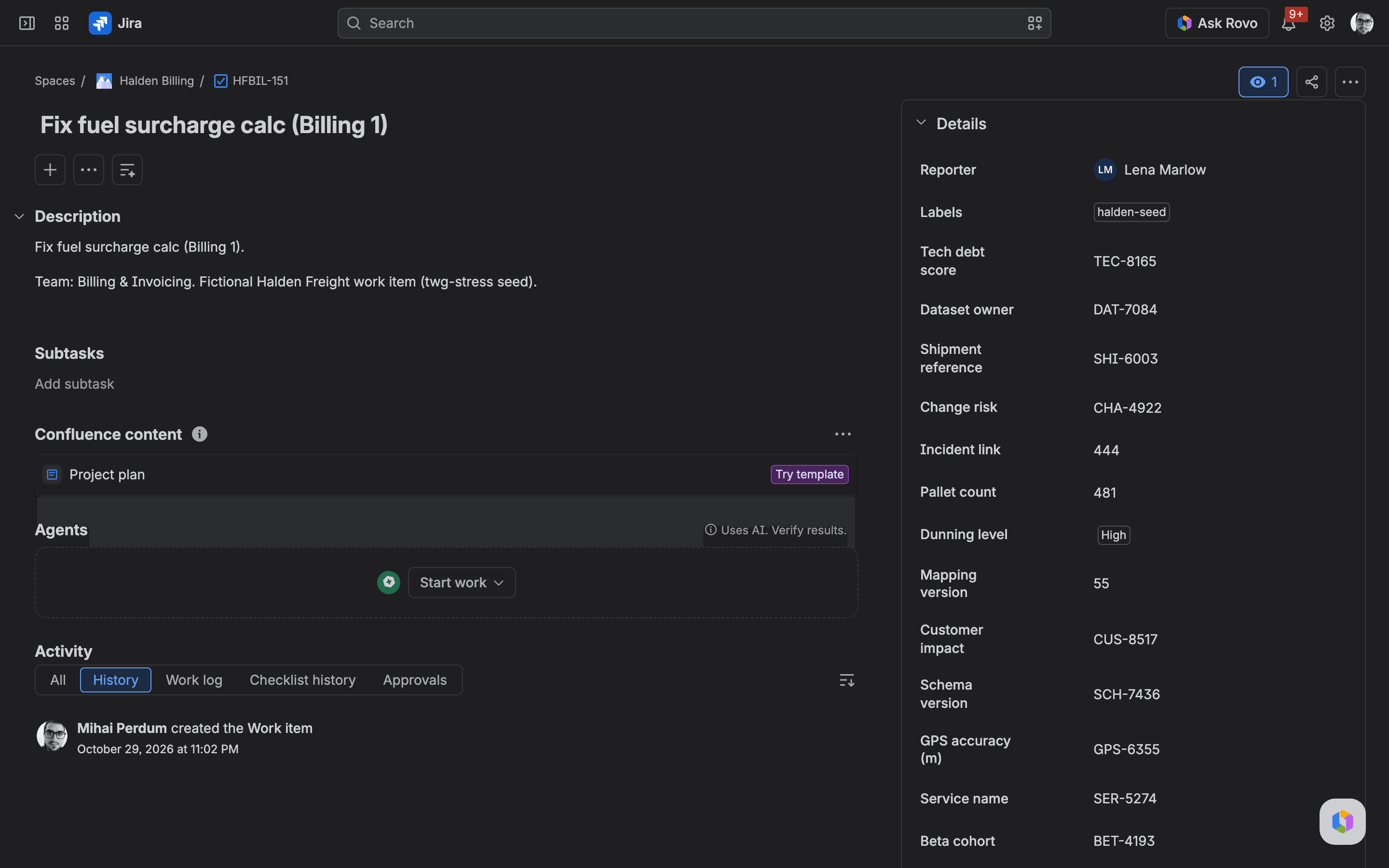
I don't trust a freeze I haven't tried to break, so do these calls yourself. Then count what you're about to migrate. Write the number down (I.d put it in the runbook):
1curl -s -u "$JIRA_EMAIL:$JIRA_TOKEN" -X POST -H 'Content-Type: application/json' \
2  "$JIRA_URL/rest/api/3/search/approximate-count" \
3 -d '{"jql":"project in (HFADM,HFBIL,HFCAR,HFDAT,HFLEG,HFMOB,HFPLT,HFPRT,HFRTE,HFRUN,HFSEC,HFWHS)"}'1{"count":2070}We got 2,070 before the freeze and the same 2,070 after the revert. Be careful with that number, though, because audits get caught by it. If an issue security level hides issues from the account doing the counting, your counts come back low, and a low count after a migration reads as good news. Atlassian's docs put it as "If someone isn't assigned to a security scheme, they won't be able to view those work items, even if they can access the rest of the space." We didn't check security levels here. On a real site, make sure the counting account is in every level first, or the number means less than it looks. There's more on it in why a migration report cannot verify itself.
Last, take a second export while frozen and compare it with the first:
1./snapshot.sh frozen.tsv
2diff before.tsv frozen.tsv | grep '^>' | cut -f1,3,41> HFADM 11527 Cutover freeze 2026-11-05
2> HFBIL 11527 Cutover freeze 2026-11-05
3...
4> HFWHS 11527 Cutover freeze 2026-11-05You should see one line per project you froze. Any other key in this list is a project you froze by mistake.
Step 6: Revert: change the permission scheme on each project back
When the cutover's done (or called off), feed the lockdown file back in. Dry run first:
1node set_permission_scheme.js revert \
2  --url "$JIRA_URL" --email "$JIRA_EMAIL" --token "$JIRA_TOKEN" \
3 --input-file lockdown-hf.json --dry-run --output-file revert-dryrun.json1Total Projects: 12
2Processed Projects: 24
3Already at Target: 0
4Successfully Reverted: 0
5Would Revert (Dry Run): 12
6Failures: 0You should see one would-revert per frozen project. The 24 is the same double count as in Step 2.
Even late at night I'd run the dry run first. Then for real:
1node set_permission_scheme.js revert \
2  --url "$JIRA_URL" --email "$JIRA_EMAIL" --token "$JIRA_TOKEN" \
3 --input-file lockdown-hf.json --output-file revert-hf.json1✅ Found 12 projects to revert (out of 13 total changes)
2📦 Project: HFADM (Halden IT Admin Requests)
3 📋 Current: Cutover freeze 2026-11-05 (ID: 11527)
4 ↩️ Reverting to: Halden Freight permission scheme (ID: 11523)
5 ✅ Reverted to: Halden Freight permission scheme (ID: 11523)
6...
7📊 SUMMARY
8=====================================
9Total Projects: 12
10Processed Projects: 12
11Already at Target: 0
12Successfully Reverted: 12
13Failures: 0"12 out of 13" is VOYS again. The revert only touches projects whose freeze succeeded, which is right, and it's also why the tool's file alone can't prove the whole site is back. Your own export can, and I wouldn't skip it:
1./snapshot.sh after.tsv
2diff before.tsv after.tsv && echo "IDENTICAL"1 64
2IDENTICALYou should see IDENTICAL. We did. An empty diff means 64 of 64 projects are on the scheme they started on. We ran the permissions call from Step 5 again and all four write permissions were back. The issue count was still 2,070.
Then delete the freeze scheme. Otherwise it sits in the list and confuses the next admin:
1curl -s -o /dev/null -w '%{http_code}\n' -u "$JIRA_EMAIL:$JIRA_TOKEN" \
2 -X DELETE "$JIRA_URL/rest/api/3/permissionscheme/11527"1204Take the banner down last. I'd keep that step short. Leave it up until the diff is clean, so nobody starts editing a project that might still be frozen.
If it didn't work
Please select a valid application access permission. You passed a group name where Jira wants an application role key. Use jira-software (or jira-servicedesk for agents), or use --browse-group <group> if you'd rather keep visibility for a named group.
Next-gen projects can't share their configuration. That project is team-managed and can't take another permission scheme. Change its access by hand or leave it out with --exclude-pattern.
You do not have permission to create issues in this project. after the revert. Check diff before.tsv after.tsv. If the project is listed, it's still frozen. Usually its freeze line in the lockdown JSON has a status other than success, so revert skipped it. Put it back by hand with PUT /rest/api/3/project/{key}/permissionscheme and the ID from before.tsv.
HTTP 403 on the PUT. Atlassian documents two causes. The account lacks Administer Jira, or the site is on a Free plan, where permission schemes can't be assigned at all.
HTTP 429. You hit the rate limit. Our tool backs off and retries up to five times. We didn't see a 429 on 64 projects. Atlassian's rate-limiting page lists 50 PUT requests per second as the burst default. The tool sends one call at a time, so it stays far below that however many projects you have.
The snapshot runs forever or writes nothing. We hit this one ourselves, with our first version of the script. An environment variable isn't exported in that shell. The version above stops with a message, and older copies may not.
What you have now, and what this doesn't cover
Key takeaways
- before.tsv, taken before anything changed, and after.tsv, which matches it line for line (an empty diff, 64 of 64 projects on our site).
- The lockdown and revert JSON files for the audit trail. Keep all four files with the migration's records.
- A tested way to freeze any set of company-managed projects, with the role key that works (jira-software) and the grants check from Step 4.
- A list of what the freeze doesn't cover, below, to put in your runbook.
It doesn't freeze team-managed projects, and I'd give them their own line in the runbook. It doesn't stop Jira admins either: Atlassian's global permissions page says Administer Jira can create and edit configurations for work types, fields and workflows, and that doesn't change. And with the grants Jira adds, it probably doesn't stop automation or apps. We haven't tested JSM portal customers under this scheme, because there was no JSM project in this run. If your cutover involves a service desk, test a portal request before the window. I wouldn't trust this on a service desk until you have.
For a DC to Cloud move, the same toolkit has a set_read_only_dc tool for the source side, and Cloud's revert-from-dc-backup mode matches schemes by name after migration, since IDs change between instances. We haven't run those for this article. If you're planning the whole move, our migration service page covers how we run them.
On a real cutover night I'd get the yes in writing before anything else. After that it's the banner and the export, then the dry run and the role key. Freeze, read back the stored grants, test, count and export again. When the migration's done, revert, diff, delete the scheme and take the banner down.
Comments
0Add a comment