
Jira custom project templates on Standard and Premium: what a space template copies

12 min readNovember 18, 2026
Key takeaways
- Since 26 October 2026, Jira Standard and Premium include custom templates for team-managed spaces. On our Premium site, a company-managed space still showed Save as template with an Enterprise label.
- A space made from our template got its own copy of the workflow, the board, 6 work types and a permission scheme with 157 grants. The automation rule and all 3 work items stayed behind, and so did the component and the version.
- The template isn't a snapshot. A status we added to the source space about 5 minutes after saving the template appeared in the next space created from it.
- Spaces you've already created don't follow the source. Our first copy kept 5 board columns after the source went to 6.
- Apps that also copy work items list at $180 to $665 a year for 50 users and $640 to $2,350 for 200 (Marketplace list prices read 17 November 2026).
In April 2025, someone on the Atlassian Community asked when Jira's custom project templates would come to Premium. The feature had just launched for Enterprise, and the announcement thread has 12,723 views today. On 5 May 2025 an Atlassian team member answered that there were "no current plans to make this feature available in the Premium plan". Plans change, and I'm glad this one did. On 26 October 2026 the Jira team announced custom space templates on all paid plans.
So on 17 November 2026 we tried it on our own Premium test site. We saved a project as a template, created two new projects from it and compared them with the original through Jira's REST API (the interface scripts use to read Jira's settings). The short version: you can do this today on Standard or Premium, but only for team-managed projects, the kind where the workflow and the work types belong to that one project. The new project gets its own copy of the workflow, the board, the work types (Jira's name for issue types) and the permissions. It doesn't get the automation rule, the components, the versions or any of the work items (Jira's name for issues).
If you look after Jira for 50 or 500 people, you've probably had this request more than once: "can you make me a project just like that one?" The old answers were to share the configuration, to rebuild it by hand or to buy an app. If your teams use team-managed projects and need the same workflow and permissions each time, the built-in template is now enough, and you can skip the app. If your projects are company-managed and you're below Enterprise, or every new one has to start with work items already in it, it isn't. The steps come first, with our real screens. The table of what arrived and the app prices are further down.
One note on words before we start. Jira now calls projects spaces, and every screen below says space. People still search for Jira custom project templates, so the headings keep that word. In the steps I'll say space, because that's what you'll click.
What we found on 17 November 2026
- On our Premium site, a team-managed space offered Save as template. A company-managed space offered the same item with an Enterprise label next to it.
- Saving the template took 1 to 2 seconds. Our scripted browser needed 59 and 65 seconds to get from the gallery to each new space.
- The new space got its own workflow with our custom status, its own board and 6 work types of its own. It also got new roles, a permission scheme with 157 grants (a grant is one line saying who may do what) and a notification scheme.
- The automation rule, the component, the version, the space description and all 3 work items were not copied.
- The template points at the source space as it is right now. A change we made to the source about 5 minutes after saving the template turned up in the next space created from it.
- A space that already exists doesn't follow the source. Our first copy stayed at 5 board columns when the source went to 6.
Before you start: role, plan and space type
Prerequisites — check these before step 1.
Role: Jira admin. Atlassian's doc says "Only Jira admins can create a custom space template" (Use custom space templates). We ran every step as a Jira admin. Plan: Standard, Premium or Enterprise, on Jira Cloud. Our test site is on Premium. Space type: team-managed. A company-managed space takes its settings from schemes that a Jira admin can share between spaces, and templates for those are still Enterprise only. A source space set up the way you want new spaces to start.
When you're done you'll have a template in Jira's Custom templates gallery, a new space created from it, and a list of what to add by hand afterwards.
The procedure at a glance
- 1
Check the space type
only a team-managed space can be saved as a template on Standard and Premium.
- 2
Prepare the source space
set up the statuses and work types the way new spaces should start.
- 3
Save the space as a template
give it a name and say what it's for.
- 4
Choose who can use it
pick users or groups on the last screen.
- 5
Create a space from the template
pick it in the gallery and give the new space a name and a key.
- 6
Check what arrived
open the board and the space settings, then add what the template left out.
You should see the same six stages on your own site, in this order.
Step 1: Check that your Jira project is team-managed
The template option depends on the space type, so check it first.
- In Jira, open the space you want to reuse. The space opens on one of its views, such as Summary or Board.
- Next to the space name in the header, select More actions (…). A menu opens. (On the company-managed space we opened, the button was next to the board name.)
- Find Save as template in the menu. On a team-managed space it has no label beside it.
You should see Save as template with no label, and on our site the last row of that menu read Team-managed. This is the menu of our team-managed source space.
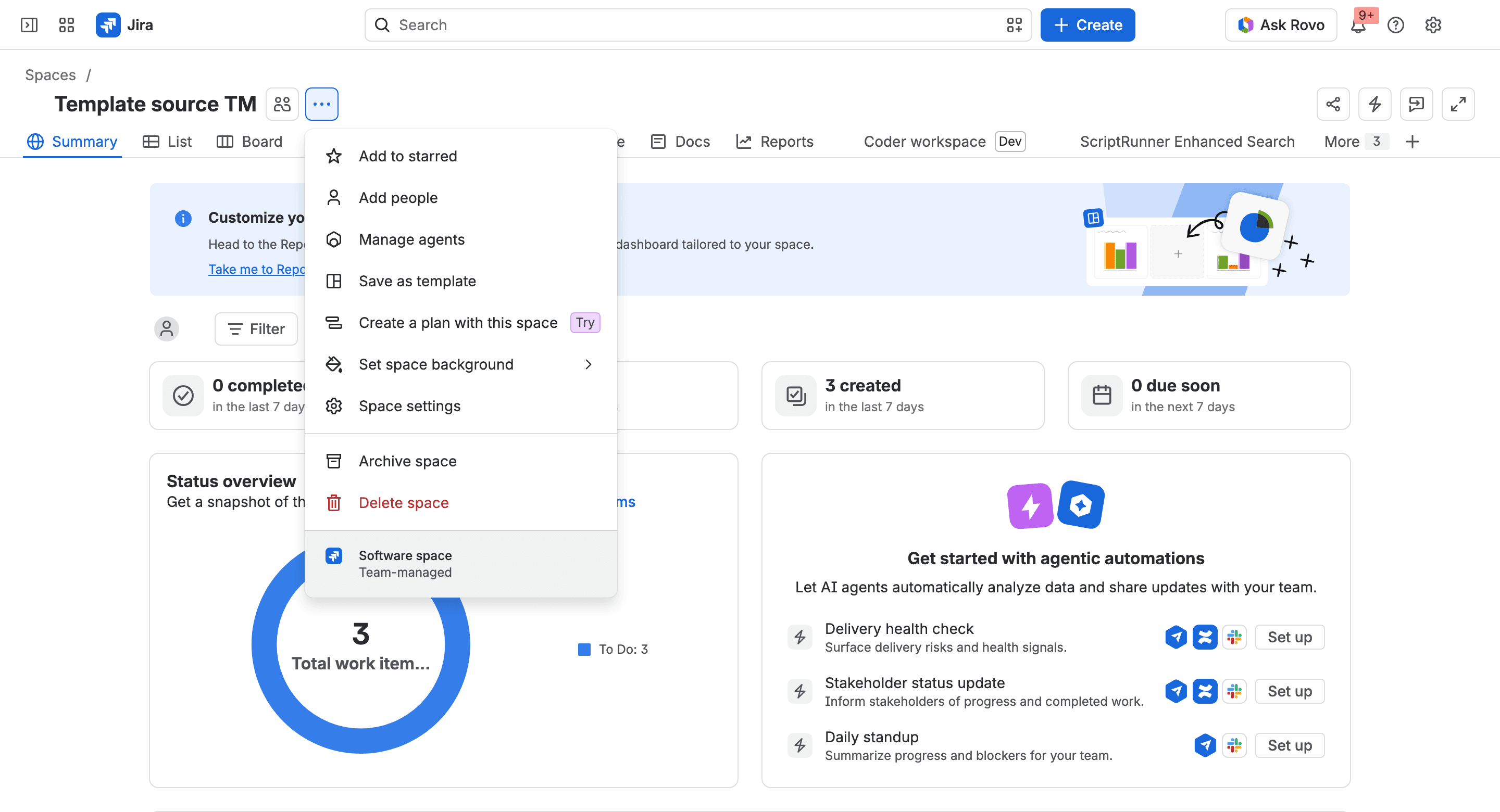
On a company-managed space on our site the button sat next to the board name and the menu looked different. The item was there, with a purple Enterprise label beside it. We didn't select it, because our site has no Enterprise licence.
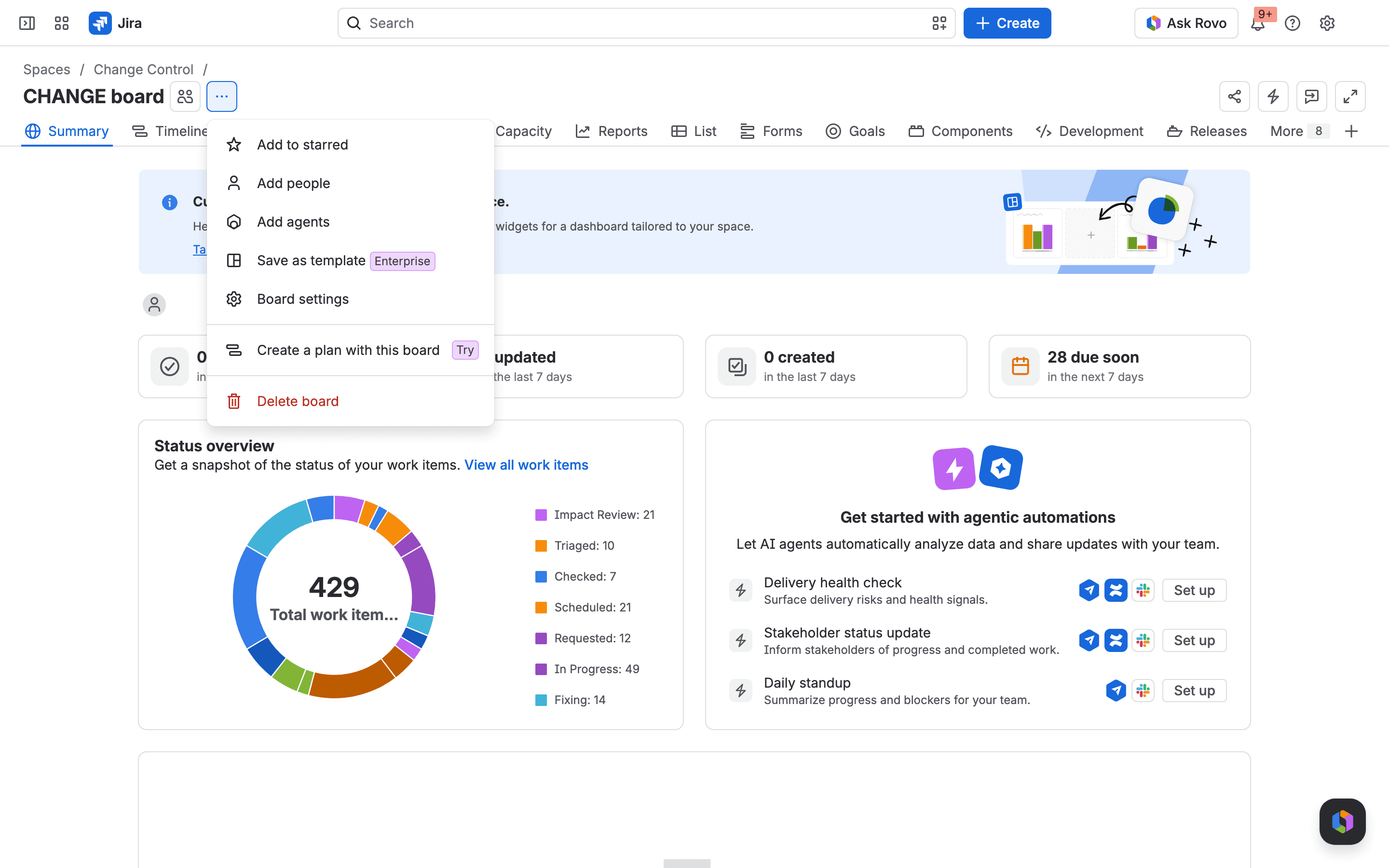
That matches Atlassian's docs, which say templates are "available for all paid plans in team-managed spaces, and exclusively for Enterprise plans in company-managed spaces". If most of your spaces are company-managed, the comparison in our Jira Premium vs Enterprise pricing article is the place to weigh that. (Its feature table, published on 31 October, says custom templates need Enterprise. We missed the 26 October change there, sorry. That's now only true for company-managed spaces.)
Step 2: Prepare the Jira project you want to copy
A template takes whatever the source space has at the moment someone uses it. So tidy the source first.
- In the source space, select More actions (…), then Space settings. The settings sidebar opens.
- In Work types, select Add work type for each work type a new team should start with. A Create work type dialog asks for a name, a description and an icon.
- Optional: on a work type, select Edit workflow and add the statuses new teams need. We added our status through the REST API, and the board gained a column for it without us touching the board.
- Optional: in Access, add the groups that every new space should start with, each in its role. We did this through the REST API too.
You should see a space that looks like a clean starting point. Ours was a Kanban space called Template source TM with one extra status, Legal review, one group in the Viewer role, one component, one version, one automation rule and 3 work items. We added the last four on purpose, to see whether they'd travel.
Step 3: Save the Jira project as a template
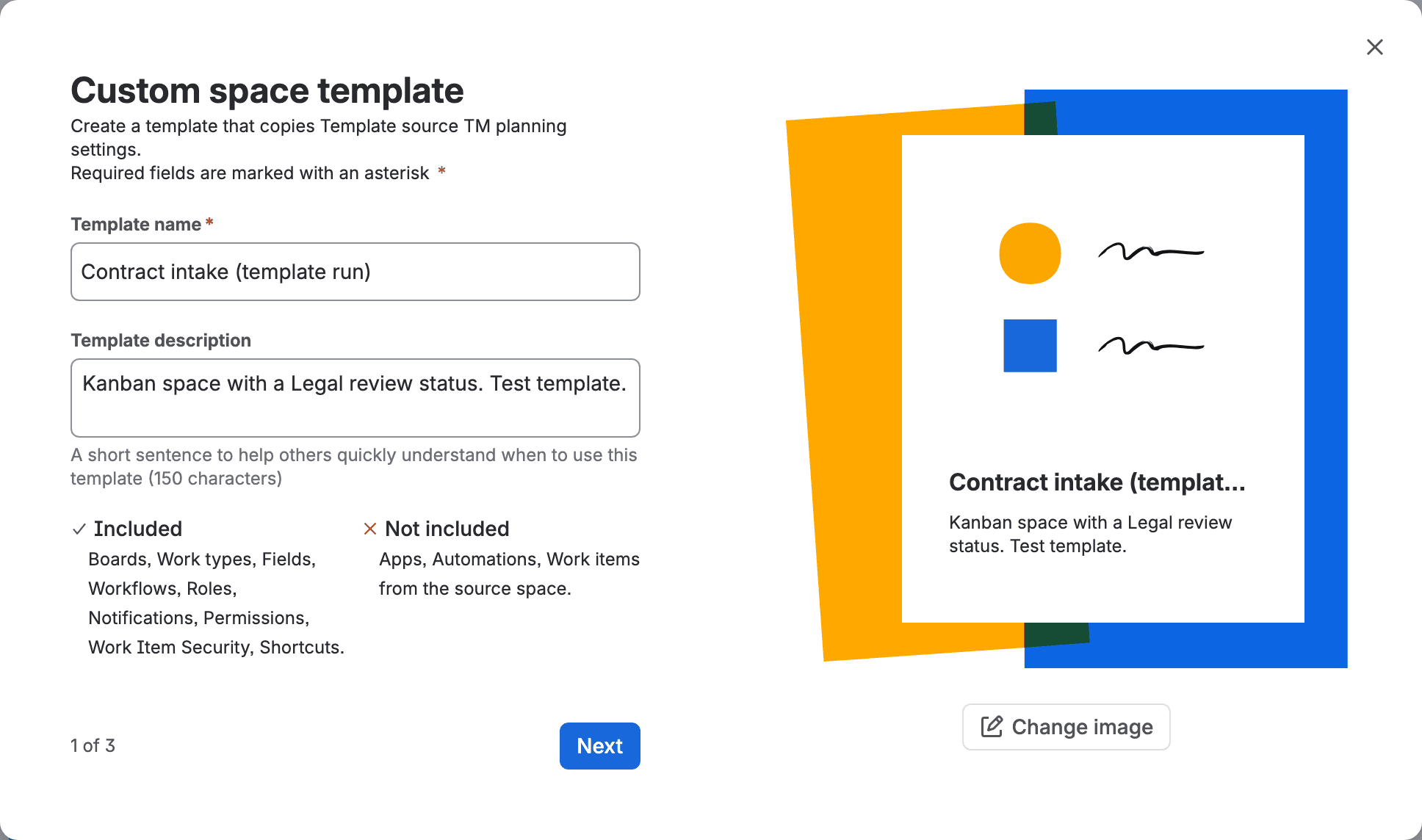
- In the source space, select More actions (…), then Save as template. A dialog called Custom space template opens, on screen 1 of 3.
- In Template name, type the name people will see in the gallery. The preview on the right shows it.
- In Template description, add a sentence of up to 150 characters on when to use it. The preview shows it under the name.
- Read the Included and Not included lists under the description, then select Next. Screen 2 of 3 opens.
- In Template overview, describe what the template is for, in up to 1,000 characters. Select Next. Screen 3 of 3 opens.
You should see the two lists on screen 1. Ours read "Included: Boards, Work types, Fields, Workflows, Roles, Notifications, Permissions, Work Item Security, Shortcuts" and "Not included: Apps, Automations, Work items from the source space".
Atlassian's help page calls the menu item "Save as space template". On our site it said Save as template, so look for either.
Step 4: Choose who can create projects from the template
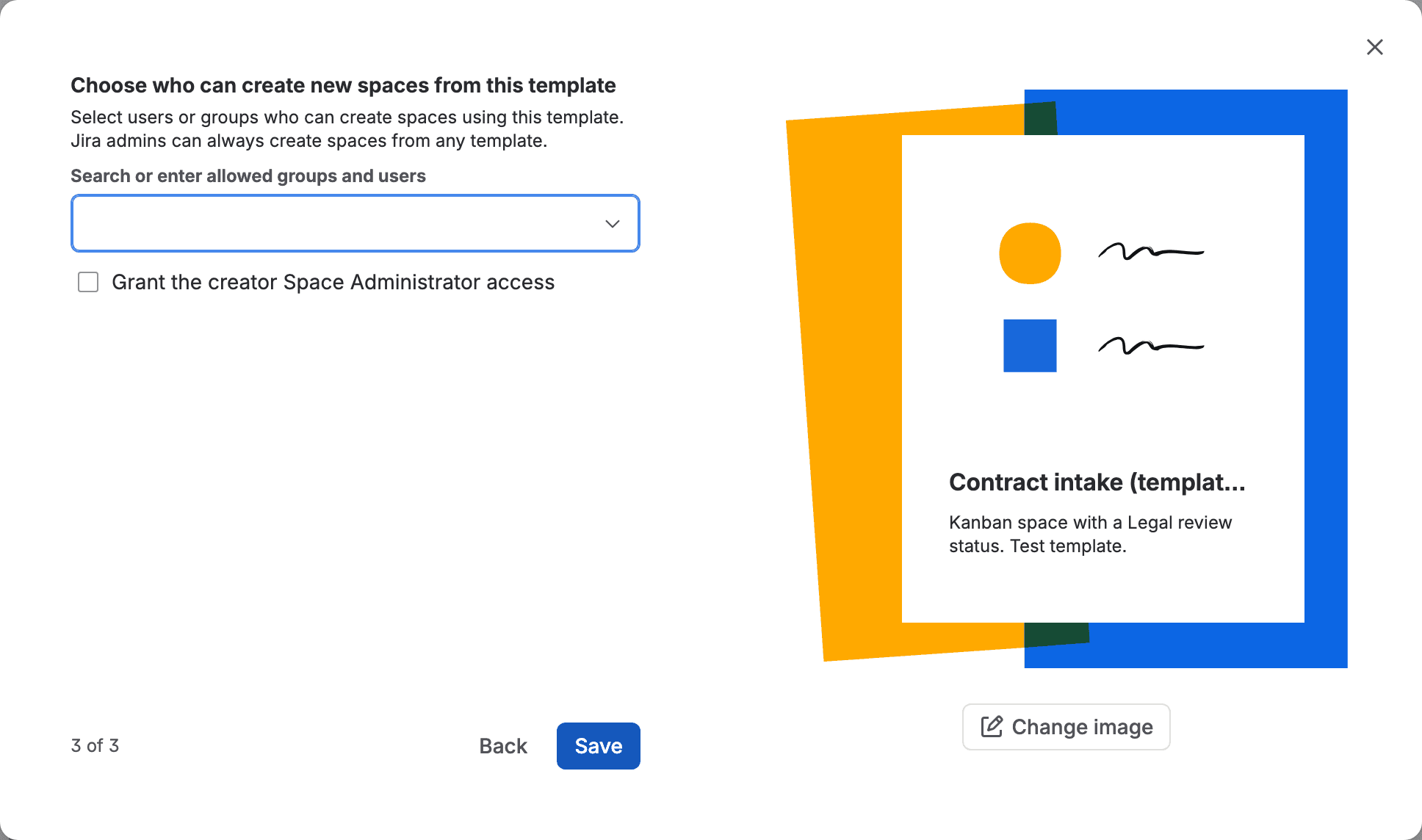
- Optional: on screen 3, in Search or enter allowed groups and users, pick the people or groups who may use this template. We left it empty. The screen says "Jira admins can always create spaces from any template."
- Optional: tick Grant the creator Space Administrator access if whoever creates a space from this template should administer it. It's unticked by default.
- Select Save. The dialog closes.
You should see a dark banner on the source space: "This space is saved as a custom template. Space settings changes will apply to the template." On our site the save took between 1 and 2 seconds.
Atlassian's doc on using a custom template adds one more group of people: anyone with the global permission to create team-managed spaces can use a team-managed template. There's no separate global permission for templates. You can list your site's global permissions with one call. Set JIRA_SITE to your site's address first, and JIRA_EMAIL and JIRA_API_TOKEN to your own login.
1curl -s -u "$JIRA_EMAIL:$JIRA_API_TOKEN" "$JIRA_SITE/rest/api/3/permissions" | jq -r '.permissions[] | select(.type=="GLOBAL") | "\(.key) \(.name)"'On our site it printed this (we left out one row that belongs to an app):
1ADMINISTER  Administer Jira
2BULK_CHANGE  Make bulk changes
3CREATE_PROJECT  Create team-managed projects
4CREATE_SHARED_OBJECTS  Share dashboards and filters
5MANAGE_CUSTOM_ONBOARDING  Manage custom onboarding
6MANAGE_GROUP_FILTER_SUBSCRIPTIONS  Manage group filter subscriptions
7SYSTEM_ADMIN  Jira System Administrators
8USER_PICKER  Browse users and groups
The one that matters is CREATE_PROJECT. The API still calls it "Create team-managed projects", and the Global permissions page in Jira's admin settings calls it Create team-managed spaces. That page also shows who holds it. On our test site the page lists it as granted to Public, so going by Atlassian's doc, any licensed user here could use our template whether we'd picked them or not. On a site set up like ours the picker adds people, and it doesn't keep a template private. (We ran every step as a Jira admin, so we haven't seen this from a non-admin's seat.)
Step 5: Create a new Jira project from the template
- In the sidebar, select Spaces, then Create space. The Space templates gallery opens.
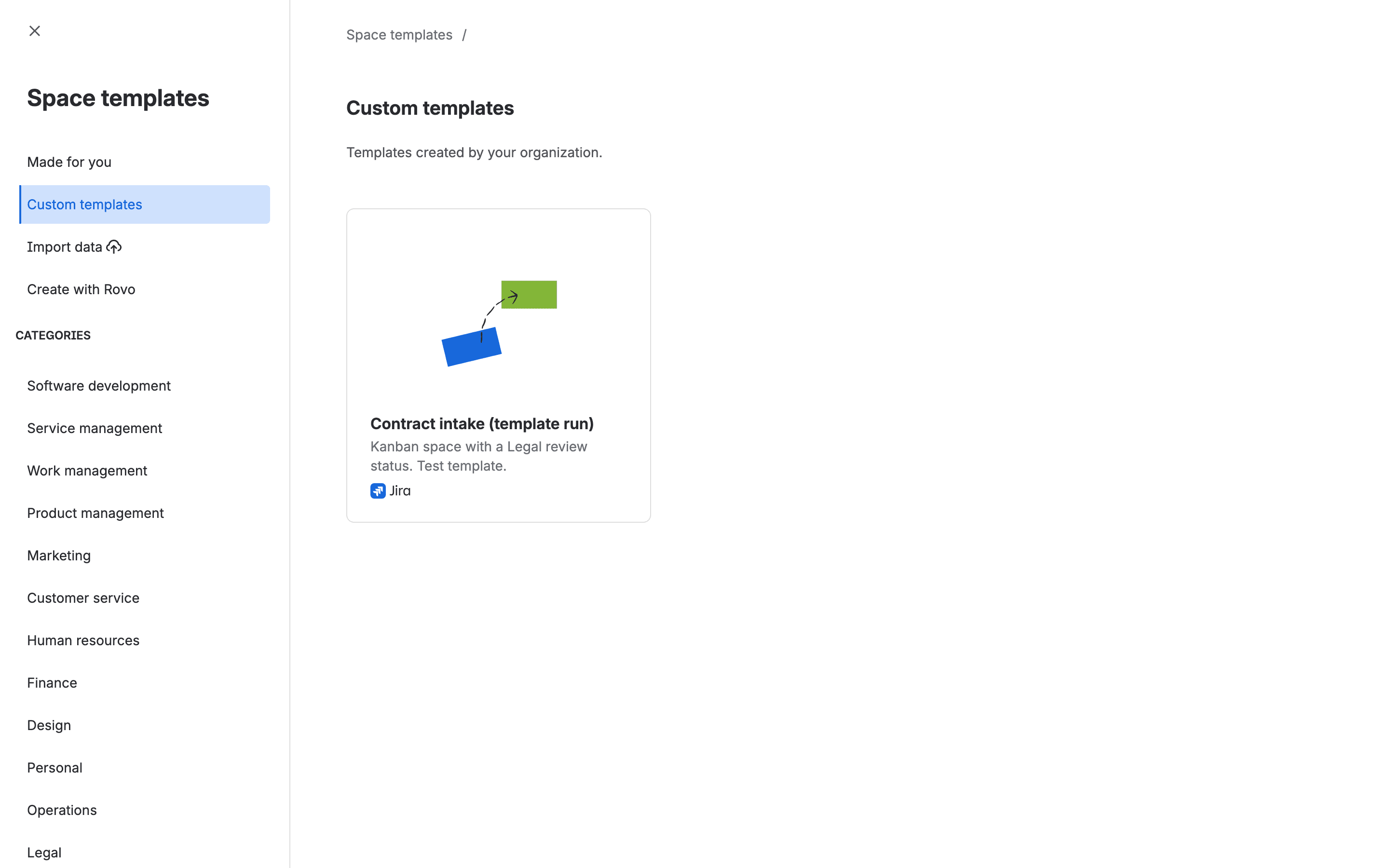
- In the left list, select Custom templates. Your template appears as a card under "Templates created by your organization."
- Select the card. The template's detail page opens.
- Select Use template. A form called Name your space opens.
- Type a Name and a Key. How your space is managed is locked to Team-managed.
- Select Next. Jira creates the space and opens it.
You should see the new space with the source's board columns and no work items. Our scripted browser took 59 seconds for the whole trip from the gallery to the new space the first time and 65 the second.
Step 6: Check what the template copied
- In the new space, open Board. It shows a column for every status the source had.
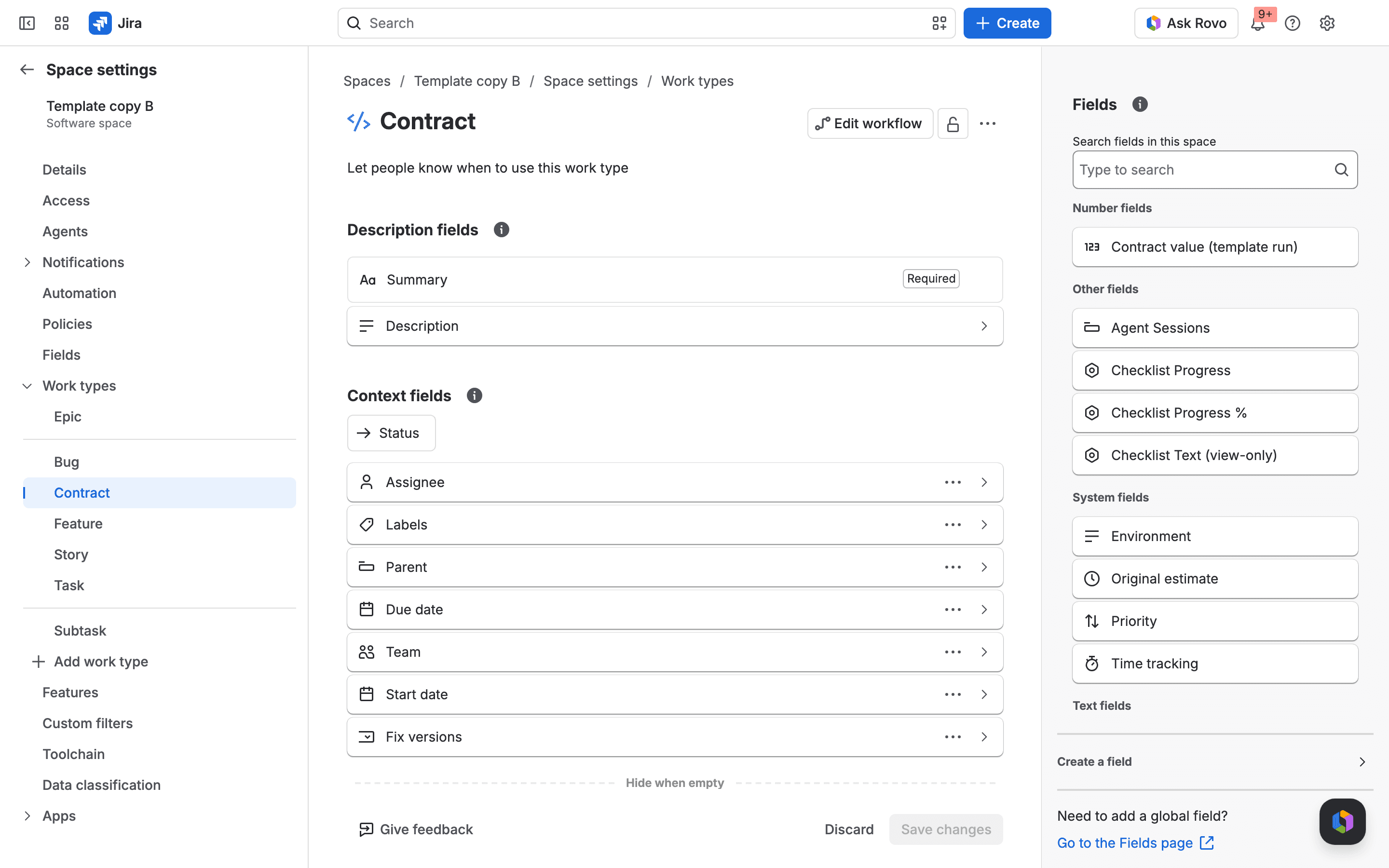
- Select More actions (…), then Space settings, then Work types. The source's work types are listed.
- In Automation, check the rule list and recreate the rules the team needs. Through the API we counted 0 rules scoped to each of our new spaces.
- Add components and versions by hand if the team uses them.
You should see your custom statuses as board columns and your custom work types in the settings. This is our second copy, with the Contract work type and the Contract value field that we'd added to the source.
What a Jira template will copy from the project settings, what it shares, and what it leaves out
We read the source space and both new spaces through the REST API and compared ids. A new id means the new space has its own copy, and later edits stay local. The same id means both spaces use one object.
Setting | In the new space | What we saw |
|---|---|---|
Workflow | Copied | A new workflow per space, with our Legal review status and its transition |
Statuses | Copied | New status ids in each space |
Work types | Copied | 6 new work types per space, plus our custom Contract type in the second copy |
Board and columns | Copied | A new board with the same column names |
Roles | Copied | New role ids, and the group we'd put in Viewer was in Viewer again |
Permissions | Copied | A new permission scheme with the same 157 grants |
Notifications | Copied | A new notification scheme |
Work item security | Copied, empty | A new scheme with no levels, because ours had none |
Global custom field | Shared | The same field id in the source and the copy |
Automation rule | Not copied | 1 rule in the source, 0 in each copy |
Components and versions | Not copied | 1 of each in the source, none in the copies |
Work items | Not copied | 3 in the source, 0 in the copies |
Space description | Not copied | Empty in the copies |
The shared field deserves a second look, because the dialog lists Fields as included. Our Contract value field was a global field, the kind a Jira admin creates once for the whole site. The copy can use it, so included is fair. But it got a link to that same field, and there's still only one of it. Rename or delete it and every space that uses it changes. If you're sorting out fields anyway, our write-up on Jira field schemes covers how they're organized now.
The automation row is where Atlassian's own pages disagree. The release note says templates "can include pre-configured Rovo agents, automation rules, and triage settings". The help page and the dialog both list Automations as not included, and on our site the rule didn't come across. I'd plan on recreating rules by hand until you've seen otherwise on your own site.
What we didn't test: the Standard plan. We also built no security levels or Rovo agents in the source, no field created inside the space, and no settings from Marketplace apps (the dialog says apps aren't included).
A Jira space template follows its source project
I expected a template to be a frozen copy. On our site it's a pointer to the source space.

We saved the template at 11:28 (Eastern European Time) and created the first copy at 11:30. Then we added a Contract work type, a Signed status and a field to the source. At 11:35 we created a second copy from the same template, which we hadn't touched. The second copy had all three additions. The first copy had none of them, and its board still had 5 columns against the source's 6.
So two things are true at once. Editing the source space edits the template for everyone who uses it next. And spaces that already exist stay as they were, because each one owns its copies.
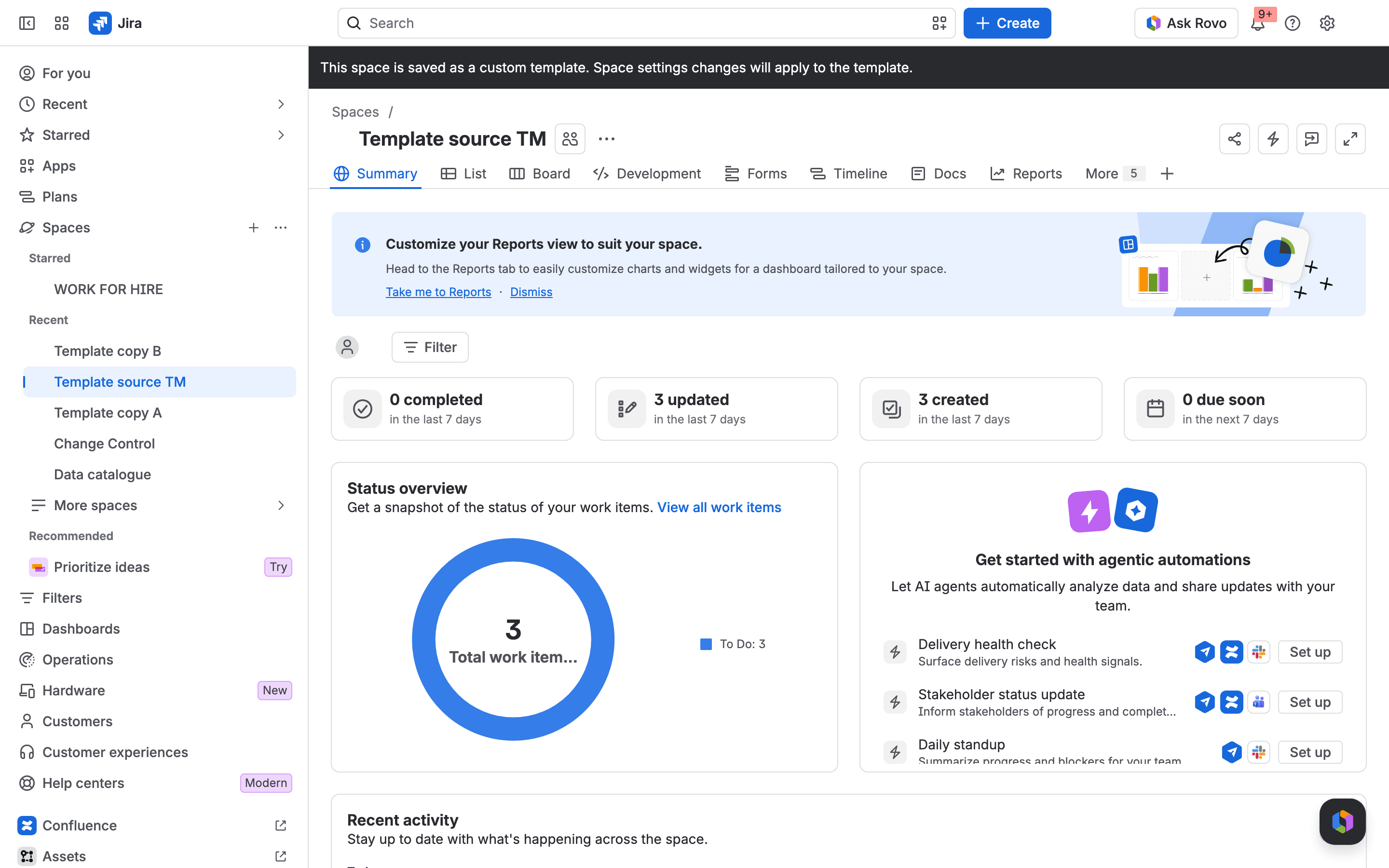
That makes the source a space to protect. Keep real work out of it, and limit who administers it. When we moved our source space to the trash, the template vanished from the gallery, and it came back when we restored the space. To retire a template and keep the space, select Delete template in the source's More actions (…) menu. The dialog says "The space will still exist but will no longer appear as a template", and the spaces we'd created from it carried on working.
Jira's space policies fit here too. A space policy lets a Jira admin stop space admins from creating their own fields and statuses in team-managed spaces, and Atlassian announced it as an open beta on 8 September 2026. The policy doc says that when a policy is attached to a template's source space, "any new spaces created from that template will automatically inherit the policy."
Create a Jira project from an existing project: the older shared-configuration route
The most-read thread on this subject, How to create NEW project BASED ON EXISTING PROJECT, has 26,627 views. A reply there from April 2021 describes what is still the built-in route for company-managed spaces below Enterprise: when a Jira admin creates a company-managed space, they tick Share settings with an existing space.
It works differently from a template. Atlassian's doc says the two spaces then share work types, workflows, screens, fields, permissions and notifications, and "If you change the configuration in one space, it affects all other spaces sharing that setup." A template gives each team-managed space its own copies. Shared configuration ties company-managed spaces together. The same doc says only Jira admins can do it and that it isn't available on the Free plan.
Neither route moves anything to another site. For that, see our walk through Atlassian's sandbox to production deploy beta.
Where a reusable project template stops, and what a template app costs at 50 and 200 seats
The built-in template stops at work items. If every new space has to start with the same 40 tasks, you're back to creating them by hand or to a Marketplace app.

We read the list prices of four apps from the Atlassian Marketplace pricing data on 17 November 2026. These are annual Cloud prices in US dollars. We haven't tested the apps. Their listings all say they copy work items, which the built-in template doesn't. Whether they also copy automation rules is a question for each vendor.
App | Vendor | 50 users, per year | 200 users, per year |
|---|---|---|---|
Deep Clone for Jira | codefortynine | $665 | $2,350 |
Elements Copy & Sync | Elements | $595 | $2,130 |
Templating.app | Seibert | $250 | $1,000 |
Space Templates & Content Templates for Jira | Litew8 | $180 | $640 |
All four were free for up to 10 users on that day.
If something doesn't work
Save as template shows an Enterprise label. The space is company-managed. Step 1 shows how to tell.
The template is missing from the gallery. Check whether the source space is in the trash. Ours disappeared from Custom templates while the source was trashed and returned after a restore.
Creating a space from the template fails. Atlassian's public tracker has two open bugs whose titles describe this: JRACLOUD-98934, about templates with trashed custom fields returning a 500 error, and JRACLOUD-95238, about templates with more than 50 workflows. We didn't hit either one.
An automation rule outlives a test space. Ours did. After we deleted the source space for good, the API still returned its rule as enabled, and we had to disable and delete the rule separately.
You need this for a service space. The request for Jira Service Management, JSDCLOUD-17100, is open with 28 votes.
When the built-in template is enough
If your teams work in team-managed spaces and what they need is the same workflow and permissions each time, I'd use the built-in template and skip the app. Set aside one clean source space per kind of team and lock down who administers it. Keep a short checklist of what to add after creation, starting with the automation rules.
If your spaces are company-managed, the 26 October change doesn't reach them. Templates for those are still Enterprise only, and below Enterprise shared configuration is still the built-in answer. And if new spaces must start with work items already in them, price one of the apps above against the time you spend creating those by hand.
What you have now
Key takeaways
- A team-managed space saved as a template, visible under Custom templates in the gallery.
- A new space with its own workflow, board, work types, roles and permissions.
- A short list to finish by hand: automation rules, components, versions and the space description.
- It doesn't cover company-managed spaces below Enterprise, or copying work items.
If you're on Standard and you've tried this, I'd love to know whether your screens match ours, since our test site is on Premium :)
Comments
0Add a comment