
Jira sandbox to production: what Atlassian's deploy beta checks before anything moves

12 min readNovember 15, 2026
Key takeaways
- Atlassian's beta deploys Jira configuration from a Premium or Enterprise sandbox to production with no app. Only an organization admin can run it.
- On our sandbox, never copied from production, the first scan took about 13 minutes and listed 764 differences. A rescan took 5.4 minutes.
- We picked 4 changes. The tool added their dependencies to reach 16, and validation counted 110 items, 72 of them fields.
- 12 of the 110 showed errors, our project among them. The one warning we read named Story Points, a field on both sites.
- The review screen says deployed changes can't be reversed. None of Atlassian's four deployment help pages describes an undo (read 14 November 2026).
- Premium costs $19.60 a user a month at 50 users against $9.70 on Standard (read 14 November 2026). An extra sandbox is $10,000 per app.
On 6 July 2026 Atlassian's product manager for sandboxes posted on the Community that Jira and Jira Service Management admins could deploy configuration changes from a sandbox to production, as an open beta. By 14 November that post had 8,965 views. Atlassian's docs say it deploys workflows, fields, screens, schemes, boards, filters and automation rules to production without an app, for org admins on Premium or Enterprise. It's one-way, though: the review screen says deployed changes "can't be reversed".
We tried it on 14 November on our own organization, and we stopped at the review screen, before the deploy button. We picked 4 changes, the tool counted 110 items to deploy, and 12 of them showed errors. The one warning we read named a field called Story Points that exists on both of our sites, and the fix the screen suggests is a full copy of production into the sandbox, which overwrites everything in it.
A sandbox, if you haven't opened one yet, is a separate Jira site linked to your production site, for testing changes before your users see them. Ours is Premium, with production on wolfaenpak.atlassian.net and the sandbox on leanzero-demo.atlassian.net. Below are the steps with our real screens and timings, then Atlassian's own list of what moves and what doesn't. If you'd rather copy whole projects between two Cloud sites, that's a different job, covered in merge two Jira Cloud instances.
What we found when we tried it on 14 November 2026
- The first scan of our sandbox, which had never been copied from production, took about 13 minutes and listed 764 differences.
- Selecting 4 items selected 16, and validation then counted 110, most of them fields that our project's field scheme depends on.
- 12 of the 110 showed errors, our project among them, so the part we cared about couldn't go.
- We didn't start the deployment. Production had 0 new fields, statuses, workflows, filters or projects afterwards, and the moved-or-not table below is Atlassian's documentation.
Before you start: role, plan and a fresh copy
Prerequisites — you need all of this before step 1.
Role: organization admin. Site admins can't deploy, and a public suggestion to change that, CLOUD-13068, is open. Plan: Jira or Jira Service Management on Premium or Enterprise. Premium includes 1 sandbox per app and Enterprise up to 5 (Understand billing for sandboxes). Cloud only, and not Atlassian Government Cloud, where deployment isn't available (Deploy configuration changes from a sandbox). Company-managed projects only. Team-managed projects aren't supported (Data deployed from sandboxes). A recent full copy of production in the sandbox. Without one the scan still runs, as ours did, but Atlassian says deployments only work accurately after it. Step 1 checks this.
When you're done you'll have a validated deployment, and you'll know which items will reach production and which ones need fixing first.
The procedure at a glance
- 1
Check the sandbox's last copy
compare Last data copy with the cut-off dates and refresh if it's older.
- 2
Make your changes in the sandbox
in a company-managed project, with names you can search for.
- 3
Create a deployment
pick your production site and let the scan run.
- 4
Find your changes
search the scan and rescan if something is missing.
- 5
Select and check dependencies
tick your items and look at what the tool adds.
- 6
Review and read every error
open the side panel of each item with an error.
- 7
Start the deployment and read the report
then confirm one item in production.
You should see the same seven stages in the admin screens, in this order.
Step 1: Check the Jira sandbox's last refresh (its copy of production data)
Atlassian says deployments only work accurately after a recent full copy. Without one, items made separately on each site look new: in our never-copied sandbox 752 of the 764 differences were Added, and Story Points was flagged as a same-name duplicate. It still scanned, so the copy isn't required to start, only to get a clean result.
- In admin.atlassian.com, select Apps, then Sandboxes. The page lists your sandboxes with a Last data copy column.
- Read Last data copy on your Jira sandbox's row. Ours said Never copied.
- Compare it with the cut-off dates on the banner of a new deployment (step 3 shows where). Ours asked for a copy "on or after February 7, 2026 for deploying Jira configurations (excluding automations), or May 17, 2026 for deploying Jira Service Management configurations and any automation rules." Atlassian's recommended workflow page says May 7 for the second date. If your copy is dated between 7 and 17 May 2026, the docs accept it but the screen doesn't, so make a new one.
- Optional: to refresh, select More actions (…) on the row, then Copy production data. The copy options open.
- Optional: choose All projects, then Copy data with attachments or Copy data without attachments. A summary of the data to copy appears.
- Optional: review the summary and select Copy data. The copy starts.
You should see a Last data copy date after the cut-off. Ours didn't have one. A copy replaces everything in the sandbox, and a full copy into one Jira-family sandbox also overwrites your Jira Service Management and Product Discovery sandboxes, if you have them (How do sandboxes work for the Jira family of apps?). So refresh first, then build.
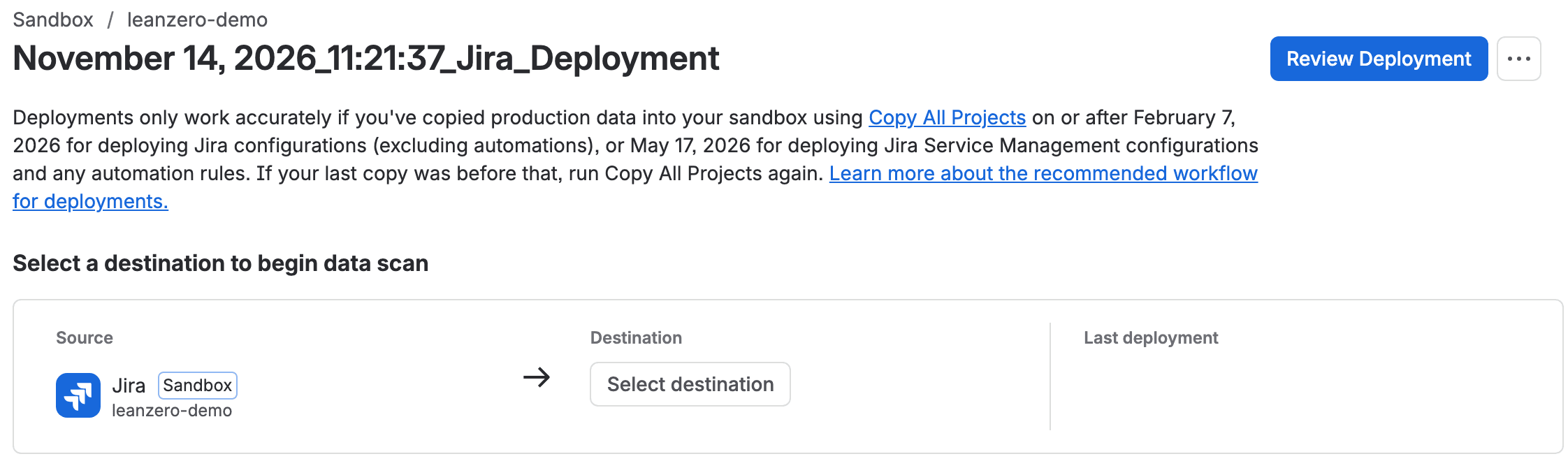
We skipped the copy on purpose. Our sandbox holds the demo data for our own apps, and a copy would have wiped it. That choice probably explains what happened in step 6, so with a fresh sandbox you should get further than we did.
Step 2: Make your changes in the sandbox
- Open your sandbox site and make the configuration changes you want to ship, in a company-managed project.
- Give them names you can search for later. We started every name with SBX, a prefix we made up, so we could find each item, and later delete it, by name.
Our test was a company-managed project called SBX Deploy Test. It got its own workflow with a new status, SBX Review, and a validator that makes a field required before review. We added a dropdown field, a screen, a filter shared with the project, a project role and an automation rule that comments on new work items.
Step 3: Create a Jira sandbox deployment and choose production
- On the Sandboxes page, select More actions (…) on your Jira sandbox's row. The menu shows Create a deployment with a Beta label.
- Select Create a deployment. A deployment page opens, named after the date and time. Ours was "November 14, 2026_11:21:37_Jira_Deployment".
- Under Destination, select Select destination and pick your production site.
- Select Confirm. A progress bar appears under Scanning your data.
You can leave the page while it scans. View deployment log in the same menu shows the status "scanning data". Our first scan, run before step 2, took about 13 minutes and listed 764 differences, 752 added and 12 modified. With a sandbox that has never been copied, nearly everything looks new.
Step 4: Find your changes in the scan
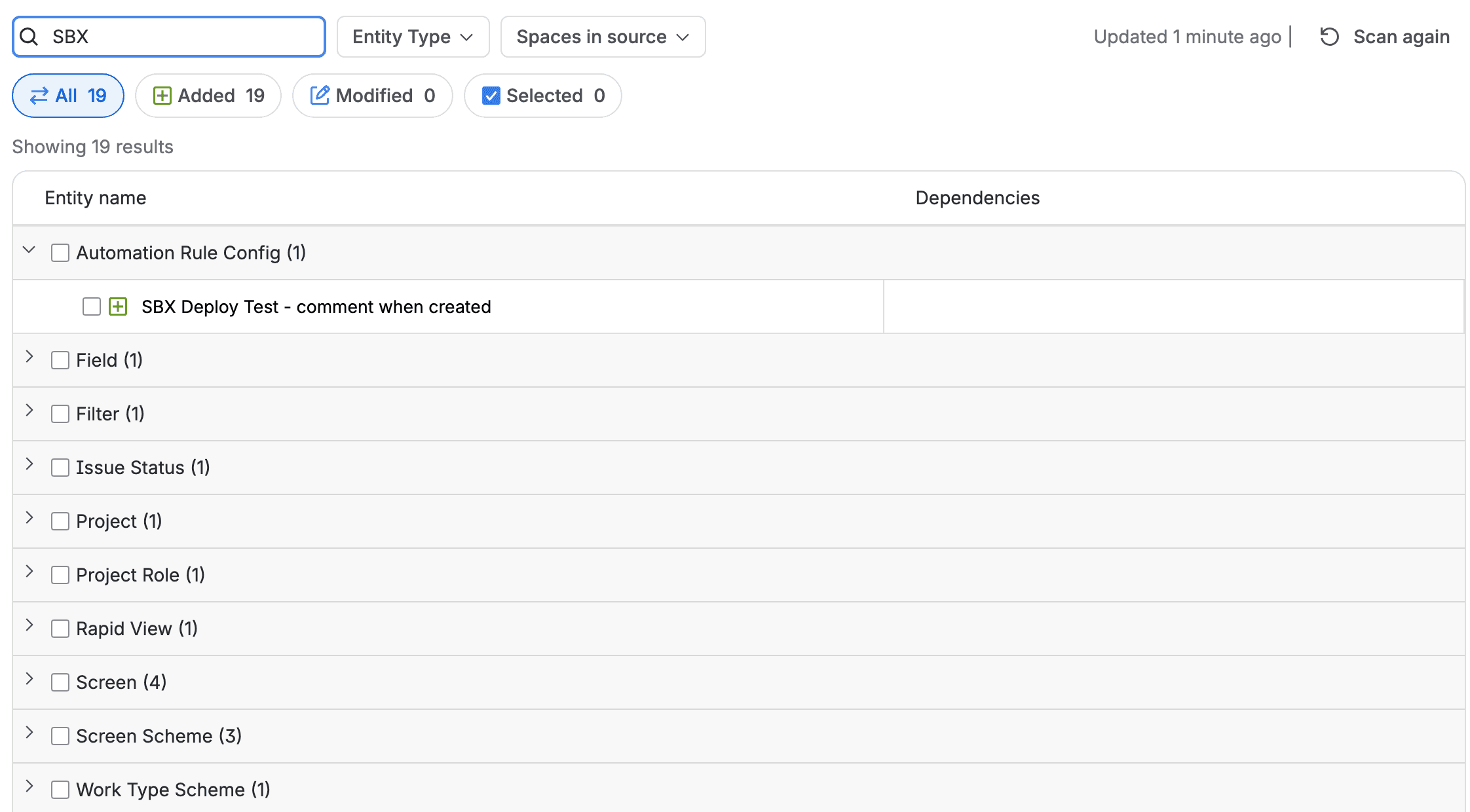
- In Search entity name, type a word from your changes. We typed SBX.
- Read the groups. Each one is an item type with a count (Atlassian calls each configuration item an entity, and a board shows up as Rapid View). A green plus means added and a pencil means modified.
- If a change is missing, select Scan again, then Begin scan in the dialog. A rescan clears your selection.
Our changes came after the first scan, so we rescanned. It took 5.4 minutes, the total rose from 764 to 785, and the search found 19 SBX items, all of them Added. The automation rule was there too.
Step 5: Select your changes and check the dependencies
- Tick the items you want to deploy. We ticked 4: the project, the filter, the project role and the automation rule.
- Select the Selected tab. Ours showed 16, because the tool ticks what those 4 depend on.
- Optional: select an item's name to open its side panel. Dependencies lists what it needs and Used by lists what needs it.
So the selection grows fast, from 4 to 16 in our case. You should see your own items plus the ones they need. The help page puts it simply: "we automatically select any configuration dependencies".

Step 6: Review the deployment and read every error
- Select Review Deployment. A progress bar shows Validating entities. Ours took about 2.5 minutes.
- Read the summary at the top. Ours said "12 errors found", with All 110, Ready for deployment 98 and Contains errors 12.
- Select Contains errors. Each item with a problem carries a red Contain errors badge.
- Select an item's name. The side panel's Overview tab explains the error.
The jump from 16 to 110 happens here. Validation followed the chain one level further. Our project uses the default field scheme, whose panel lists 74 dependencies, and the review counted 72 fields, so most of the jump is likely that scheme.
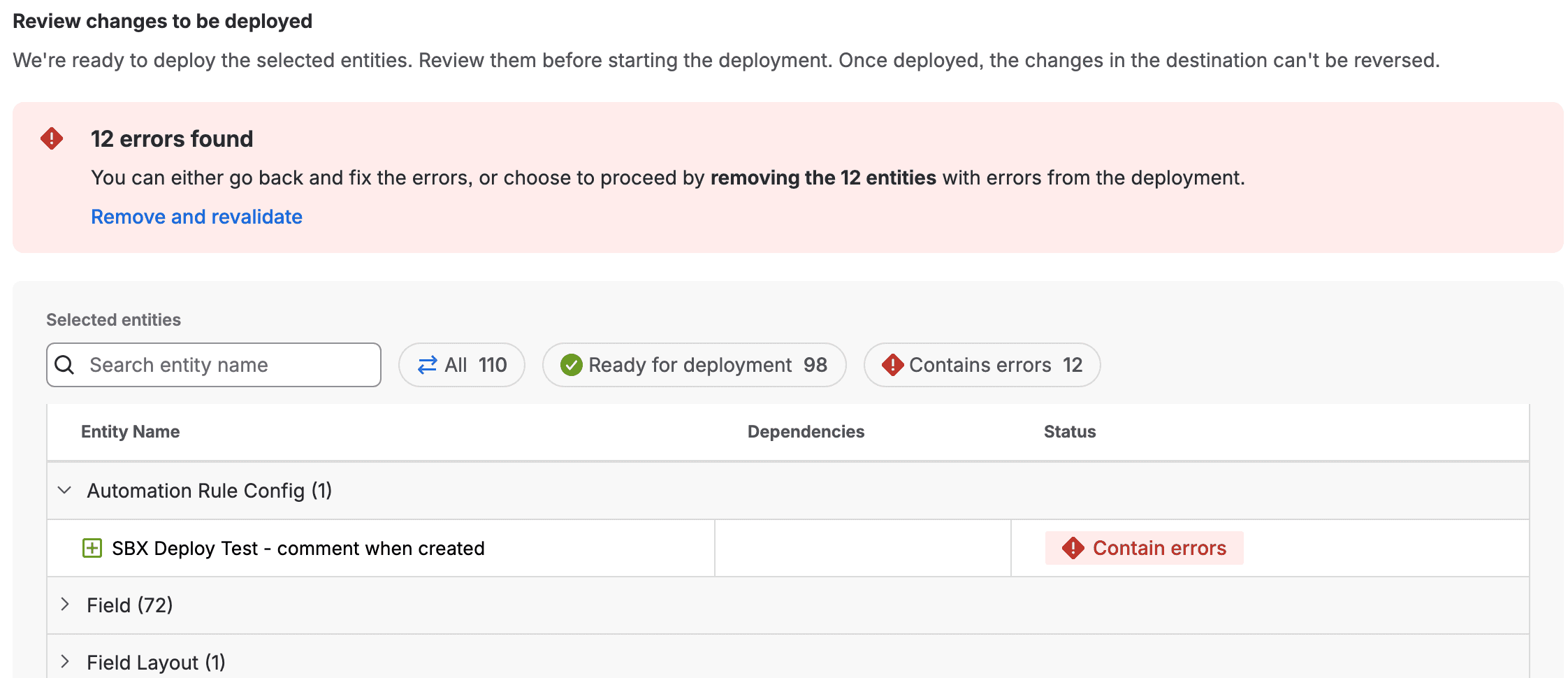
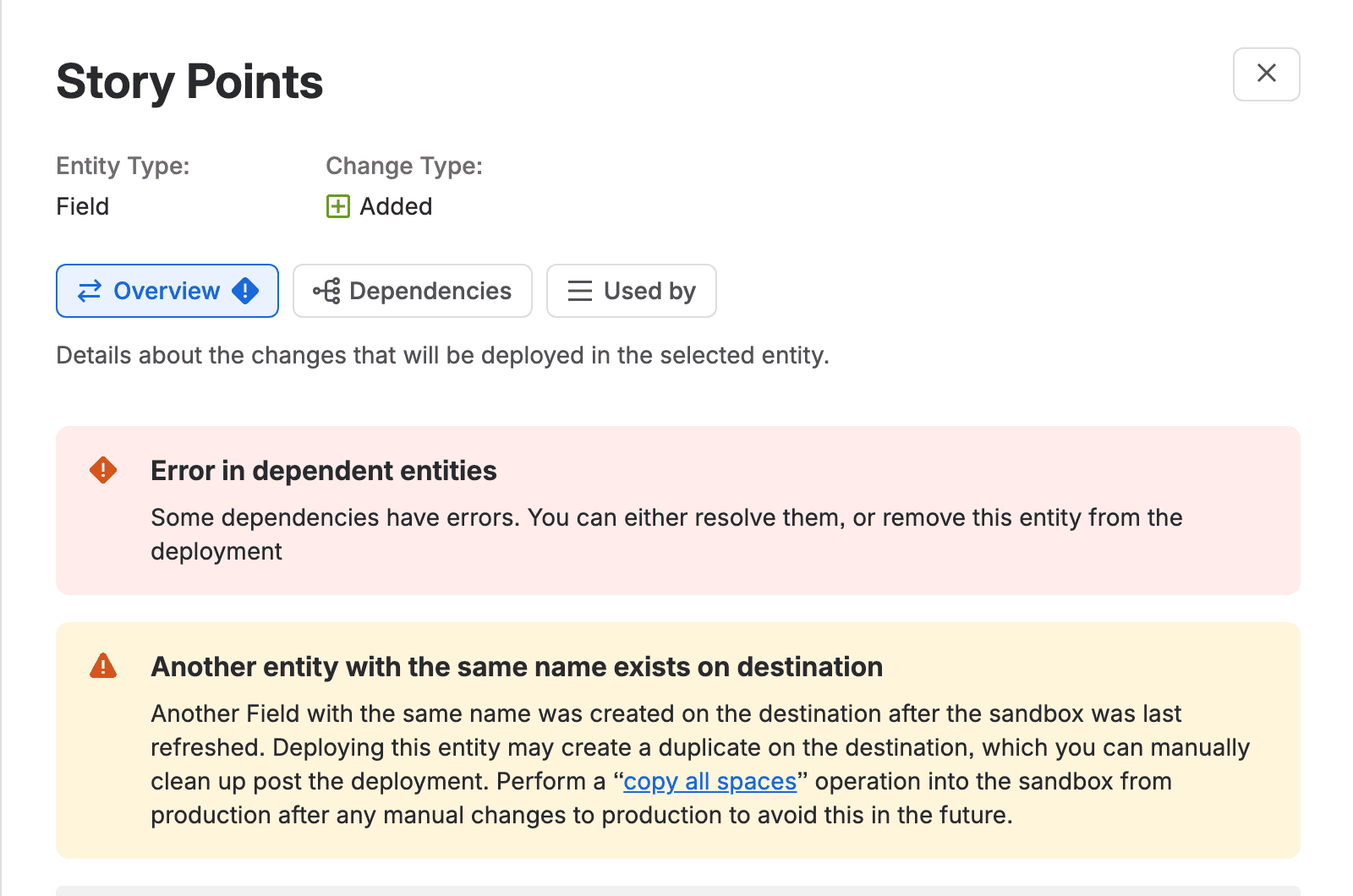
The 12 items with errors were our automation rule, the field Story Points, the default field configuration, the default field layout scheme, the default field scheme, the default priority scheme, our project (106 dependencies), its board, the Story work type, the project's work type scheme, our workflow and our workflow scheme. We opened the panel for Story Points. It showed a red "Error in dependent entities" box and a yellow warning:
Another Field with the same name was created on the destination after the sandbox was last refreshed. Deploying this entity may create a duplicate on the destination, which you can manually clean up post the deployment.
To check a name clash yourself, look the field up by name on both sites with the REST API (use your own site and credentials):
1curl -s -u you@example.com:$API_TOKEN "https://your-site.atlassian.net/rest/api/3/field/search?query=Story%20Points" | jq -r '.values[] | "\(.id) \(.name)"'You should see each field's id and name. Run against our production site and then our sandbox on 14 November, it printed:
1== wolfaenpak
2customfield_10054  Story Points
3== leanzero-demo
4customfield_10077  Story Points
5customfield_10153  Story Points
So Story Points really is separate fields with one name on our sites, and our sandbox even has two of them, because it was never copied from production. We didn't open the other 11 panels, so we can't tell you which item holds the first error. A name clash like this one is probably the cause, and the panel's own advice is a full copy from production.
The red box on the review screen offers Remove and revalidate, which it says removes the 12 items and checks the rest again. When we selected it, we landed back on the selection screen with all 110 still selected. Removing them would have dropped the project and the rule we came to test, and still sent the other 71 fields. So we stopped. Then we deleted our test items from the sandbox.
Step 7: Start the deployment and download the report
We didn't run this step, so here's Atlassian's procedure from Deploy configuration changes from a sandbox.
- On the review screen, once no errors are left, select Start Deployment. The deployment runs.
- On the Sandboxes page, select More actions (…) on the sandbox row, then View deployment log. Your deployment is listed with its status.
- Select More actions (…) on your deployment, then View details. The details page opens.
- Select Download report. You get Summary.csv and RequiresAttention.csv.
Atlassian asks you to "go through" both files "to check if there are any failures that you might want to address". Then open one of the deployed items in production, a workflow or a field, to confirm it's there. The log page says its details stay available for 14 days.
What moves from a Jira sandbox to production, and what stays behind
Atlassian's Data deployed from sandboxes page lists what deploys and gives a workaround for each gap. I've put the Jira part in one table. We stopped at review, so none of these rows is measured by us, and I'd treat them as Atlassian's promise until you've seen your own report.
Change in the sandbox | Deploys? | What Atlassian says to do |
|---|---|---|
New custom field and its context, field scheme, screen, screen scheme, workflow, workflow scheme, status, priority, work type, work type scheme, project role, board, notification or permission scheme | Yes | A scheme's link to an existing project changes only if you also select the project |
New company-managed project | Yes, its configuration, no work items | The beta announcement: "This does not include issue data" |
New automation rule | Yes, but connections don't | "Manually reconfigure connections in automations in the destination" |
New filter | Yes, as private | "Manually change the permissions of the filter in the destination" |
Removing a status from a workflow | No | Remove it in production by hand |
Removing a field option or a default value | No | Remove it in production by hand |
Changing a field's type | No | Change it in production by hand |
Renaming a project or changing its key | No | Change it in production by hand |
Work type icons and other media | No | Upload them in production |
Anything in a team-managed project | No | Not supported |
Locked or app-managed fields | No | "Make changes to these custom fields fields directly on production" |
Deletions don't travel either: "Your deployment won't include any entities deleted on the sandbox", says the recommended workflow page.
Marketplace app configuration isn't on Atlassian's list. One admin's field report says "Some of the marketplace app-provided configuration arrived. Some did not arrive at all", with nothing in the result to say which. Atlassian's product manager answered that "marketplace apps config are still a gap". The same report found, deploying into a second sandbox, that a workflow arrived inactive, because the deployment doesn't assign it anywhere. And there's no lock while a deployment runs, according to the suggestion CLOUD-13008.
If you run Jira Service Management, note the open bug CLOUD-13024: validation fails for changes to a newly created service space, with no known workaround (In Progress, 16 votes on 14 November). Atlassian's request for app configuration support is CLOUD-12989, with 8 votes.
Is there a rollback after a Jira sandbox deployment?
The review screen says the changes "can't be reversed", and none of the four help pages on deployment mentions a rollback, undo or revert (we searched each one on 14 November). The admin API behind the page does return fields called canPerformRollback and rollbackAllowedTill. On our deployment, read while it was still scanning, they were false and empty, and I wouldn't plan around them until Atlassian documents them.
So treat every deployment as one-way. For Premium, Atlassian suggests you "test your deployment by making changes to a small subset of data before the main deployment or purchase an additional sandbox for testing".
What a Jira sandbox costs at 50 and 200 users
You get sandboxes and the deployment with Premium. Atlassian's Jira pricing page showed these US dollar prices on 14 November 2026:
Users | Standard | Premium | Difference |
|---|---|---|---|
50, monthly, per user | $9.70 | $19.60 | $495 a month |
200, monthly, per user | $8.95 | $17.13 | $1,636 a month |
50, annual (26-50 tier) | $4,850 | $9,800 | $4,950 a year |
200, annual (101-200 tier) | $18,000 | $34,500 | $16,500 a year |
Premium buys more than sandboxes, so don't read the whole difference as the price of this feature. Our Premium vs Enterprise pricing at 200-500 users goes through the rest. A second sandbox for testing is "$10,000 per sandbox, per app" on annual billing (Atlassian Sandboxes).
Configuration tools on the Marketplace are the other route. Appfire's Configuration Manager for Jira lists $1,585 a year at 50 users and $5,120 at 200 in Atlassian's Marketplace pricing data (read 14 November 2026). Salto's own pricing page says "Contact us", and its Marketplace listing shows "Free app".
If something doesn't work
"Another entity with the same name exists on destination" means an item exists on both sites as two separate items with one name. The panel's advice is a full copy from production into the sandbox. If you deploy anyway, it warns that a duplicate "may" be created in production for you to clean up by hand.
Errors on items you didn't pick can come from the dependency chain. In our run the one panel we opened, Story Points, showed "Error in dependent entities" and a same-name warning. Open each panel under Contains errors to find the one with a cause of its own.
Your change isn't in the list if you made it after the scan started. Select Scan again, then Begin scan.
A new filter is private in production. That's documented behaviour, so share it again by hand.
An automation rule uses a connection (Slack, Teams, a web request). Connections don't deploy, so reconfigure them in production. Atlassian doesn't document whether deployed rules arrive enabled.
When to use the deploy beta now, and when to wait
If your sandbox has a full copy from after the cut-off and your changes live in company-managed projects with no app configuration, I'd use it now. It saves you replaying workflow and field changes by hand, and the review step shows you every dependency before anything moves. Plan the time, though. Our two scans and the validation took about 21 minutes of waiting.
If your sandbox is old, or you've been building in it for weeks while production moved on, expect the same name clashes we hit. Refresh first, then build, then deploy. And I'd start with one workflow the first time you try it, because a project pulls in its whole field scheme and we saw how fast that grows. If your workflows lean on Marketplace apps, a manual checklist or a configuration tool is still the safer route. On Standard there's no sandbox at all, so a checklist or a tool is the only route. It's a beta, and the cloud roadmap shows no general availability date.
What you have now
Key takeaways
- A way to check your sandbox's copy date against the cut-off before you build anything.
- The scan, select, review and deploy steps, with our real timing for each wait.
- A REST check that shows whether a field exists twice under one name.
- Atlassian's list of what deploys and what you'll still fix by hand. It doesn't cover Marketplace app configuration or an undo.
You can check your sandbox's copy date, find your changes in a scan, follow the dependencies the tool adds and read validation errors in their side panels. You also have Atlassian's list of what moves and what you'll still fix by hand. If you've run a deployment on a freshly copied sandbox, I'd love to hear what your Summary.csv looked like, because that's the part we couldn't see this time :)
Comments
0Add a comment