
How to merge two Jira Cloud instances with Copy product data, tested on two of our sites

14 min readNovember 13, 2026
Key takeaways
- Copy product data moved all 15 work items of our test project between two Jira Cloud sites, with zero field differences and every key unchanged.
- The automation rule stayed behind: the destination had 0 rules after the copy, as Atlassian's own list warns. Plan to export and import your rules as a separate step.
- The screen estimated under 1 minute for 15 work items. The copy took about 13 minutes, and the destination showed a 12-hour search refresh banner afterwards.
- Copy product data adds to the destination instead of replacing it, with two documented exceptions: same-name groups merge, and a renamed Story or Epic type renames the destination's own. A same-name custom field arrives as a second copy marked (migrated).
- Data Center to Cloud with JCMA adds into a live site the same way, but it matches people by email address. A Cloud to Cloud copy keeps each person's existing Atlassian account.
Someone asked on the Atlassian Community how to merge 2 Atlassian Cloud instances, and the thread had 10,283 views when I checked it on 13 November 2026. Atlassian's own help article on how to merge two Jira Cloud instances, last changed on 7 March 2025, still says "Currently there is no way to do this in the JIRA Cloud interface" and sends you through a temporary Jira Server.
That page is out of date. Atlassian has no merge button, but its Copy product data tool copies projects from one Jira Cloud site into another site that already has data, and adds to what's there instead of replacing it, with two exceptions: renamed Story and Epic types, and same-name groups, which merge. On 13 November 2026 we copied a 15-item test project between two of our sites with it. All 15 work items arrived with their keys unchanged and zero field differences. The automation rule didn't, and the copy took about 13 minutes although the screen promised under one.
So I'd treat a merge of two Jira Cloud instances as a copy, done project by project, plus a short list of things you move by hand. This tutorial walks through the copy on real screens, lists what our run lost, and covers the Data Center case, where you merge a server into a Cloud site that is already in use.
A word on names, because three are live at once. People search for "Copy product data". Atlassian Administration now shows a card called Copy app data, the page behind it is titled Data transfer, and the help page calls it Transfer Jira data. They're the same tool. Atlassian is also renaming "products" to "apps", and a Jira project is now a "space" in parts of the interface. I say project and work item throughout.
- 1
Open Copy product data (now Copy app data) in Atlassian Administration.
- 2
Create the transfer plan and pick the source and destination sites.
- 3
Select the projects to copy.
- 4
Choose what comes along with the projects.
- 5
Validate the plan and read every Check.
- 6
Copy the data and wait for Complete.
- 7
Move what didn't copy by hand.
Can you merge two Jira Cloud instances? What Atlassian offers in 2026
As far as I can tell, you can't merge two sites into one in place. What you can do is copy one site's projects into the other and then retire the first. Atlassian's page on what data is copied (updated 11 November 2026) describes it as transferring data "from one instance of your Atlassian app to another without overwriting any existing data", to "a new or an existing site within the same organization or in a different organization".
An organization here is the top level in Atlassian Administration: it owns the sites and users, and it gets the bill. A site is one address like yourcompany.atlassian.net with its own Jira. If those two words still blur, our Atlassian Cloud architecture piece draws the map.
It isn't new. It has been around since January 2024, when Atlassian moved Jira cloud-to-cloud migration into admin.atlassian.com and renamed it Copy product data. That post has 32,562 views. Atlassian's own help article predates it and still ranks for the question. People also try the cloud backup: in a December 2025 Community thread, someone couldn't find where to import their backup zip, and the answer was that the cloud backup "is NOT meant for site-to-site migration". A restore is the opposite of a merge: Atlassian's selective import page says it imports "overwriting all existing data".
There's also an organization-level merge, where every app moves from one organization into another and the old organization is deleted. Atlassian changed that process this autumn. Its consolidation guide (updated 16 September 2026) says new workflows, including self-service ones for eligible organizations, roll out in phases from 19 October to December 2026. Which one you get depends on your organization type. If your two Jira sites already sit in one organization, you only need the copy.
After an acquisition the two sites usually sit in two organizations, and the copy still works across them. Atlassian's before you start page says data moves "within or across organizations", and the destination list on our screen offered sites from two other organizations. You need one person who is an organization admin in both. Users who aren't on the destination yet are copied as their existing Atlassian accounts, and with Users with their groups they count towards the destination's licence. I can't show the cross-organization user options from our run, because it stayed inside one organization, so those come from Atlassian's pages.
Before you start
Prerequisites
- Jira Cloud on any plan. Atlassian lists the feature for "All plans" on Atlassian Cloud and for Atlassian Government Cloud.
- One person who is an organization admin and a Jira admin (Atlassian calls it app admin) on both sites, and a user of both. The source and destination lists only show sites where you're an organization admin.
- Project keys that differ between the sites. A key that exists on both blocks that project.
- Time to finish within 14 days: a transfer plan expires 14 days after you create it.
- A destination on a paid plan if you'll copy more than 10 users with their groups: on a Free destination the copy stops, because Free allows 10 users.
- Jira Service Management (JSM) Premium or Enterprise on the destination if you copy Assets, the JSM database of things like laptops and contracts. Atlassian's Assets page says it won't copy Assets to Free or Standard.
- Our test: two Jira Cloud sites in one organization, a new company-managed Scrum project with 15 work items as the source, a site with one unrelated project as the destination. When you're done you'll have the source project on the destination site with its work items, people, boards, filters and dashboards, and a list of what you still need to move by hand.
Atlassian's limits page recommends batches of 200 projects per plan, and 100 GB of attachments per project (50 GB when both sites are in Europe). It lists no limit on the number of work items. Organizations with Units switched on get hard limits on top, such as fewer than 150,000 users and 60,000 groups. Ours doesn't use Units, so we didn't test those.
Step 1: Open Copy product data for Jira, now called Copy app data
- Go to admin.atlassian.com and pick your organization if you have more than one. The organization overview opens.
- In the left menu, select Data management. You'll see three cards: Backup and restore, Copy app data and Manage sandboxes.
- On the Copy app data card, select Start copying app data. The Data transfer page opens with your plans and a Create transfer plan button.
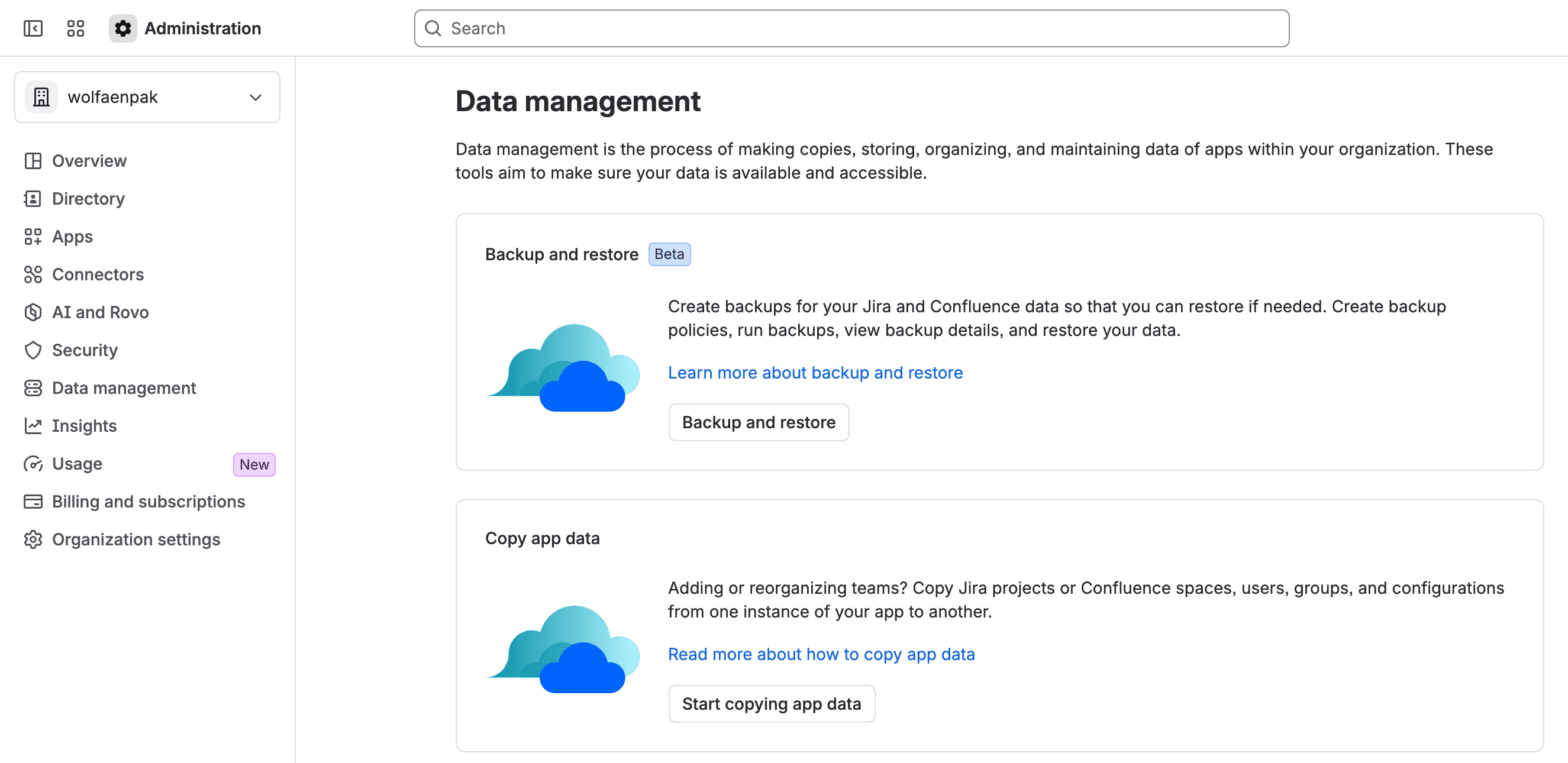
You should see the Data transfer page with its Create transfer plan button.
Step 2: Create the transfer plan and pick source and destination
- On Data transfer, select Create transfer plan. The How it works page lists five stages, from selecting source and destination to reviewing and copying. Select Next.
- On Select an app, select Jira, then Next. Confluence has its own transfer from the same screen.
- On Select source and destination, pick the site to copy from in Select source.
- Pick the site to copy to in Select destination.
- Type a name in Name copy plan. The screen checks it as you type and shows "Name available."
- In Choose migration stage, pick Test for a rehearsal or Production for the real run.
- Select Next.
You should see the project list next. Our destination list also offered sites in two other organizations we administer, grouped by organization. That's how a copy between two organizations starts, and Atlassian says it needs the consent of the admins on both sides.
Step 3: Select the projects to copy
- On Select projects, find each project you want. Our list held 68 projects, each showing its work item count and an estimated copy time.
- Tick the project. Ours showed 15 work items, "0 KB" of attachments (a 56-byte file rounds to zero) and an estimate of "< 1 minute".
- Select Next in the footer. The table's own pager also has a Next button, which moves to the next page of projects. Use the one at the bottom right.
You should see Select data you want to copy, which opens with the user and group counts.
Keys decide whether this step can work at all. Atlassian's Transfer Jira data page says "We can't copy projects with the same keys", and treats upper and lower case as the same. If both sites use the same key, rename one before you start, or that project stays behind. We checked our key MRG on both sites first: it didn't exist on either.
To check a key yourself before you build the plan, search the destination's projects as a Jira admin. The search includes archived and trashed projects, and it returns only the keys that already exist. We ran it at 05:11 for our key and for KAN, a project the destination already has:
1curl -s -u "you@example.com:$API_TOKEN" \
2  "https://<destination-site>.atlassian.net/rest/api/3/project/search?keys=MRG&keys=KAN&status=live&status=archived&status=deleted" \
3 | jq -r '.values[].key'1KANYou should see only the keys that are already taken on the destination. Here KAN is taken and MRG is free, so MRG can copy. I'd still let Validate data have the final say.
Step 4: Choose users, groups, boards and dashboards
- On Select data, read the Users, groups, and teams box first. Ours showed "59 users, 406 groups, and 3 teams" and the line "Your users exist in both the source and destination". There was nothing to choose there.
- Under Group memberships, pick Users and groups separately (the default) or Users with their groups. The screen warns: "We merge groups with the same names. Some users in the destination may get unwanted permissions."
- Leave Customers and organizations, Plans in Jira, Dashboard and Boards and filters on the option that copies only what belongs to your selected projects. Ours found 1 dashboard and "1 board and 2 filters".
- Select Next.
You should see Validate data start its checks.
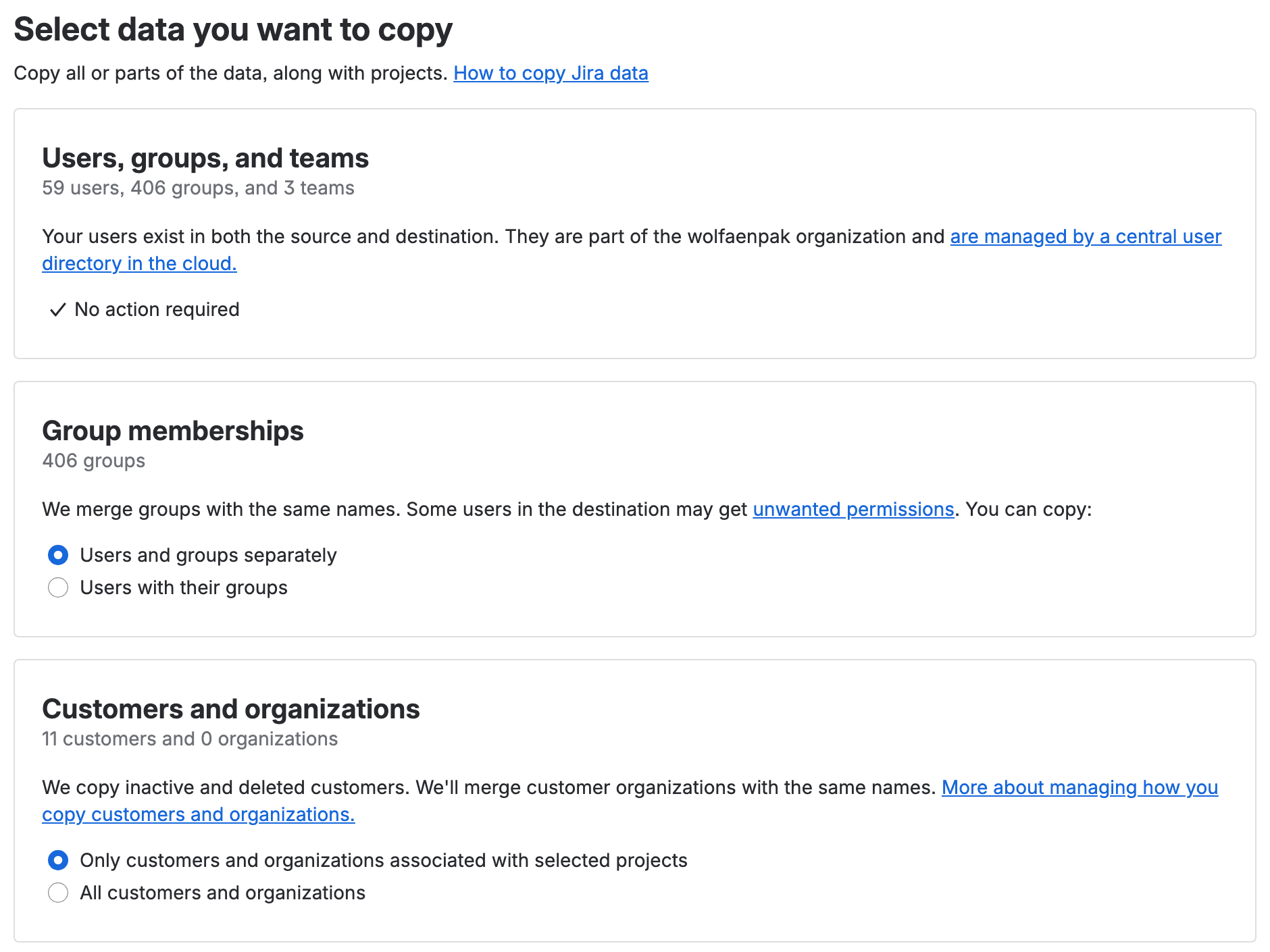
Same-name groups are where it can hurt, and the option doesn't switch that off. Atlassian's page on group permissions uses a merge of two sites as its example: a merged group keeps the source group's project permissions and also gets the destination group's app and project permissions. With Users with their groups, people who were only in the source group join too. Re-runs only add. I'd run the collision audit from our same-name groups piece before the first copy. It takes minutes. Atlassian's blocklist page names four admin groups that are never copied (site-admins, system-administrators, atlassian-addons and Atlassian-addons-admin), but any other group that grants admin rights is.
Step 5: Validate the plan and read every Check
- On Validate data, wait for the checks. The plan is created at this point, and it expires 14 days later.
- Read each row. Fix must be solved before you can copy, Check is a warning, Ready is fine.
- Select Next to reach Review your selections. Ours said "Saved - You can now copy your data."
Validation took about 40 seconds on our plan. The screen listed 14 checks: 13 Ready and one Check, which said two marketplace or custom apps on the source were missing on the destination.
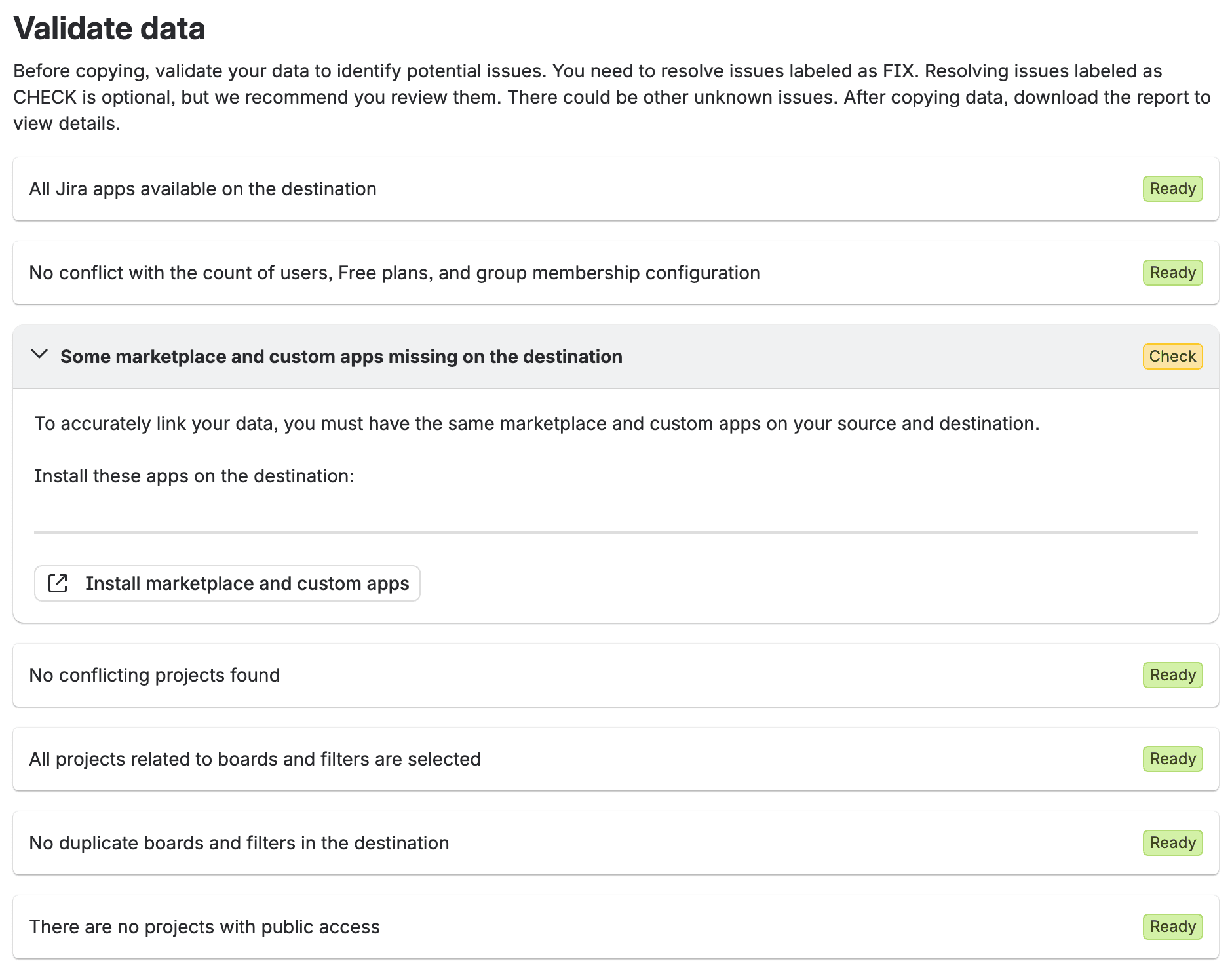
Oddly, the list of apps under that Check was empty in our capture, and the install link opens the destination's app manager. Atlassian is plain about app data: "We don't migrate Marketplace app data yet", and it asks you to contact each app's vendor. I'd install the same apps on the destination before the copy. Otherwise links to app data won't resolve.
Step 6: Copy the data and wait it out
- On Review your selections, select Copy data. There's no confirmation dialog: the copy starts on the click.
- Watch the status move from Copying to Complete. Atlassian's page lists five statuses, Incomplete among them, and our screen said Copying where the page says Running. Incomplete means some projects copied and some didn't.
- Open the destination site.
You should see the plan's status read Complete and your project in the destination's project list.
We clicked Copy data at 04:21:50 Eastern European Time. The project row sat at 0% for about ten minutes, jumped to 100%, and the plan showed Complete at 04:34. So about 13 minutes for 15 work items, against "< 1 minute" on the same screen. I wouldn't plan a cutover on that estimate.
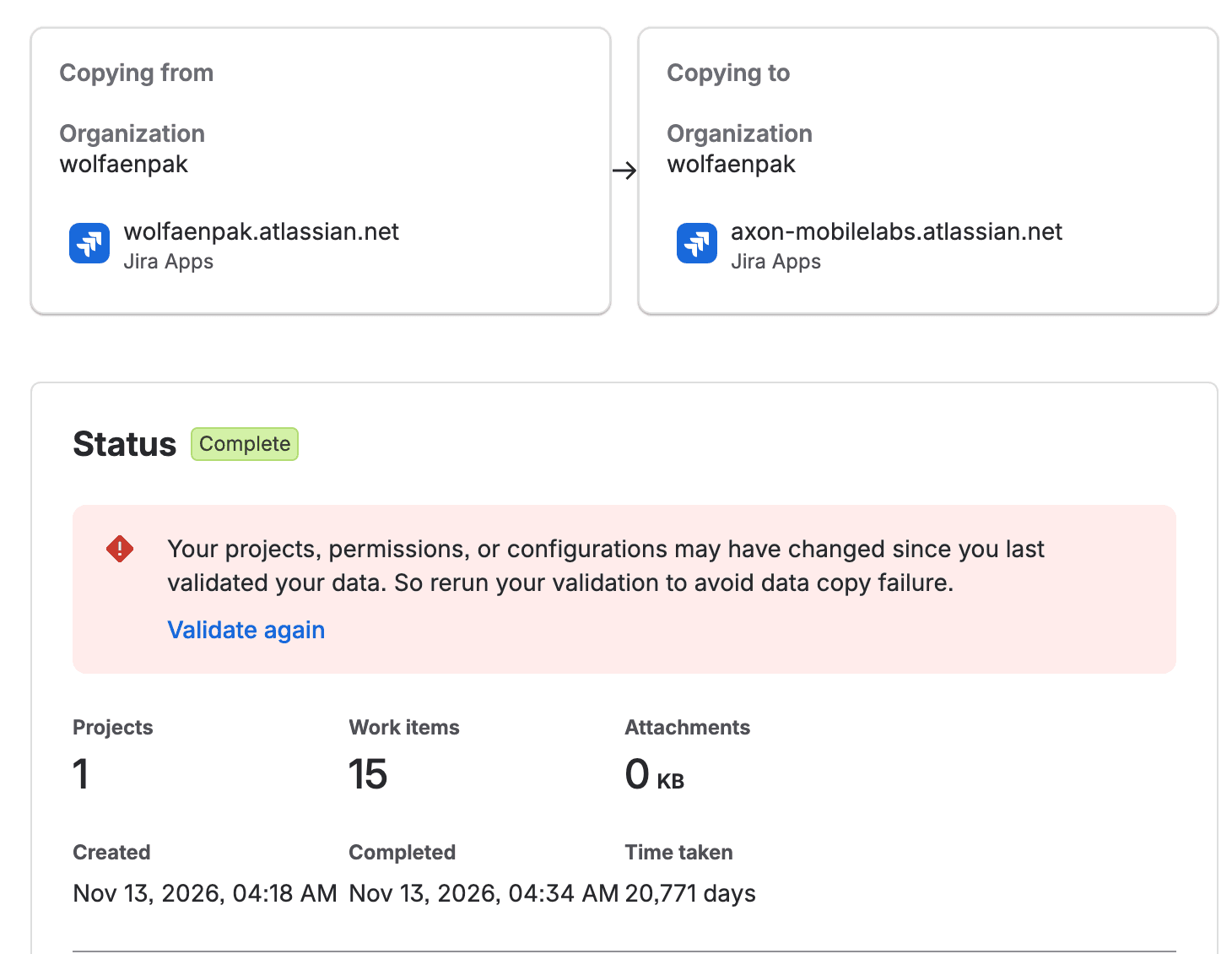
The completed plan says "Time taken 20,771 days". That's about 57 years, roughly the time since 1 January 1970, so I think it's a duration counted from zero. Use your own clock. We also found no report to download, though the validation screen tells you to download one after the copy. It may only appear when something fails. Our run had no errors, so I can't say.

Then the destination showed a yellow banner: "For up to 12 hours, filters, reports, JQL, attachments and some other searches might not show every item." I'd plan the checks around that and not announce the move on the hour the copy finishes.
What gets migrated in a Jira cloud to cloud migration, and what our run lost
We checked the destination over the REST API (Jira's programming interface) at 04:36, against the source, field by field.
item | what Atlassian says | what happened in our run |
|---|---|---|
project key | kept | MRG kept, with a new internal project id |
15 work items (1 epic, 11 stories, 3 bugs) | copied | 15 of 15, keys MRG-1 to MRG-15 identical, 0 field differences |
select custom field on all 15 | copied | recreated with a new field id, all 15 values match |
3 comments, 1 attachment, 1 Blocks link | copied | 3 of 3 with the same author, 1 of 1, link present |
epic parent on 14 children | copied | present on all 14 |
board and sprints | copied | board copied, every sprint with its name and state, the active one included |
2 filters | copied | 2 of 2, JQL using the custom field by name still works |
dashboard | copied | 1 of 1, gadget present (our test set the wrong gadget's settings, so this run can't say whether gadget settings copy) |
automation rule | not copied | not copied: 0 rules on the destination |
people | linked to existing accounts | the same Atlassian account on every assignee, reporter, comment and lead |
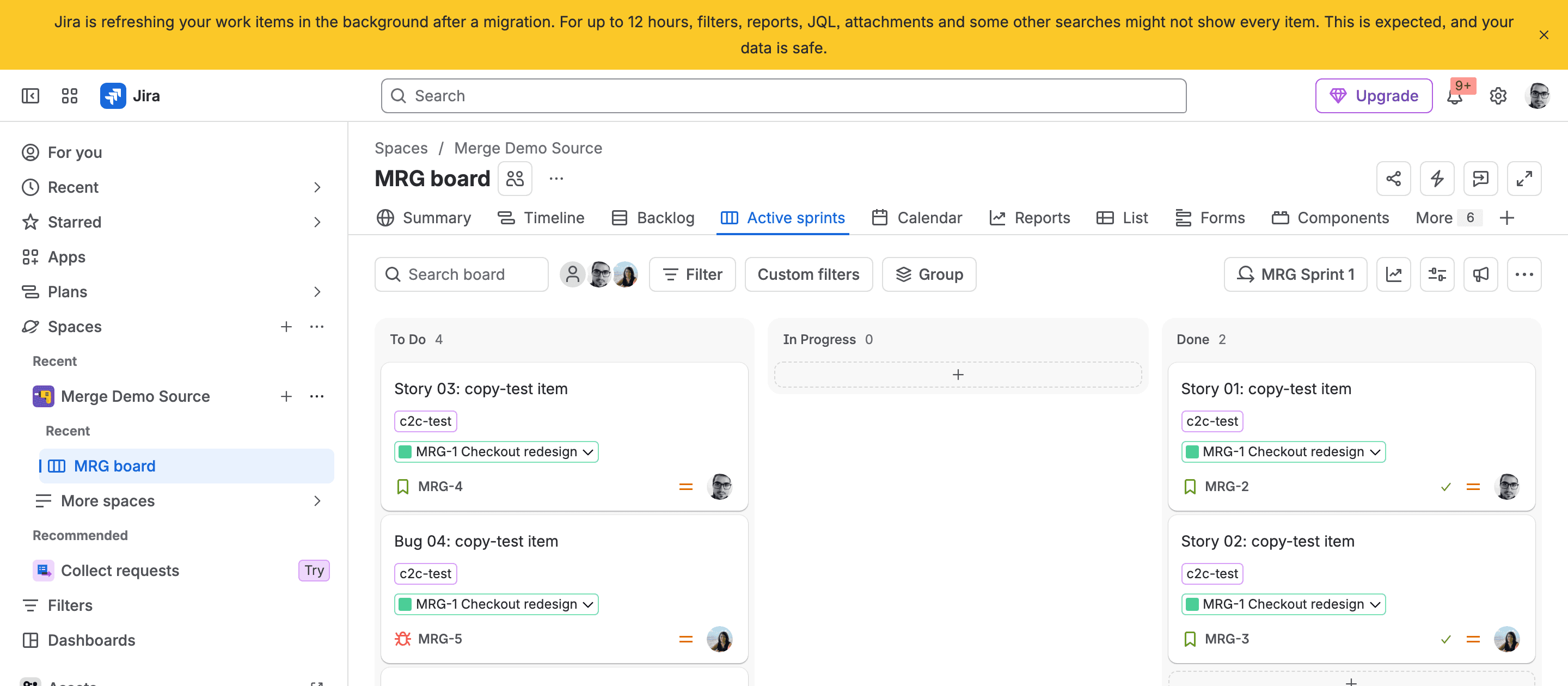
To check the automation side yourself, ask the Automation REST API for the destination's rule list. You need the site's cloudId, which https://<your-site>.atlassian.net/_edge/tenant_info prints. We ran this again at 04:52, after deleting the test project:
1curl -s -u "you@example.com:$API_TOKEN" \
2 "https://api.atlassian.com/automation/public/jira/<destination-cloudId>/rest/v1/rule/summary?limit=100"1{"links":{"self":null,"next":null,"prev":null},"data":[]}You should see an empty data list, which means no rules on the destination. The same call against our source site returned 85 rules on its first page, so the call works and the destination really is empty.
People came across without a single new account. Atlassian's users page says it doesn't create new accounts. It links every user's data to their existing Atlassian account. Every person is identified by an accountId, a fixed ID that belongs to the person and not to the site, so the assignee on MRG-4 was the same account on both sites.
I'd check your dashboard gadgets after the copy. Our setup script wrote Filter results settings onto a Starred filters gadget by mistake, so this run says nothing either way about gadget settings.
Atlassian's list of what isn't copied is longer than one test project can show. In a merge I'd watch these lines from its what data is copied page. Automation flows don't move, project-level ones included. Neither do global permissions or general configuration such as time zone and language. Apps and app data stay behind, so do comment reactions, and a moved work item's old key won't redirect. Confluence links keep pointing to the source site. JSM loses its email settings, for one. Plans in Jira lose their scenarios and saved views.
Links someone pasted as a URL in a comment or description keep pointing at the old site. Atlassian says so on the Transfer Jira data page and recommends keeping the source for a few months before you cancel it.
Same-name custom fields and schemes come back marked (migrated)
Because Copy product data doesn't replace existing configuration, a clash creates a second copy. Atlassian's linking page says an entity with the same name as one on the destination arrives as a new one with a "(migrated)" tag. The next clash gets "(migrated 2)". Some entities, statuses and priorities among them, merge instead, but only when they're identical (a priority merges only if its name and its colour match).
In a merge of two working sites, I'd expect two "Story Points" fields or two "Default notification scheme" entries. A Community user posted exactly that in July 2026: "Default notification scheme ---> Default notification scheme (Migrated)". Atlassian's fix request, JRACLOUD-82762, has 127 votes and is In Progress. I'd probably rename the clashing fields on one side before the copy. The other option is to accept the (migrated) copies and clean them up afterwards, but decide before you start.
One documented exception changes what's already on the destination. If the source renamed its Story or Epic work type, the copy renames the destination's own Story and Epic types to the source's names, and the new names show in every company-managed project on the destination that uses those types. Atlassian's Story and Epic page gives two ways out: before the copy, move the source's items to a new standard work type, or after it, rename the destination's types back. I'd check the source's work type names first. It's a two-minute look.
Re-running the same plan isn't a sync. Atlassian documents no incremental copy of work items, and a project key already on the destination blocks it. To copy a project again, you remove it from the destination first. With the 14-day plan expiry on top, the safe pattern is a rehearsal on a test site that carries the destination's configuration, so the (migrated) clashes show up there, then one production copy behind a freeze. Our read-only projects tutorial covers the freeze.
Step 7: Move automation rules, global permissions and app data by hand
- On the source, go to Jira settings, System, Automation flows, then More actions and Export flows. Atlassian says you must be a global administrator. The file must be 5 MB or smaller.
- On the destination, import the file from the same menu. Every imported flow arrives disabled, and a name that already exists becomes "Copy of" plus the name.
- Check each rule's actor (the account the rule runs as) and project scope on the destination, then enable the rules one at a time.
- Recreate global permissions and general settings by hand from the source's settings pages.
- Ask each app vendor how their data moves, and do it after the copy.
You should see your rules on the destination, disabled, with owners that exist there. Atlassian's import and export page says owners need no change in the file for a Cloud to Cloud move, as long as those users are on the destination. The same page warns that import and export from Server or Data Center is supported only for one-to-one moves. That warning sits under the Server bullet, and it adds that a Cloud to Cloud move "is more likely to be successful". I'd still test it on a copy first.
The failure we see most often on rules is the actor: a rule whose actor isn't on the destination fails to create with “The selected actor does not exist”. Our automation rules piece covers that error and the scope one. There's no REST API for Copy product data itself (CLOUD-12155 is still gathering interest), so a scripted copy goes through the normal Jira and automation APIs.

Migrate Jira Data Center to cloud into a site that already has data
The other merge is a Jira Data Center server joining a Cloud site that's already in use. The tool is JCMA (the Jira Cloud Migration Assistant, an app you install on the server), and it promises the same thing: Atlassian's JCMA page says it "adds data to a Jira Cloud site without overwriting any existing data". Both routes create "(migrated)" copies of clashing configuration. The differences are where your plan changes:
question | Data Center to Cloud (JCMA) | Cloud to Cloud (Copy product data) |
|---|---|---|
how people are matched | by email address; a cloud account with the same email wins | the person's existing Atlassian account, no matching |
same-name groups | members join the existing cloud group | groups merge; options decide memberships |
what blocks a project | the same project name or key on the destination | the same key, case-insensitive; old keys can also clash (CLOUD-11750) |
automation rules | migrated, disabled after migration, actors not migrated | not copied; export and import |
where you run it | the app on your server | Atlassian Administration |
One thing does get overwritten on the Data Center side. If you migrate automation flows a second time, Atlassian's automation migration page says the Data Center versions replace the Cloud copies, edits included.
Email matching is the other trap there, and the one I'd fix first. Atlassian's users and groups page says a user whose email already exists in the cloud site isn't migrated, and their username isn't updated. Two people who share an old address, or one person with two addresses, become a data clean-up before the migration. On Cloud to Cloud that question doesn't come up.
Atlassian's key conflict page also advises renaming the project on the source when names or keys clash, because "Changing a project key is more impactful and should be avoided if possible." Old keys matter too: on Cloud to Cloud, an open Atlassian ticket (CLOUD-11750) says a historical key that matches one used on the destination can leave a project half-copied with nothing in the report to explain it. Check old keys on both sides when either site has renamed projects.
The March 2025 help page's advice, merging through a temporary Jira Server and re-importing, belongs to neither route. I wouldn't use it.
Does merging pool your Rovo credits and automation steps?
Only when the two sites sit in different organizations. Atlassian's usage pages (read 13 November 2026) say allowances for Rovo credits and automation steps are "pooled at the organization level", and usage-based billing starts on 3 December 2026. Two sites in one organization already share that pool, so copying one into the other changes nothing there. Sites in two organizations draw on two separate pools. Atlassian doesn't name pooling as a reason to merge; that's my reading of its pages.
What a merge inside one organization does save is the second subscription. Atlassian's billing page says you keep paying for both sites until you change the source, and suggests moving the source to Free when you no longer need it.
If it didn't work
- The site isn't in the source or destination list. You're not an organization admin of that site's organization. Fix the role, or get the person who is admin in both.
- "Project already exist in Destination" on validation: the key, in any case, exists on the destination. Rename it on one side or remove it from the plan.
- The copy won't start on a Free destination. You picked Users with their groups with more than 10 users. Upgrade the destination, or pick Users and groups separately, where Atlassian says copied users don't take a licence.
- Work items are missing from a filter or JQL search after the copy. The destination is still refreshing. Atlassian's banner says up to 12 hours.
- Links to work items show "Failed to load". Application links aren't copied. Atlassian's link fixing page covers the repair, which needs an organization admin and Atlassian Guard Standard.
- A rule fails on import with "The selected actor does not exist". The rule's actor isn't on the destination. Change the actor or add the user, then import again.
- The plan disappeared or won't run. Plans expire 14 days after creation, and an expired plan can't be edited, run or viewed. Create a new one.
What you have now, and what I'd do
Key takeaways
- What you have. The source project and its work items on the destination with the same keys, while the source site keeps running.
- What to check on yours. The work item count per project on both sites after the 12-hour refresh, and the automation rule summary on the destination.
- What this doesn't cover. What didn't copy (Step 7), and a copy between two organizations, because our run stayed inside one. The Data Center route is JCMA, covered above.
For two sites, I'd run the copy twice: once as a rehearsal on a test site that carries the destination's configuration, and once for real after a freeze, then export the automation rules the same hour. For a Data Center server joining a live Cloud site, clean up email addresses before JCMA runs, because that's the step you can't undo by copying again. If you've run a merge across two organizations, I'd like to hear how users and licences came out on the Community.
Comments
0Add a comment