
Jira new work item view: how to turn it off and when to keep the classic view

11 min readNovember 26, 2026
Key takeaways
- Atlassian began the rollout on 19 October 2026 and plans to reach Jira Cloud sites through the end of the year. No end date has been published for the classic view.
- A Jira admin keeps the whole site on classic with one switch: Settings, System, General configuration, Edit Settings, New work item view OFF, Update. It still works after the view has arrived.
- Each person can go back alone from the More actions menu with Switch to classic experience. In our test with 2 accounts on 25 November 2026, that choice followed the account and survived the site switch going off and on.
- The History tab is gone: changes now sit in the All tab between comments. Web links became rows in the Attachments table, and automation and app panels now fold into collapsed cards.
- Jira Service Management requests keep the old view. Our service desk request stayed classic while the same admin saw the new view in a software space.
- Check two open problems first: long descriptions cut short (JRACLOUD-100026, 61 votes) and approvers missing Approve and Decline in company-managed software spaces (JRACLOUD-100097). Manual automation rules also moved into a collapsed card.
On 29 October 2026 Kristin Rains asked on Atlassian's general availability post for the new work item view: "Has Atlassian provided any deadlines of when we will be forced to use the new item view?" The view had already reached her sandbox and production sites, and her team had switched it off. That post has 20,373 views and 72 comments, and the beta announcement from July has another 26,683. Atlassian started the rollout on 19 October 2026 and plans to reach the remaining Cloud sites by the end of the year, unless an admin switches it off.
A Jira admin can keep the whole site on the classic view with one switch called New work item view, in Settings > System > General configuration > Options, and it still works after the new view has arrived. Users can also go back on their own from the ••• menu on any work item, with Switch to classic experience. There's no deadline yet. Dhruv Mittal from Atlassian answered her on 5 November that Atlassian will "share the dates well in advance of when the new view fully replaces the classic view".
Many of the top search results are from 2018, when the answer really was "you can't". Those threads are about an older redesign and a Labs toggle that no longer exists, so they send you looking for a setting you won't find. We tried each switch on our own Jira Cloud test site on 25 November 2026 with two accounts. One limit up front: the general rollout hadn't reached our site, so every screen of the new view you'll see here comes from Atlassian's beta switch, which turns on the same view early.
What we found on our test site
We built a company-managed work item with subtasks, a link, an attachment, a web link and a comment. We also opened a team-managed item and a Jira Service Management request (JSM, Atlassian's service desk product).
- The site switch exists and is on by default. "New work item view" is in the Options list next to "Simple create as default", and its help text ends with "Note: Not supported in Jira Service Management."
- Switching back costs one menu item and one dialog. "Switch to classic experience" is the last item in the work item's ••• menu, and Jira asks for feedback first, with a "Switch without feedback" button.
- The personal choice follows the account. It covered all of that user's work items and was still there in a fresh browser session, while the other user kept the new view.
- With the site switch off, everyone gets classic, whatever the beta or their own choice says. Turning it back on doesn't undo a user's own switch to classic.
- The History tab is gone. Status changes and label edits now show in the All tab, mixed with comments.
- Attachments, links and panels moved into tables or folded cards, and we didn't find the Improve Task button, the Confluence content section or the Agent sessions section anywhere on the new page.
- Team-managed spaces get it too, service desk requests don't. Our team-managed item opened in the new view with the same switch item, and our JSM request stayed in the old layout.
Step 1: Turn off the new work item view for your whole site
Before you start: you need to be a Jira admin on a Jira Cloud site. We didn't check whether the switch shows on the Free or Standard plans, and Atlassian doesn't say. When you're done, everyone on the site sees the classic view and nobody has a switch to the new one.
- In Jira, select the Settings (gear) icon at the top right, then System, then General configuration. The Settings and Options lists open.
- On General configuration, select Edit Settings. The page turns into a form.
- Scroll to Options and find New work item view, just below Simple create as default on this form. Select OFF.
- At the bottom of the form, select Update. Back on the Options list, "New work item view" now shows off.
- To check it, open any work item in a software space. You should see the History tab under Activity, and the ••• menu should have no "Switch to new experience" item.

Atlassian's own help page for the Options list, Configure Jira app options, doesn't list this setting yet (it shows 17 others). Atlassian wrote this same click path as the workaround in its bug ticket JRACLOUD-100097, and it matches what our site showed.
Before the rollout or after it, the switch does the same job
Atlassian's general availability post says to turn the switch off "before it reaches your site". It's easy to read that as a deadline. It isn't one. The same bug ticket says that turning it off on a site that already has the new view "switches every user on the site back to the classic view". And the Jira release note of 26 October adds that you can switch it back on whenever you like.
Watch out for a second control, though. Settings > System > Beta features has one called Modern work item view (released 3 August 2026). It turns the new view on straight away for the whole site, which is handy for trying it early on a sandbox. On our site the Options switch won. With "New work item view" off and the beta on, both of our users still got the classic view. Neither had a switch in their menu.
I expect a site that gets the view from the real rollout to behave the way our beta site did, but we haven't seen one yet.
Step 2: How users switch back to the classic view in Jira
You don't need an admin for this. Any user can do it for themselves, on any work item:
- Open any work item and select ••• (More actions) at the top right, next to the status and the watchers. The menu opens.
- At the bottom of the menu, select Switch to classic experience. A dialog called "Switching to classic experience" opens and asks you to "Select feedback".
- Pick a reason and select Send feedback and switch, or select Switch without feedback. The page reloads in the classic view, and the History tab is back under Activity.
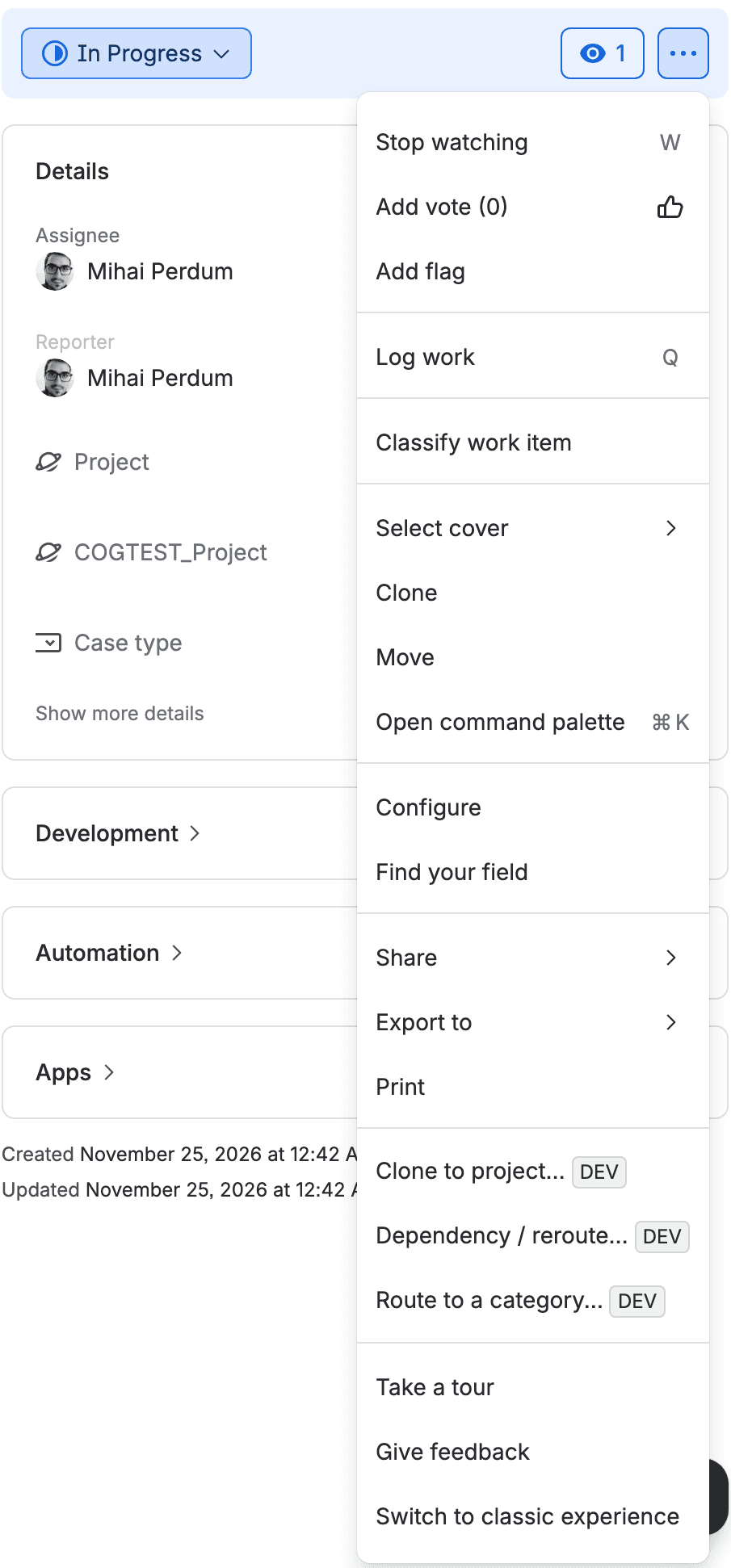
To go back to the new view, open ••• in the classic view. Switch to new experience is now the first item, and it didn't ask for feedback.
So the choice belongs to the person. Our second test user switched, and the classic view was still there after a reload, in a fresh browser session started from a copy of her saved login, and on a different work item. Our admin kept the new view the whole time. That matches the release note, which says the choice "sticks, and it doesn't affect anyone else's view."
Then we turned the site switch off and on again, and while our admin got the new view back, our second user stayed on classic, with "Switch to new experience" waiting in her menu. That surprised me a bit. So if you turn the site back on later, people who chose classic for themselves keep it until they switch.
A 2018 Community thread you'll find in search, how do I turn off new issue view globally (16,382 views), says a site admin can't do it, and later replies point to Personal settings. That was true for the 2018 "new issue view". Neither the Labs toggle nor that personal setting is how you leave the 2026 view.
What the new Jira work item view changes
Atlassian calls this "a visual refresh only". It says your "data, fields, work types, automations, reporting, and integrations all stay exactly as they are." On our test item the data really didn't change, but almost everything moved somewhere else on the page.
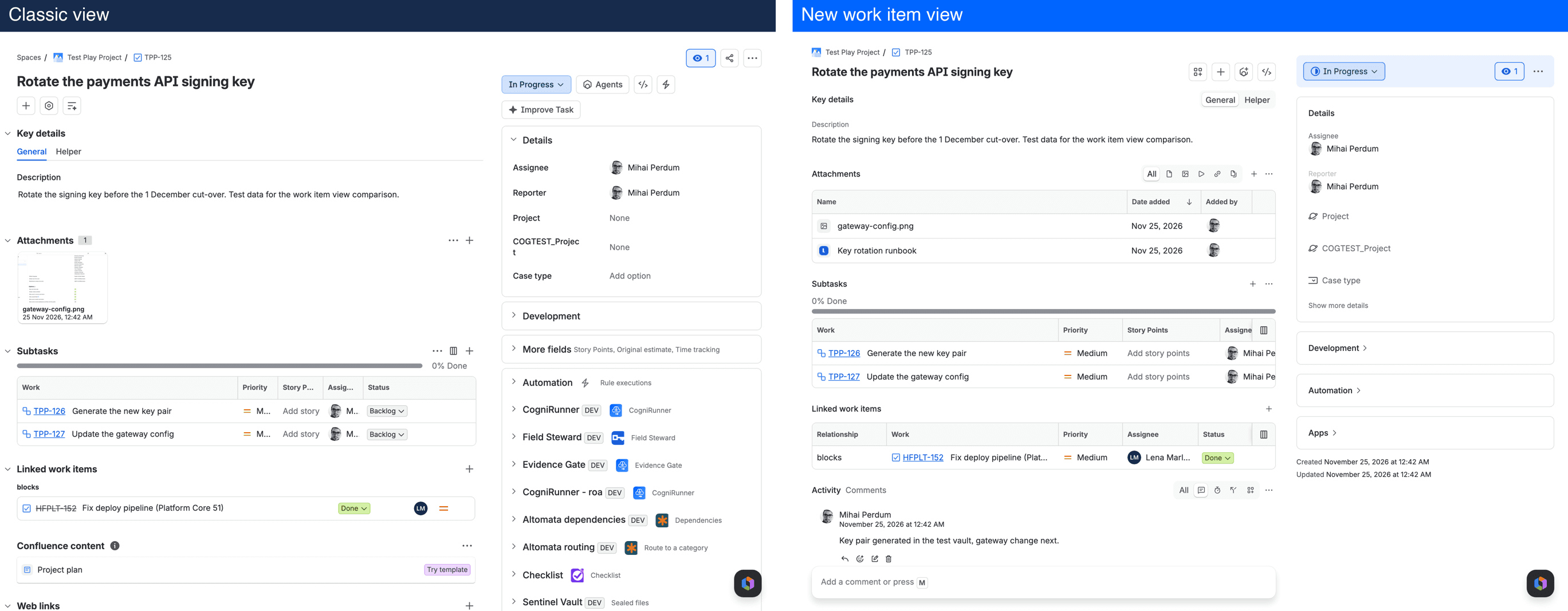
In the classic view | In the new view |
|---|---|
Status, Agents and an Improve Task button under the summary, on the right | Status in a coloured band at the top right with the watchers and •••; agent and coding tool buttons sit as icons next to the summary |
Activity tabs All, Comments, History, Work log, Approvals | All, Comments, Work log, Approvals. History entries show in All, mixed with comments |
Attachments as thumbnails, web links in their own section | One Attachments table (Name, Date added, Added by) with filters for files, images, video and links |
Linked work items as a list of rows | A table with Relationship, Work, Priority, Assignee and Status columns |
Details with labels on the left, plus a separate More fields box | Stacked fields you can drag to reorder; More fields became a Show more details link inside Details |
An Automation panel with Rule executions, and one panel per app | A collapsed Automation card (Suggestions, Recent rule runs, Set to recur, Create automation) and a collapsed Apps card |
Confluence content and Agent sessions sections | We didn't find either. Atlassian says linked Confluence pages now share the Attachments section; our item had no linked page, only the template suggestion the classic box offered |
Subtasks were already a table in the classic view. In the new view you can edit both tables in place and sort or resize their columns.
Fields need one more line. Any field your admins haven't set to "hide when empty" shows as pinned by admin, empty or not. That isn't new, since those fields showed in the classic view too, but the label is. Atlassian's Dhruv Mittal says admins manage them from Manage fields (the settings icon next to Details in company-managed spaces). So if users ask about a long list of empty pinned fields, open Manage fields first.
The History tab moved into All
On the Community, Tere Pile summed up her users' main complaint as "perceived loss of history". Nothing was lost. Our status change, the priority and due date edits, the labels, the attachment and the link all showed in the All tab of our test item, between the comments. What's gone is a tab with nothing but history in it.
Improve Task left, and AI went to Rovo
In the classic view there's an Improve Task button under the status, and in the new view there isn't. Atlassian says those actions are "still accessible in the Rovo chat", Rovo being Atlassian's AI assistant. Andrew Tagg pointed out on 8 November that his company has cleared Atlassian Intelligence but not "Full ROVO", and we couldn't find an answer from Atlassian to that one. If your security team signed off on one and not the other, check this before your users find it. Our guide to what stays on when you disable Rovo helps here.
Jira Service Management keeps the old view
The help text of the site switch says "Not supported in Jira Service Management". In August Atlassian's beta post said the same: "this Beta is for Jira only and does not apply to Jira Service Management." We checked. Our admin had the new view in a software space. A request in our service desk still opened in the old layout for them, with its SLAs (service level timers) and History tab, and no switch item in the menu.
One admin, Charlotte Reynolds, reported on 15 October that her service desk forms moved anyway with the switch off. Atlassian answered that this was "a separate change that was introduced in JSM some time back". So if something has looked different in your service desk since October, it probably isn't this rollout.
The known problems to check first
These are the tickets in Atlassian's public tracker about the new view, checked on 25 November 2026:
Ticket | What happens | Status |
|---|---|---|
JRACLOUD-100026 | Long field values, the description among them, are cut short behind a "Show Full description" click | Suggestion, gathering interest, 61 votes. Atlassian's workaround, written during the beta, is to turn the beta feature off |
JRACLOUD-100097 | Approvers don't see Approve and Decline on workflow approval steps in company-managed software spaces | Bug, gathering impact |
JRACLOUD-100096 | The due date shows a warning even when the work item is Done | Bug, gathering impact, 9 votes |
JRACLOUD-99916 | The Clone dialog was missing the attachments and links options | Fixed |
The approvals bug worries me most. Approval steps in workflows come with the Premium and Enterprise plans. If you're on one of those and your teams approve work in company-managed software spaces, approvers see no buttons. Not until they switch back.
There are softer complaints too. Sami Shaik, a community member, wrote that teams running manual automation rules as day-to-day actions "now have three steps where they had one", because the rules sit in a collapsed card. Sarah James raised the missing field borders and the icon-only actions as "a serious accessibility issue". And Rene Becker pointed out that "without a sandbox, one is really dependent on the description others provide." If you have a sandbox, the beta switch answers that one. Atlassian also says sites on the bundled release tracks (a Premium and Enterprise option) get the view on their sandbox first.
Should you turn the new view off? What admins weigh
You can't keep half of it. Atlassian said in October that "all the changes are bundled together", so you get the whole new view or the whole classic one.
Most sites should leave it on. I would, if your teams mostly use software or business spaces without approvals. Tell them about the menu item before the rollout reaches you, because then the people who hate it can switch back alone with one menu item and one dialog while everybody else gets the new view. I'd send one message with the menu path and the screenshot above, and one line saying History is now in All.
I'd turn it off for the whole site, at least for now, if approvals or long descriptions are part of daily work. Approvers in company-managed software spaces lose their buttons until JRACLOUD-100097 is fixed. And descriptions people read in place, like specs or runbooks, get cut short (JRACLOUD-100026). Two smaller reasons might tip it for you: a team that runs manual automation rules all day, or a security team that cleared Atlassian Intelligence but not Rovo.
If you turn it off, write down why. Then put a date on it. Atlassian hasn't set a retirement date, but the last redesign gives a hint of how this ends. In 2020 Atlassian announced it would move everyone to the new issue view from 31 March 2021, with a way back "for a limited time". Use the time to try the beta on a sandbox and check your approval steps and field settings. Then switch the site back on when the bugs that matter to you are fixed, and tell people who chose classic for themselves that they'll need to switch back from the menu.
Simple create, the switch next to it in Options, controls the new create form. Our guide on how to turn off the new Jira create screen covers it if your users are asking about both.
What did your users say when the new view showed up, and did you switch it off? I'd love to hear it in the comments or on the Atlassian Community, especially if your approvers have hit the missing buttons :)
Comments
0Add a comment