
Jira Plans Auto Schedule vs a Gantt Drag: Review Every Date With AI

14 min readNovember 25, 2026
Key takeaways
- Dragging VOY-100 a week later moved 18 work items in the plan and staged 19 start and due date changes. Jira still had the old dates.
- Before the AI ran, the app's own checks flagged 2 dependency loops (HIGH) and an epic whose Jira start disagrees with its children (MEDIUM).
- The AI read 120 of the plan's 1,992 work items, staged changes first, answered in 12.1 to 13.4 seconds over three runs and raised one MEDIUM hunch.
- Unticking one row dropped the count to 18 changes. Discard all put all 19 back, and a reload showed 0 of 1,992 schedules changed.
Jira Plans, Atlassian's planning feature in the Premium and Enterprise plans, auto-schedules work and then holds the new dates in the plan until you save it through Review changes. LeanZero Management, our Gantt and planning app for Jira Cloud, does the same for one drag. On our demo plan one drag moved 18 work items and staged 19 date changes. Jira got none of them. The review lists each date, old one struck through. Review with AI then checks the plan before you write anything: first with checks the app computes itself, then with an AI that reads up to 120 of the plan's work items.
People ask to lose that review step. A Community question called "Option to skip 'Review Changes' in Advanced Roadmaps" has been read 1,794 times, and a sibling, "How to automatically save the review changes", 1,066 times. I'd keep the step. I'd make it do more.
We make the app, so I'm not neutral. We ran the steps below on 24 November 2026 on version 6.22.0, the version on the Marketplace that day, on our demo site. There's a 53-second video of the same walk. It was recorded earlier on the same plan; the numbers below are from our run today.
Before you start
- Jira Cloud with LeanZero Management installed. It's free on the Marketplace. We used 6.22.0, listed on 18 November 2026.
- A plan in the app whose work items have start and due dates and are joined by Jira "blocks" links. A blocks link is Jira's way to say one work item can't start until another is done. The dependencies tutorial shows how a drag follows those links.
- AI switched on for the site. It's on by default. If a Jira administrator turned AI off for the site, the Review with AI button doesn't show. If they turned off Review with AI alone, the button shows and opens a note that it's turned off.
- Save and Apply are two different buttons. Save keeps your edits in the plan for everyone who opens it; the app says "If you save your 19 unsaved edits, everyone sees this." Apply opens the review, and only the review's own Apply button writes to Jira. This tutorial never saves and never confirms the Apply: it ends with Discard all.
- A desktop browser. Our window was 1,675 by 1,250 px.
- When you're done you'll have staged a change, read every date it touches, had the plan checked, and thrown the change away with Jira unchanged.
- 1
Drag one work item a week later
the work items that wait on it follow.
- 2
Open the Apply review
each date change, old date struck through.
- 3
Untick a row you don't want
it stays as Jira has it.
- 4
Click Review with AI
the app's checks, then the AI's.
- 5
Read what the AI read
a sample, staged changes first.
- 6
Discard all instead of saving changes in Jira
the plan returns to Jira's dates.
How Jira Plans auto schedule works, and when it writes to Jira
Atlassian's page "Autoschedule work items on your plan" describes the native flow. It's only in Jira Cloud Premium and Enterprise. You turn the Autoscheduler on in the plan's settings, on the Features page. By default it works on the work items in the plan that have an estimation value. You can limit it to the ones you select on the timeline.
You open it next to View settings, confirm the settings and select Preview results. The page then says to "Review the proposed changes. Hover on a field to compare the current values against the suggested changes." You select Accept changes. Then, in Atlassian's words, "Save your changes to view them outside of your plan using the Review changes button."
That last step is the one people ask to skip. Atlassian explains why. "Your plan is a sandbox environment meaning that any changes you make won't be committed back to your Jira work items until you choose to do so." One more rule from the page is worth knowing before you plan around it: "The autoscheduler will not overwrite any data for work items in an active sprint."
Jira Plans Review changes: why it's there, and what it leaves to you
Atlassian's page "Save changes made in a plan" describes the dialog. Changes "are in a draft state until you're ready to save them". You open Review changes, "select the changes you'd like to save and click the Save changes button", or discard the ones you don't want with Discard selected changes. Saving needs the Plans administrator permission and permission to edit the space in Jira.
Atlassian's page describes choosing which changes to keep. Plans does show warnings on the timeline, such as "Child work item starts before parent work item (or ends after)" and off-track dependencies. The Review changes dialog adds a warning icon on rows it can't save or that change an active sprint's scope (Atlassian's page "Troubleshoot warnings in Unsaved changes modal"). It doesn't tell you what a save does to a release date, and Atlassian's warning pages say nothing about dependency loops. I think that's why people want to skip the step. Ticking rows is tedious when the list says nothing about your dates.
Jira's own timeline, outside Plans, does even less with a dependency. Atlassian's public tracker has an entry, JRACLOUD-91659, titled "Move dependent issues when main issue is moved in timeline view". It says "When changing the dates for an issue on timeline, dependent issues are not moved." It was closed as "Not a bug".
A bad link hides easily in 19 dates spread over five months. I want help finding it.
Step 1: Drag one work item a week later
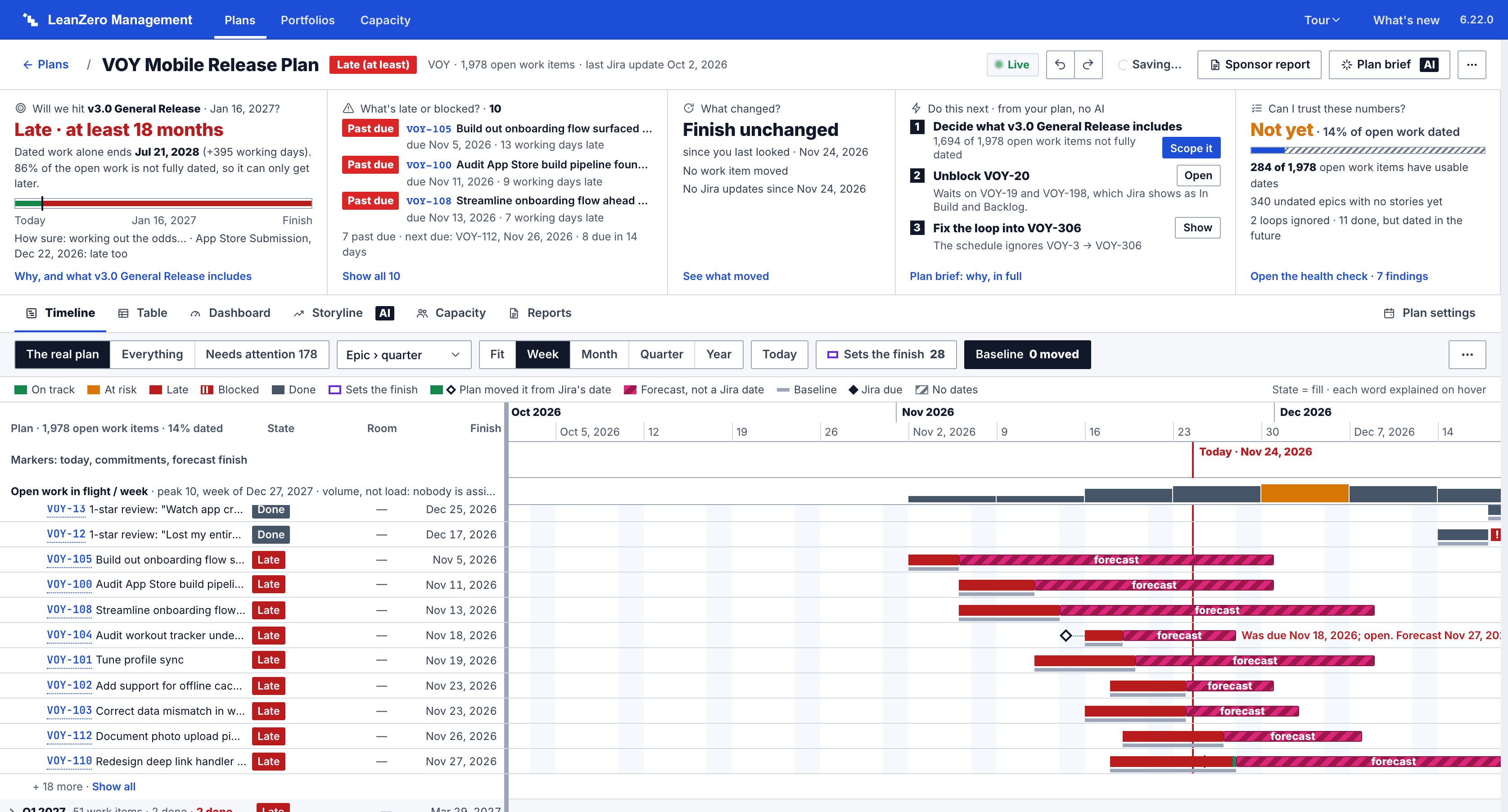
- In LeanZero Management, open the plan and stay on the Timeline tab. We used the VOY Mobile Release Plan on our demo site: 1,978 open work items.
- Click Week in the zoom buttons, then Today. The grid shows a week per column and scrolls to today.
- Click the name of the group that holds your work item. Ours was Q4 2026, and the group opened.
- Drag the bar of the work item that slipped one week to the right. We dragged VOY-100, "Audit App Store build pipeline found during load testing". It went from Nov 6 to Nov 11, 2026 to Nov 13 to Nov 18.
- Check the strip under the tabs. You should see "Your change moved 18 work items · the finish is the saved plan's", and two buttons in the plan header: Save (19) and Apply 19 changes.
Jira still has the old dates. Read the 18 first: it's how far one slip travels. I like that the drag lives in your plan, like a Jira Plans draft, so you can make a mess and still back out. The strip's "the finish is the saved plan's" means the drag didn't move the plan's finish. The first card above it says the same: "The saved plan finishes the same day, Jul 21, 2028."
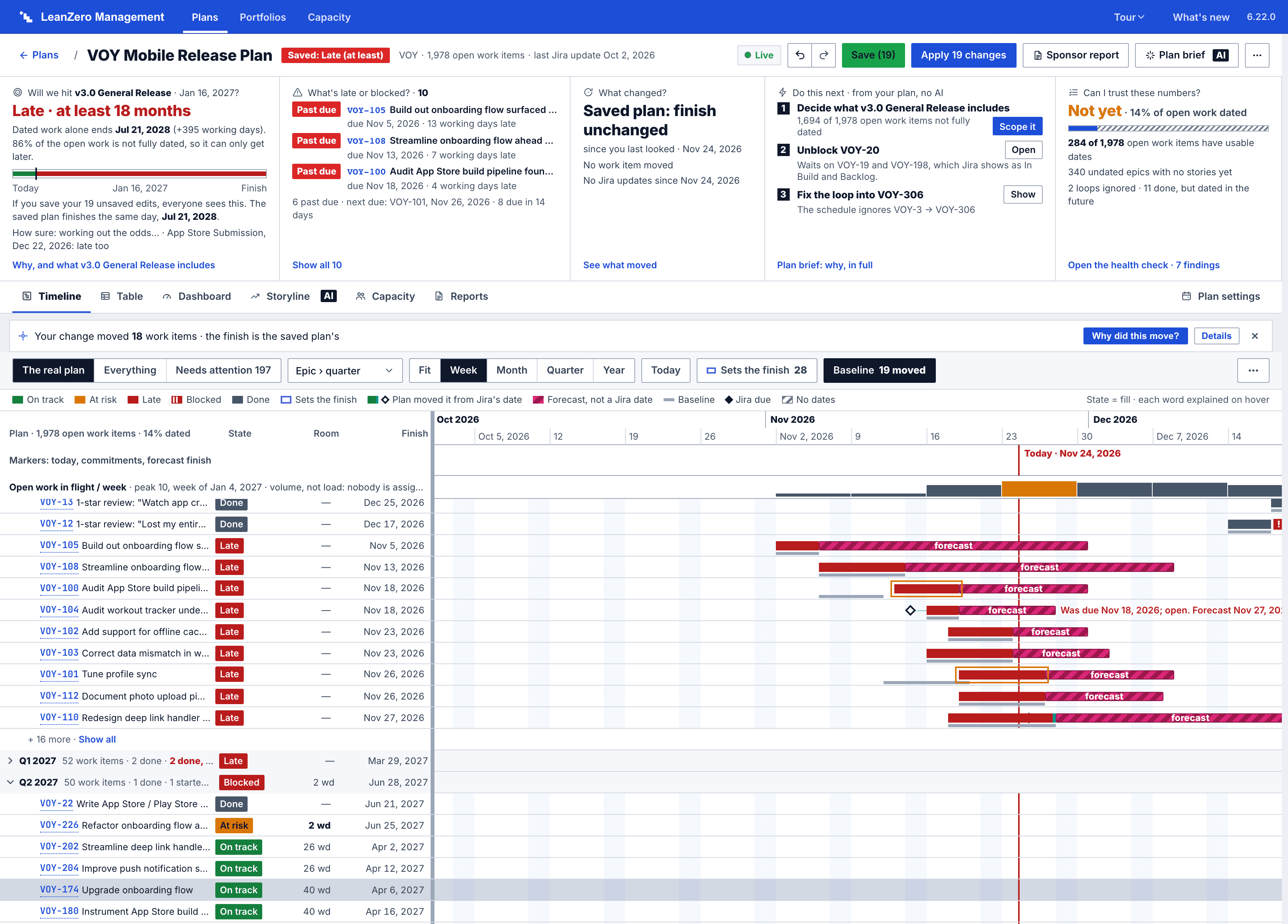
If you want to know which link moved which work item, click Why did this move? on that strip. The dependencies tutorial walks through that list, and the lag tutorial explains links that keep a gap of working days.
Step 2: Open the Apply review and read every date
- In the plan header, click Apply 19 changes. The Review changes dialog opens. Jira isn't touched by this click.
- Read the first box, "What this does to your commitments". A commitment is a date the plan promises, like a release. Ours said "No commitment moves." The box carries a Computed chip, which means the app worked it out from your plan; the AI didn't write it.
- Read the Date changes list. Each row shows Start and Due with the old date struck through and the new one after it, under the key and summary. The counter reads 19/19.
- Check the buttons along the bottom. You should see Discard all, Review with AI, Cancel and Apply 19 changes.
This is the top of the dialog as our run read it (the old date comes first in each pair; on screen it is struck through):
1Review changes
219 changes will be written to Jira
3What this does to your commitments   Computed
4No commitment moves.
5Date changes                          19/19
6VOY-18 Bump minimum supported OS to iOS 16 / Android 10
7Start: Mar 26, 2027  Apr 2, 2027
8Due:   Apr 6, 2027  Apr 13, 2027
9VOY-119 Audit in-app purchase flow in the staging environment
10Start: Dec 8, 2026  Dec 15, 2026
11Due:   Dec 15, 2026  Dec 22, 2026
Further down, VOY-100's row read Start Nov 6, 2026 struck through and Nov 13, 2026 after it, and Due Nov 11 struck through and Nov 18 after it.
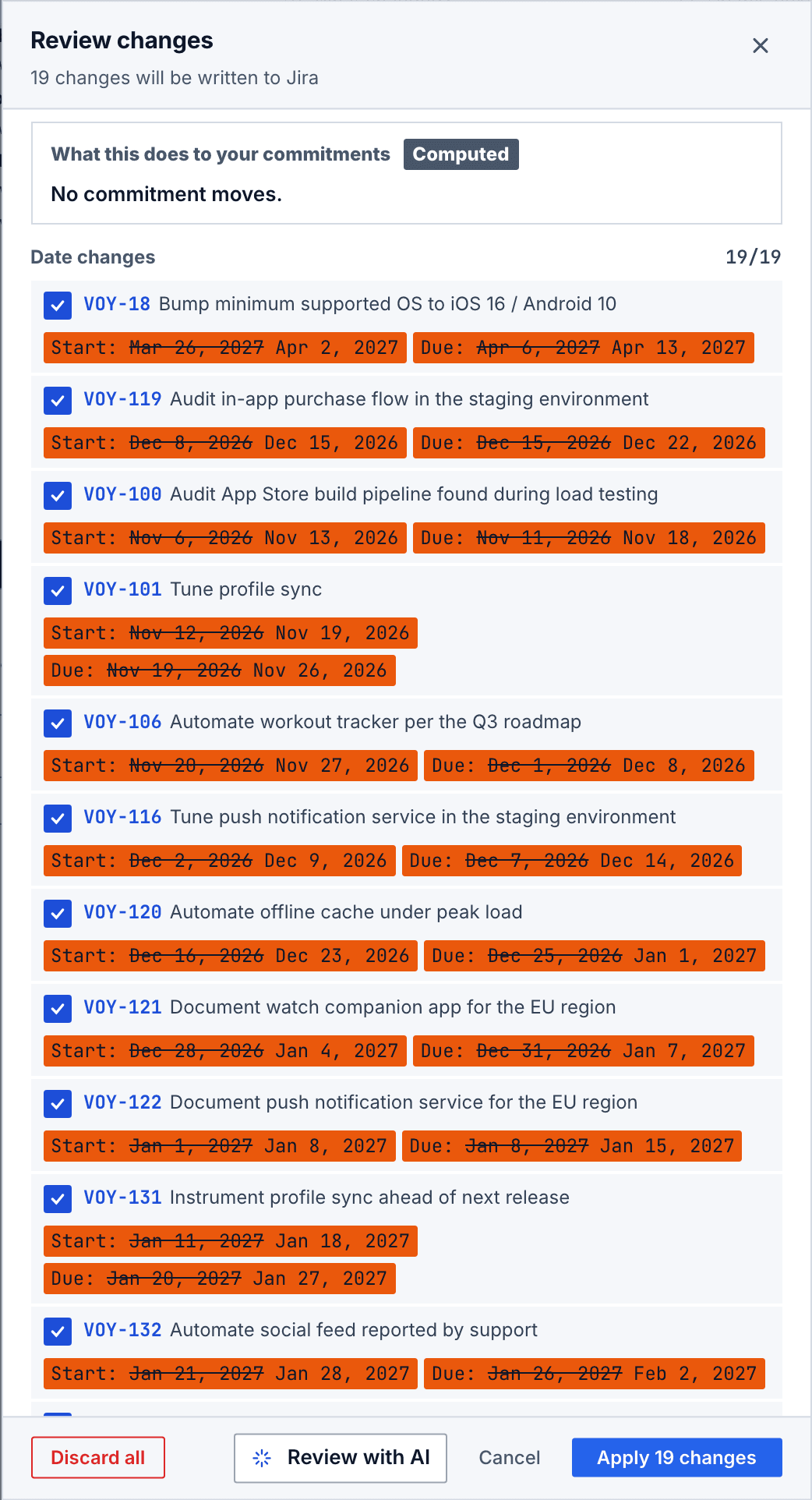
The rows aren't sorted by date, so scroll to the end of the list before you decide. VOY-18 at the top moves from Mar 26 to Apr 2, 2027. A one-week drag in November moved a date five months away, and I'd stop on a row like that.
If you staged links or rank moves, the dialog adds sections for them: New dependencies, Removed dependencies, Rank changes. Each has its own counter and its own ticks. Our drag staged dates only.
Step 3: Untick a row you don't want written
- In the Date changes list, click the tick box on the row you want to leave out. We unticked VOY-18.
- Check the header and the counter. You should see "18 changes will be written to Jira (1 discarded)", the counter at 18/19 and the main button at Apply 18 changes. The unticked row fades, with its dates still shown.
- Tick it again if you change your mind. We did, and the dialog went back to 19.
I untick a row when I know something the plan doesn't, such as a date I've already promised someone.
An unticked row is left as Jira has it, and other dates can go with it. The app's release notes say: "the dates that change alone would have moved are left out with it." If a second row moved only because of the one you unticked, the review locks that row too and names why. A row that moved because of two of your changes, one ticked and one unticked, is worked out again from the ticked one alone.
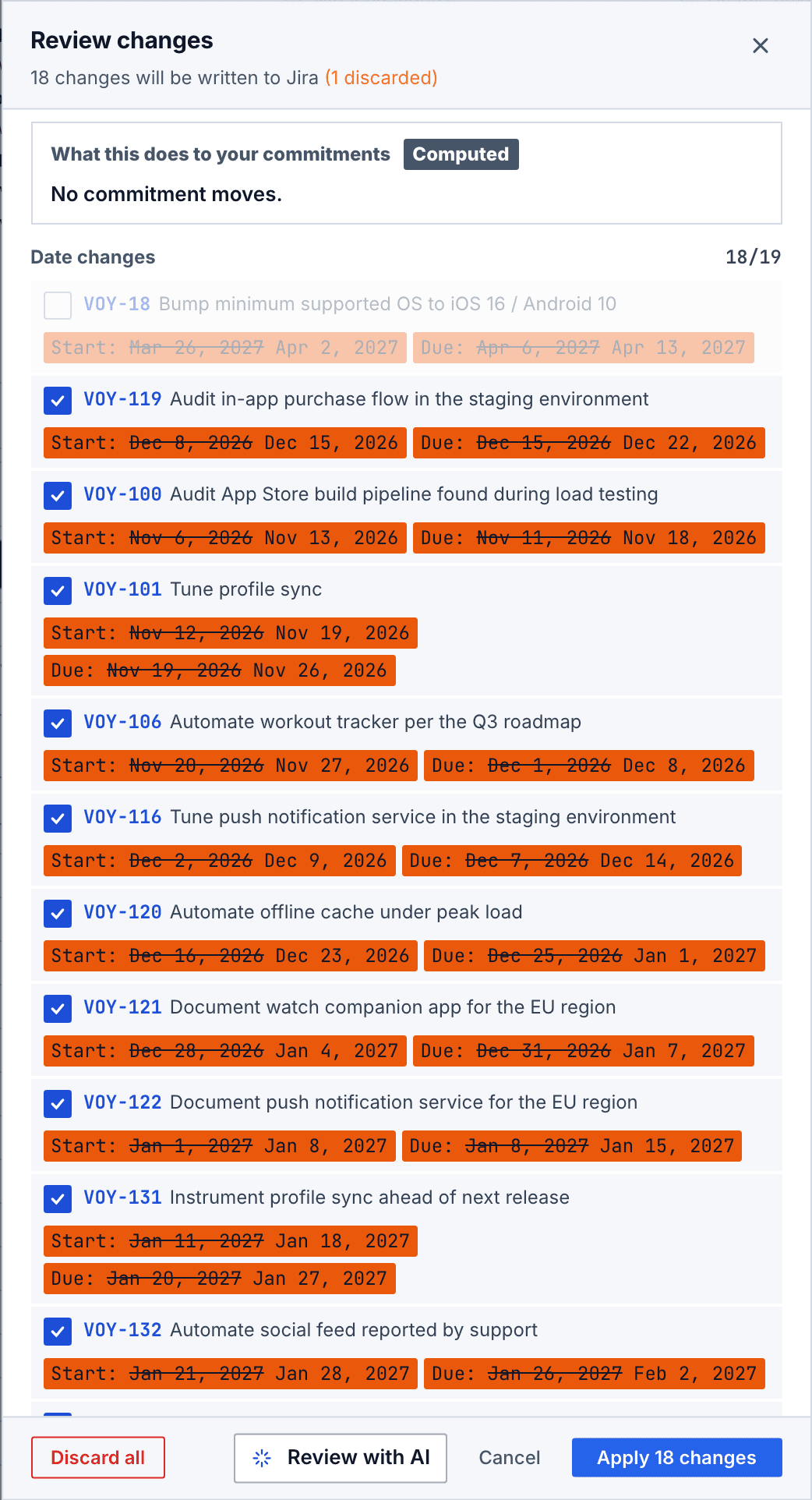
Some rows arrive unticked. A row Jira can't store starts unticked with Jira's reason on it. A row your own Jira account isn't allowed to change starts unticked and is locked. The app asks Jira about you, not about the app, and writes Jira's reason on the row. A row that waits for a dependency a colleague staged is also locked. The rest of the Apply goes ahead without them.
Step 4: Click Review with AI
- In the Review changes dialog, click Review with AI. A second layer called AI Plan Review opens over the dialog. Its subtitle says "Semantic checks a rule engine can't make — advisory, not a gate."
- Wait for the result. Ours answered in 12.1 to 13.4 seconds over three runs. The app gives the AI about 20 seconds at most, then says "The AI did not answer in time. Please try again."
- Read the line "This Apply writes 19 rows and resizes none." It's the app's count of what your Apply would do.
- Read the section headed Checked by the app. You should see cards with a severity chip, HIGH or MEDIUM on ours, and a Computed chip. The app computes these itself; the AI comes later.
The app's checks run before the AI. The loop and parent checks cover the whole plan, and the length check covers the rows you staged. On our run they raised a loop and an epic.
First came a HIGH card: "Dependency loops the schedule ignores". A dependency loop is a chain of blocks links that comes back to where it started, so no order can satisfy it. The card said: "2 dependency loops are ignored when the plan is scheduled: 44 work items are caught in the first, and its link VOY-3 → VOY-306 is set aside." Its advice: "Remove or reverse one link in each loop, in Jira; until then every date is worked out as if that link were not there."
Next, a MEDIUM card: "Parent dates disagree with their children". An epic is a parent work item that groups others. Here VOY-2 "starts Jan 11, 2027 in Jira, but its children start Jan 5, 2027." Under both cards sat a tick: "No staged leaf row doubles or halves its working days (19 staged leaf rows)". It comes from the third computed check, which flags any staged row that isn't a parent whose length at least doubles or halves and changes by 10 working days or more. None did, which fits a drag that only shifts dates.
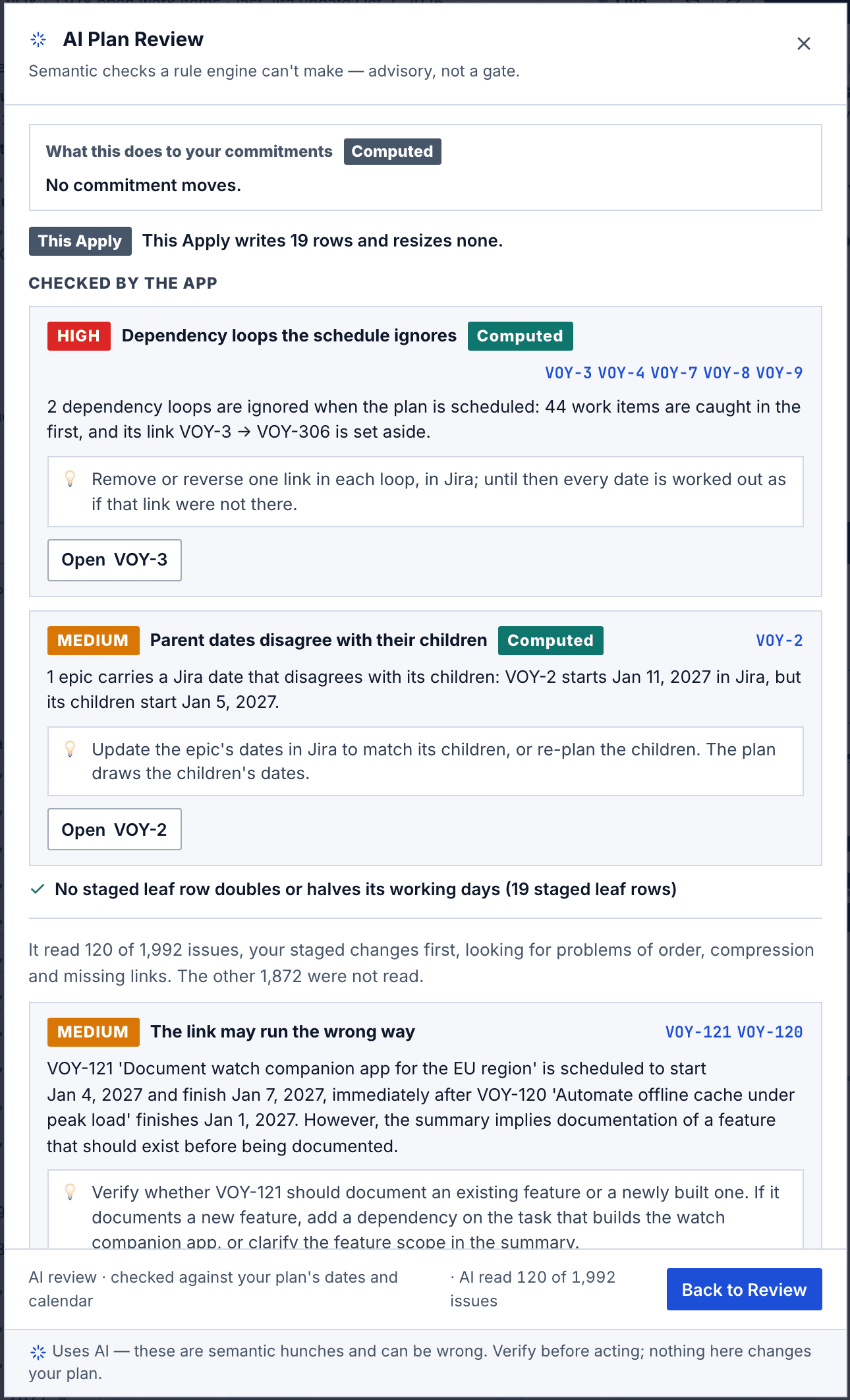
I'd fix a HIGH computed card before I read any AI card. Neither computed finding here is about my drag. Both were already in the plan. It's a good answer to anyone who thinks a review only needs to look at what changed: the loop decides how 44 work items are dated, and the drag rode on top of it.
Step 5: Read what the AI read, then judge its finding
- Find the line under the computed cards that starts "It read". Ours said:
1It read 120 of 1,992 issues, your staged changes first, looking for problems of order, compression and missing links. The other 1,872 were not read.- Read the AI's cards below that line. They have a severity chip and no Computed chip. Ours had one, MEDIUM, "The link may run the wrong way", on VOY-121 and VOY-120.
- Decide what to do with each one yourself. The footer says: "Uses AI — these are semantic hunches and can be wrong. Verify before acting; nothing here changes your plan."
The 1,992 counts every work item in the plan, done ones included, so it's more than the 1,978 open work items in the plan header. The AI gets at most 120 rows, staged ones first. Each row carries its key, a summary cut to 90 characters, type, dates, duration, parent and up to eight predecessors, and a staged row also carries its old dates. The plan's name and working calendar go with them. A cap keeps the cost bounded; the app's release notes say "The AI plan review sends at most 120 work items, however it is called."
The AI looks for what the app calls problems of "order, compression and missing links". It may return six findings at most, and it's told to return none when nothing is worth raising. Then the app checks its answer against the plan's own facts. A finding the schedule disproves is dropped. A finding can only stay HIGH when the plan's dates prove it; otherwise it's shown as MEDIUM. When the AI raises nothing, the app says "The AI raised nothing", not a green tick, because a sample of 120 can't clear 1,992.
Our one hunch read: "VOY-121 'Document watch companion app for the EU region' is scheduled to start Jan 4, 2027 and finish Jan 7, 2027, immediately after VOY-120 'Automate offline cache under peak load' finishes Jan 1, 2027. However, the summary implies documentation of a feature that should exist before being documented." Its advice: "Verify whether VOY-121 should document an existing feature or a newly built one. If it documents a new feature, add a dependency on the task that builds the watch companion app, or clarify the feature scope in the summary."
We checked the dates against the review rows. They're right. But the reasoning is a guess from two summaries, and the AI says so by suggesting you verify. On a demo plan I don't know who builds the watch companion app. On your plan, you'd know. I want a reviewer to put questions like this in front of me, and the app labels it as a hunch.
Where does the plan go? The AI is Forge LLM, Atlassian's hosted model service for Forge apps, and the app uses Anthropic's Claude Haiku 4.5 through it. Atlassian's announcement says Forge LLM "doesn't require data egress from the Atlassian Platform" and "runs on Amazon Bedrock". Its API page says requests "undergo the same moderation checks as Atlassian first‑party AI and Rovo features." I couldn't find an Atlassian page that states how long requests are kept.
Each Review with AI counts as one AI action against the site's limit: by default 100 a day and 500 a month for the whole site, shared with the app's other AI features. If nothing in the plan changed, the same person repeating the review within ten minutes can get a Saved review that costs nothing. In our runs, a repeat of the same drag five minutes later was a new review and counted. An administrator changes the limits in Settings, Maintenance.
Step 6: Discard all instead of saving changes in Jira, then check Jira
- At the bottom of AI Plan Review, click Back to Review. You're back in Review changes with your ticks as you left them.
- Click Discard all. The dialog closes.
- Check the plan header and the timeline toolbar. You should see no Apply button, and the Baseline button reads "0 moved" (it read "19 moved" before). VOY-100 was back to Nov 11, 2026. The header reads Saving... for a moment while the app records the discard in your plan, then Saved. That's the plan, not Jira: Jira still had the old dates.
- To be sure, reload the page and open the plan again. It takes a few seconds. By eye, check that VOY-100 and the first rows of the review are back on their old dates. Our script compared every schedule with the ones it noted before the drag and recorded this (summarised from its result file):
1schedules compared: 1992
2changed after reload: 0
3toolbar: Saved, no Apply button, no Resume button- Ask Jira itself for the dates of the work item you dragged. In a terminal, with your Atlassian email and an API token, run the command below with your site and key. On our site Jira's Start date field is
customfield_10015; yours may have another id. You should see the dates from before the drag. It needs curl and jq. First set two variables in the same terminal:export JIRA_EMAIL=you@example.comandexport JIRA_API_TOKEN=<the token>. To find your Start date field id, openhttps://your-site.atlassian.net/rest/api/3/fieldwhile signed in and search the page for "Start date"; its "id" is the one to use.
1curl -s -u "$JIRA_EMAIL:$JIRA_API_TOKEN" \
2  "https://your-site.atlassian.net/rest/api/3/issue/VOY-100?fields=duedate,customfield_10015" \
3  | jq '{key, start: .fields.customfield_10015, due: .fields.duedate}'
What it printed for us after Discard all:
1{
2  "key": "VOY-100",
3  "start": "2026-11-06",
4  "due": "2026-11-11"
5}
Discard all reverts your own staged changes to what Jira holds. It never touches a row held for a colleague's staged link; that row stays theirs. Cancel is different: it closes the dialog and keeps your changes staged.
If you'd rather write the changes, click Apply 19 changes instead. The app then writes row by row and checks each row in Jira first. It stops before a row if someone changed it in Jira since your review: "Apply stopped before this issue was written." The dependencies tutorial shows a full Apply and how to check Jira afterwards.
Jira Plans dependencies vs Gantt dependency chains
In Jira, a dependency is a work item link such as "blocks" or "is blocked by". Atlassian's "Link work items" page lists those types and notes that "Work item link types can be configured by Jira admins." It says nothing about links moving dates.
Jira Plans' autoscheduler proposes dates from estimates and your plan settings, and you accept them before you save. LeanZero Management reads the same blocks links and moves the waiting work items the moment you drag, on working days. Both stop at a review before Jira. The difference is in the review: Jira Plans lets you choose rows, warns about rows it can't save and shows timeline warnings, and the app's review also says what the change does to your commitments and runs its loop and parent checks before you write. On a big plan I'd pick the review that tells me about my release date. If you're weighing them, our comparison with Jira's timeline and Plans covers the rest.
If it didn't work
There's no Review with AI button. AI is off for the site. A Jira administrator turns it back on in the app's Settings, Maintenance.
"Review with AI is turned off in the AI features settings." An administrator switched off this one feature. A Jira administrator turns it back on in Settings, Maintenance, AI features.
"Daily AI review limit reached" or the monthly one. Your site used up its AI actions. The screen says "An admin can raise the limit in Settings → Maintenance. You can still apply." The review of dates and the computed checks don't depend on the AI.
"The AI did not answer in time. Please try again." Your review ran past its time. The error screen says "This didn't change your plan — you can apply, or try the review again."
A row is unticked and won't tick back on. Jira refused it for your account, it waits for a link a colleague staged, or it only moved because of a row you unticked. The reason is on the row.
The Apply button is still there after you thought you discarded. Your changes are still staged and Jira has the old dates. Our first scripted run looked for "Discard All", the label our older scripts used. It missed the button and left 19 changes staged. We read VOY-100 from Jira's API and it still had its old dates. Opening the review and clicking Discard all cleared it.
What it doesn't do
Review with AI writes nothing. It doesn't change your plan or your Apply, and it never blocks Apply: you can apply with an open HIGH finding, and you can apply when the AI fails.
On a plan bigger than 120 rows, the AI doesn't read your whole plan. It said so on ours: 1,872 not read. I'd rather the app said so. I think 120 is enough when your staged rows come first, as they do here. The loop and parent checks do cover the whole plan, and the app shows them first.
It doesn't fix the loop. It names the link the schedule sets aside and tells you to change it in Jira. Until you do, the plan works out every date as if the links it set aside weren't there; the first loop alone holds 44 work items.
We didn't press Apply in this run, and we didn't test a plan with AI switched off. The product page has the manual entry for Review with AI and the AI controls.
What you have now
Key takeaways
- A one-week drag on VOY-100 that moved 18 work items and staged 19 date changes, with Jira still on the old dates.
- A Review changes list with each old date struck through, and a row left out with one click.
- The app's computed checks: 2 dependency loops (HIGH), one epic out of step with its children (MEDIUM), no staged row resized.
- An AI read of 120 of 1,992 work items in 12 to 13 seconds, with one MEDIUM hunch to check by hand.
- A plan back on Jira's dates after Discard all, with 0 of 1,992 schedules changed after a reload.
You staged a week's slip, read all 19 dates it touched, left one out, had the app and the AI look at the plan, and put everything back without writing to Jira. You also found two loops that were in the plan before you touched it.
My advice: run Review with AI before any Apply that moves more rows than you can read in a minute, and fix the HIGH computed cards first, because the plan's own dates prove them. Treat the AI's cards as questions for whoever owns the work.
Comments
0Add a comment