
Confluence Cloud XML export ends on 1 December 2026: what the CSV export keeps and loses

14 min readOctober 27, 2026
Key takeaways
- XML space and site export in Confluence Cloud reaches end of life on 1 December 2026. It keeps working after that date, but Atlassian stops fixing bugs in it and stops taking support tickets about it. CSV is the supported replacement on every plan.
- On our 20-object test space, the CSV export kept every content item the XML export kept: the page tree, a folder, 3 page versions, comments, both versions of 2 attachments, labels and restrictions. CSV also kept 14 space role assignments and the space logo, which XML dropped.
- CSV has no email addresses (XML had 14), and you can't pick pages for a CSV export. CSV also can't be imported into Data Center, so a Cloud-to-Data Center exit still needs XML.
- If Jira and Confluence share your site, Confluence's Site Import page says a site backup can't be restored as a site, and Import spaces takes only space exports. Keep CSV space exports of the spaces you'd need back and test restoring one.
- CSV was slower on a tiny space: 145 and 184 seconds against 6.8 seconds for XML (about 64 seconds on the first XML run), and the zip was 74 KB against 26 KB. The import tasks ran for 112 seconds for CSV and 32 seconds for XML, after about 2 minutes in the queue.
- Backup manager has no format picker. On our site Create backup for cloud produced a 14.7 MB CSV zip in 3 minutes 14 seconds, and Create backup for server a single 472 MB entities.xml in about 26 minutes. There's still no public REST endpoint to start a space export (CONFCLOUD-40457, 459 votes, open since 2016).
Confluence Cloud's XML site and space export reaches end of life on 1 December 2026, and Atlassian's supported replacement is the CSV export, so we exported the same space both ways to see what each file keeps. On our test space CSV kept all the content XML kept, plus two things XML dropped. The catches are elsewhere: CSV can't go into Data Center, it carries no email addresses, and Backup manager doesn't let you pick a format at all. Its two buttons decide it, and we ran both.
You'll find the date in Atlassian's knowledge base article on the XML export end of life, updated on 6 August 2026, and in the Community announcement from 1 June, which had 1,922 views when I checked this morning. Only two people commented on it, and nobody from Atlassian has answered either of them. One asked "What about XML imports on Cloud?". The other asked Atlassian to keep XML until Data Center itself reaches end of life. If you run Confluence for a company, you've probably asked both of those yourself.
On 27 October we built a small space on our own test site with as many kinds of content as we could think of. Then we exported it as XML and as CSV, imported both files back, and compared them item by item. We also looked at Backup manager and at what a script can still call. Our site is on Premium.
Prerequisites: Confluence Cloud, and space admin permission on the space you export (Atlassian's import doc: "You must be the space admin to export"). Importing a space back needs site admin, and you need Confluence admin for the Backup manager screen. We tested on one Premium site with a space of about 20 objects, all created by one author, so treat the timings as indicative. CSV export is on every plan, per the KB: "Free, Standard, Premium, Enterprise".
Confluence XML export end of life: what changes on 1 December 2026, and what doesn't
Nothing gets switched off. The KB is clear: "The features continue to work — they have not been removed from the product". Then it adds "Atlassian will no longer fix bugs, accept support tickets, or provide SLAs for XML export". And "You use XML export at your own risk". Your runbook will still run on 1 December. If the XML export breaks after that, though, you can't raise a ticket about it.
Two more lines from the KB matter for planning. "XML Import is not in scope for this change", which answers the first commenter, at least for now. And "CSV cannot be imported into DC". The KB's own checklist tells you to "Identify any automated scripts, scheduled jobs, or internal runbooks that use XML Site Export or XML Space Export". It also says to "Keep one final XML export as a transitional backup until you've fully validated your CSV workflow." I'd do that last one this week, while XML is still supported.
A Wayback copy from 8 June has the same date. Atlassian added the "Action required" box and the verification section between June and August, so if you read the page back then, it's worth reading again. I re-read it this morning.
Who must act before 1 December, and who can ignore it
You need to do something if your runbook or a scheduled job uses XML Space Export or Create backup for server. For a space export, switch to CSV, run it once, and restore it into a test space the way we did further down. For a site backup, switch to Create backup for cloud and download the file. If Jira is on the same site, our Site Import page says a whole-site restore isn't available and points you to importing spaces one at a time, and Import spaces takes only space exports. We didn't try feeding it a site backup. So keep CSV space exports of the spaces you'd need back, and test restoring one.
You also need to act if a script starts your exports or backups. There's no documented API for a CSV space export. The backup endpoint scripts have used for years still answered for us, but it's undocumented. So decide: keep running the old call unsupported, or move to Atlassian Backup and Restore. You can only buy that on an annual Premium or Enterprise plan. On Free or Standard there's no supported way left to automate a backup (CLOUD-12817: "Standard customers will lose the ability to automate the backup creation process"), so it's a manual Create backup for cloud or an upgrade.
If you could ever need your Cloud content in Data Center, take one XML export now, test it while Atlassian still supports it, and ask Atlassian Support what they'll offer after December.
And if a compliance or legal team parses your archives, give them a CSV sample now. Their tooling probably reads entities.xml, and the CSV zip is a different set of files with no email addresses in it.
You can mostly ignore the date if you only export spaces to move them between Cloud sites. Since 2023 Atlassian has called CSV the preferred format for a single space you re-import into Cloud, and in our test it kept all the content XML kept. For moving a whole site, Atlassian now points to copying product data instead.
Switch the Confluence Cloud backup to CSV in Backup manager (the Create backup for cloud button)
The KB says "For Site Backup/Restore: Go to Confluence Settings → Backup Manager / Select CSV as the export format instead of XML". Our Backup manager had no format selector.
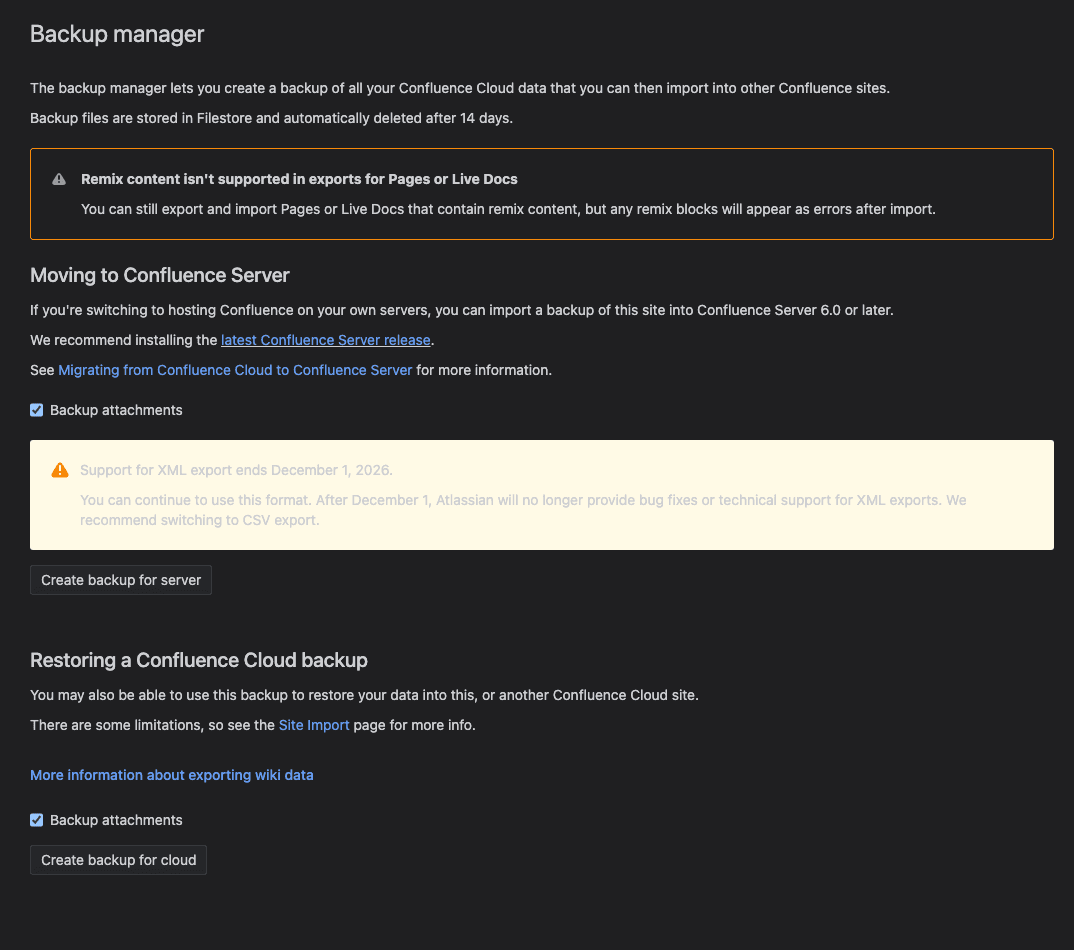
It has two buttons. Create backup for server sits under "Moving to Confluence Server" ("you can import a backup of this site into Confluence Server 6.0 or later"). It has the same yellow end-of-life text, so that's the XML one. Create backup for cloud sits under "Restoring a Confluence Cloud backup", and the KB's further-reading list says "Create backup for cloud" exports in CSV format.
We ran both on our test site, which has about 50 spaces, with Backup attachments unticked to keep the files small. Create backup for cloud showed PROCESSING under the button and finished in 3 minutes 14 seconds. The download was called confluence_backup_csv_2026-10-27.zip and weighed 14.7 MB. Inside were 50 gzipped table files, a whiteboard file and a metadata.json, and no entities.xml. So yes, cloud means CSV.
Create backup for server first opened a dialog called "Understanding why you backup", asking whether this was an offline backup, a merge or a move to server, plus an optional server licence number. We left it on Offline backup. It took about 26 minutes and gave us a 21.3 MB Confluence-export.zip with one entities.xml inside, 472 MB once unpacked. So server means XML. It was also eight times slower for us, which surprised me.
About six minutes into the server backup, the page put up a red box: "Export error / Export in progress - not responding", with a request to contact Atlassian support. It wasn't true. The progress call at the same moment said "Writing export" at 23%, and the backup finished fine. We saw it once, in a headless browser, so it may not show up for you. If you see that box, check the progress (below) before you open a ticket. The page also shows only one download link, for the newest backup, so the second backup replaced the first one's link.
Atlassian's own site backup doc muddies this. Its only step is "Choose Create backup for cloud". The same page says "You can import the backup data into Confluence Data Center 6.0 or later." That can't be true of a CSV file, given the KB's "CSV cannot be imported into DC". If a Data Center restore matters to you, use Create backup for server and test the restore.
The doc also has the numbers you'll want for a real site. A backup "can be up to 30 GB in total size, plus 800 GB of attachments". Only one backup file is kept at a time. The Backup manager screen says files are "automatically deleted after 14 days". So download each one and store it somewhere you control. And if your boss asks whether Atlassian backs it up anyway: Atlassian takes backups "every 24 hours for purposes of application recovery (not for rolling back application data)". Those are for Atlassian's recovery, and you can't restore your own mistakes from them.
Restoring a whole site is the part most runbooks haven't tried. Our Site Import page says "If your Atlassian Cloud site has both Confluence and Jira, site import is not available. To import an entire Confluence site, you'll need to import the spaces one at a time." Plenty of sites have both, and ours does. Backup manager also warns that "Remix content isn't supported in exports for Pages or Live Docs", so if your teams use Live Docs, expect those blocks to come back as errors.
Scripts that call XML export have no documented CSV equivalent
For scripts, the KB's advice is "Switch each to CSV export". That's harder than it sounds, because neither export has a public API.
CONFCLOUD-40457, "Add REST API endpoint for generating space exports", has 459 votes, was opened in January 2016 and is still Gathering Interest. The headless script in our August tutorial drove the web UI's own XML call, a form POST to /wiki/spaces/doexportspace.action with exportType=TYPE_XML, and that's the exact call our browser made this time too. Our CSV button made different calls, internal GraphQL ones with names like useCsvExportTaskMutation. Atlassian doesn't document them, and we didn't try calling them outside the browser. So a script can keep its XML call after December, at its own risk, but there's no documented CSV call to swap in.
Site backups had their own cutoff earlier this year. Atlassian's ticket CLOUD-12817 says "The v1 Backup management APIs will be deprecated on March 30, 2026", and JRACLOUD-68196 says the community backup scripts "are no longer valid" since then. Customers on CLOUD-6498 (2,251 votes) disagree about whether the Confluence one still answers. Its path is /wiki/rest/obm/1.0/runbackup. If that's in your scripts, here's what it did for us:
Our button for the cloud backup called exactly that path, so we called it from a script too, with an API token, the body {"cbAttachments":"false","exportToCloud":"true"} and no browser. It answered HTTP 200. Then it started a cloud backup. You can follow it with the progress call:
1curl -s -u "$EMAIL:$TOKEN" "https://<your-site>.atlassian.net/wiki/rest/obm/1.0/getprogress"1<?xml version="1.0" encoding="UTF-8" standalone="yes"?><backupresult fileName="temp/filestore/<id>" size="14684393" currentStatus="COMPLETE" alternativePercentage="100" concurrentBackupInProgress="false" time="1793072727104" isOutdated="false"/>That's the script-started backup, finished, at 14.7 MB like the one from the button. So on 27 October the Confluence endpoint still worked with an API token. It was never a documented API, though, and Atlassian can turn it off without notice, so treat it as borrowed time.
The supported automated route is now Atlassian Backup and Restore, a paid add-on. For Confluence it covers up to 32 GB and 7 million attachments, keeps backups for 30 days, and Atlassian quotes 12 hours to restore and up to 24 hours of lost data. Atlassian publishes no price, and on Free or Standard you can't buy it at all.
Export a Confluence space to XML (the baseline)
From here on it's the space export, step by step, with what each file held.
- 1
Open the space and go to Space settings
open Space settings for the space, or go straight to the address in the next step.
- 2
Pick Export space under General
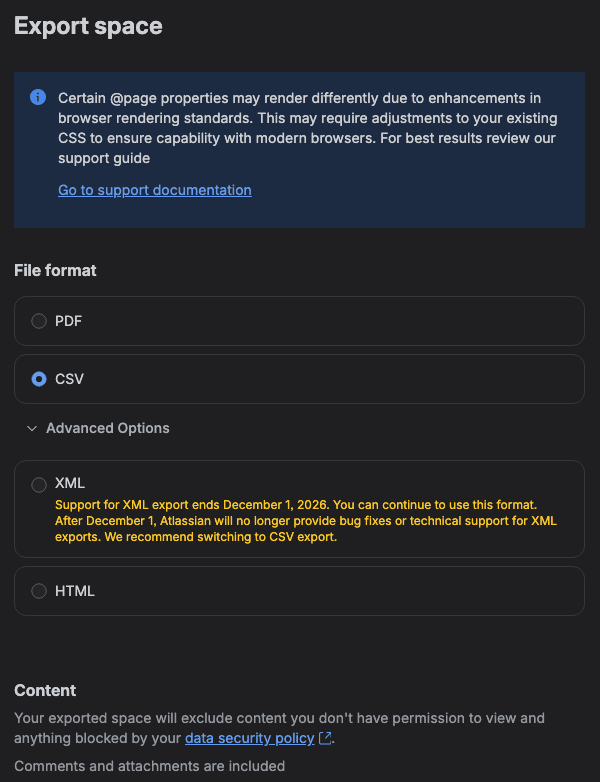
the address ends in /wiki/spaces//settings/export, and you'll see a File format list with PDF and CSV.
- 3
Expand Advanced Options and select XML
XML and HTML sit under it, and XML shows the yellow end-of-life text quoted below.
- 4
Click Next
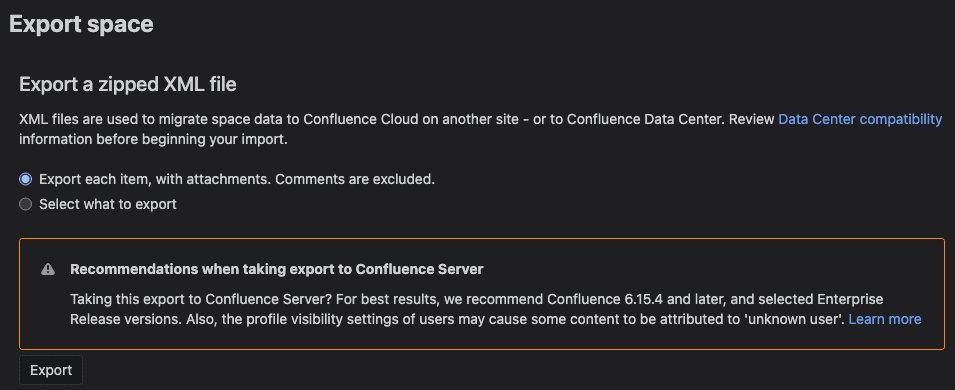
this leaves the new screen for an older page titled Export a zipped XML file.
- 5
Keep Export each item, with attachments, and click Export
a progress page counts up until it says Export complete.
- 6
Download the zip and list it
you should see one entities.xml with the attachments next to it.
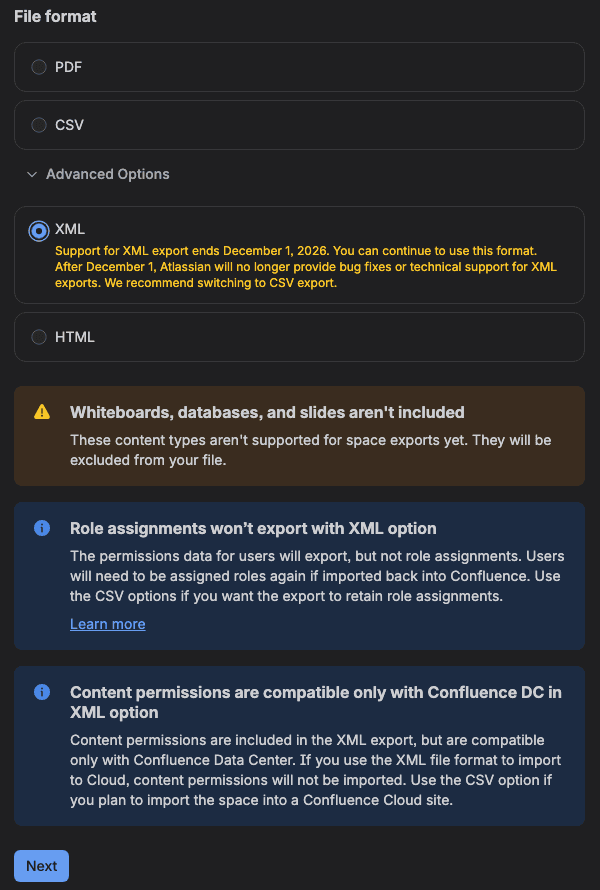
Word for word, the text under the XML radio says: "Support for XML export ends December 1, 2026. You can continue to use this format. After December 1, Atlassian will no longer provide bug fixes or technical support for XML exports. We recommend switching to CSV export."
One thing on the older page confused me. Its default option reads "Export each item, with attachments. Comments are excluded." The form still sent includeComments=true when we clicked Export, and all 3 of our comments were in the zip. So yep, check the zip and ignore the label.
Our XML zip held 7 files:
1unzip -l xml-Confluence-export-space-lzxml.zip1Archive: xml-Confluence-export-space-lzxml.zip
2 Length Date Time Name
3--------- ---------- ----- ----
4 749 10-27-2026 02:28 exportDescriptor.properties
5 69 10-27-2026 02:28 attachments/435945498/436109316/2
6 69 10-27-2026 02:28 attachments/435945498/436109316/1
7 30 10-27-2026 02:28 attachments/435945498/436338698/2
8 21 10-27-2026 02:28 attachments/435945498/436338698/1
9 751549 10-27-2026 02:28 entities.xml
10 1750 10-27-2026 02:28 AO_BAF3AA_AOINLINE_TASK.csv
11--------- -------
12 754237 7 filesEverything lives in entities.xml: 776 objects, including 23 pages, 3 comments, 5 attachments and 447 space permissions. Folders, whiteboards, databases and smart link embeds are all stored as pages, each with a flag such as isFolder. Our whiteboard and database came out as empty shells with no board data.
Export a Confluence space to CSV, step by step
There's no page picker for CSV, so the screen has fewer choices.
- 1
Open Space settings > Export space again
same address as before.
- 2
Select CSV
the Content section underneath changes to say what will be included.
- 3
Read the Content note
it says "Your exported space will exclude content you don't have permission to view and anything blocked by your data security policy." and "Comments and attachments are included".
- 4
Click Export Space and stay on the page
you'll see Exporting files and a Completion percentage. Ours sat at 60% for about two minutes.
- 5
Click Download when it says the zip is ready
the message is "Your exported zip file is ready to go!".
- 6
List the zip, then unzip it and check one table file
you should see a few dozen files named after database tables, plus an attachments folder.
1unzip -l csv-Confluence-export-wolfaenpak.atlassian.net-LZXML.zip | tail -3
2unzip -q csv-Confluence-export-wolfaenpak.atlassian.net-LZXML.zip -d csv && cd csv
3file content.csv.gz
4gunzip -t content.csv.gz1 539 10-27-2026 02:31 whiteboards/data/whiteboardExport_1.csv
2--------- -------
3 316802 55 files
4content.csv.gz: CSV text
5gunzip: content.csv.gz: not in gzip formatOur CSV zip had 55 files: 48 table files ending in .csv.gz, an exportDescriptor.properties.gz, one whiteboard data file and 5 attachment files. None of those 49 .gz files is actually gzipped this time, so an archive script that tries to decompress them will fail. The site backup further up is different: its .csv.gz files are real gzip. Our August tutorial on turning a space export into a folder tree called the same files gzipped, and these weren't, so check yours before you write a parser.
If you open content.csv you'll see what kind of CSV this is. Its first line is a database header (it starts with contentid and hibernateversion), and pages, folders, attachments and comments sit in that one table as rows. If you were hoping to open it in Excel and read a page, you'll be disappointed. It's really meant for Confluence to import.
Compare the XML and CSV exports, item by item
We seeded one item of each kind, looked for it in both zips, and looked again after importing each zip back into Cloud.
What we created | XML export | CSV export |
|---|---|---|
Page tree, 3 levels | Kept | Kept |
Folder with a page and a grandchild in it | Kept, as a page flagged isFolder | Kept, as a FOLDER row |
Page with 3 versions and version comments | All 3 kept | All 3 kept |
Footer comment with a reply, inline comment | Kept | Kept |
Image and text attachment, 2 versions each | Both versions kept | Both versions kept |
Labels, content property | Kept | Kept |
View and edit restrictions | Kept | Kept |
Space permissions | 447 rows | 447 rows |
Space role assignments | Missing | 14 kept |
Space logo | Listed in entities.xml, file missing | Kept |
Whiteboard | Empty shell | Shell plus a whiteboard data file |
Database | Empty shell | A content row, no data file |
Smart link embed, blog post | Kept | Kept |
Unpublished draft, trashed page | Kept | Kept |
Users | 14 with email addresses | 661 account ID mappings, no emails |
Time until the Download link appeared | 6.8 s (first run about 64 s) | 145 s and 184 s |
Zip size | 26,152 bytes, 7 files | 74,254 bytes, 55 files |
A note on the odd numbers in there. One person built the space, yet the XML held 14 user records and 447 space permission rows, and the CSV mapped 661 accounts. We didn't work out exactly where they all come from. They're far more than the people who touched the space, so they look like the site's users and groups that the space's permissions reach.
I expected two tickets to bite here. CONFCLOUD-84941 said a CSV export "Produces a flat table of all content with no folder hierarchy information", and it was closed as Fixed on 18 September 2026 with no note about what shipped. In our export the folder was a FOLDER row with its children pointing at it, and it came back as a real folder after import. CONFCLOUD-79269 is a size complaint: both formats include the old attachment versions too, which makes big spaces bigger. That's still true, and it's still Gathering Interest.
I'd tell people about the role assignment gap first. Space roles are Confluence Cloud's newer way of granting space access, and the XML screen warns about them ("The permissions data for users will export, but not role assignments"). Our entities.xml had no role data at all, while the CSV had 14 assignment rows. If your spaces use roles, an XML copy of them is missing who holds which role.
XML carried all 14 users with their emails. CSV only maps account IDs. If someone downstream uses the export to work out who wrote what, CSV gives them an account ID and they'll need the user directory to turn it into a person.
We didn't set up a classification policy, so one difference isn't in our table. Atlassian's Prevent data export doc covers pages blocked by a classification policy. Say a blocked parent page has unblocked children. The children still go into an XML export. For CSV, "both the parent pages and the child pages are omitted when exporting to CSV format." So with a data security policy in place, a CSV export can have fewer pages than an XML one.
Import both files back to check the round trip
We wanted to know the files actually come back, so we deleted the space and imported each zip through Confluence administration > Import spaces.
- 1
Go to Confluence administration > Import spaces
the page is titled Import Confluence spaces and has one file picker, Space export file.
- 2
Make sure the space key is free
the importer won't overwrite a space with the same key, so import into a site where the key doesn't exist, or delete or rename the old space first.
- 3
Select the zip and click Import
the same picker took both formats, and Confluence worked out which one it was.
- 4
Wait for the import, then check the result
open the space and compare its page tree and one page's history with what you exported.
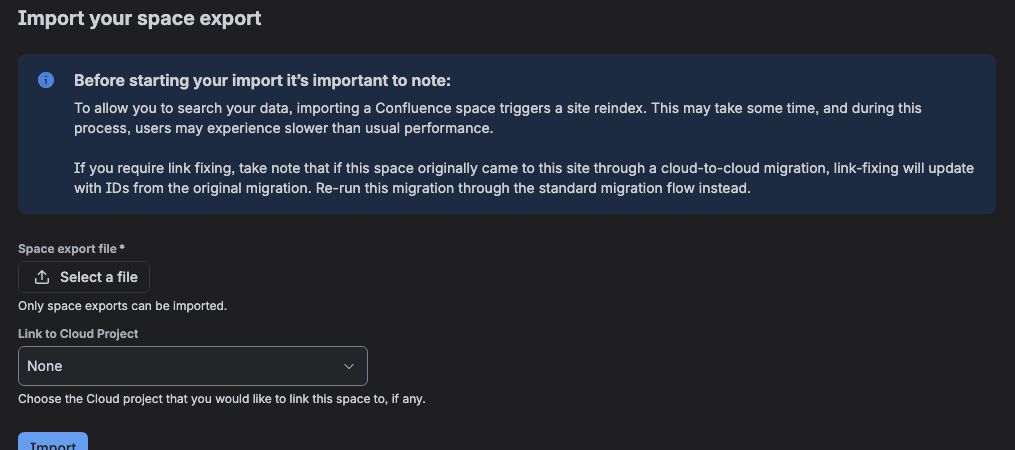
Both came back, which I was glad to see. The XML import task ran for 32.4 seconds after about 2 minutes in the queue, and the CSV one ran for 111.6 seconds. Both restored the page tree, the folder, all 3 versions, the comments, both attachment versions, labels, restrictions, the blog post, the draft and the trashed page, all with new content IDs. After the XML import the space icon was a broken image, because the logo file was never in the zip. I didn't expect that one.
The XML screen also warns that "If you use the XML file format to import to Cloud, content permissions will not be imported." Our restrictions came back after the XML import anyway. We only tested restrictions with one user, ourselves, on the same site, so I wouldn't lean on that result for a real cross-site move.
Our first CSV import failed. I nearly missed it. We tried it while the original space still existed, and the screen sat on "Importing in progress... Unzipping the uploaded file" for 8 minutes (our browser was headless, which may play a part). What actually happened was in Confluence's long-running task list, which you can read with an API token, newest task first:
1curl -s -u "$EMAIL:$TOKEN" "https://<your-site>.atlassian.net/wiki/rest/api/longtask" \
2 | jq -r '.results[] | select(.name.key | test("ImportCsv|ImportXml")) | "\(.name.key | split(".") | last) successful=\(.successful) \(.messages[0].translation)"'1ImportXmlSpaceTaskRunner successful=true Space with key LZXML imported successfully.
2ImportCsvSpaceTaskRunner successful=true Total successful records processed: 2
3ImportCsvSpaceTaskRunner successful=false A space with key LZXML already exists.Confluence Cloud to Data Center migration still needs XML
The KB calls it "The one known gap": "Cloud to Data Center migration (e.g. due to a company merger) where the Data Center site restore only accepts XML format. If this applies to you, please contact Atlassian Support to discuss your options." CSV space exports had the same limit at launch in 2023: "you will not be able to import CSV space exports into Confluence Server or Data Center".
You might one day need Cloud content in a Data Center instance, after an acquisition say, or for a regulator. If so, take the XML export now while it's supported. Test the restore, and keep it. Atlassian's own doc for merging two Cloud sites still describes a route that restores a Cloud backup into a Data Center trial and migrates it back out, so that route depends on XML too. For a plain move between Cloud sites, Atlassian now points to copying product data in Atlassian Administration, or a CSV space export and import. Data Center itself goes read-only on 28 March 2029, so this window is limited at both ends. If a Data Center exit is on your table, our migrations team is happy to talk it through.
If it didn't work
An error that Confluence can't find the exportDescriptor.properties file (that's Atlassian's description, we didn't hit it): Atlassian's import doc says a Mac may unzip the CSV export automatically when it downloads. Upload the original zip file again.
The import sits on "Unzipping the uploaded file": check the long-running tasks as shown above. Ours had failed with "A space with key LZXML already exists." The importer won't overwrite an existing space, and that includes personal spaces.
A CSV export has fewer pages than you expected: CSV includes only what the exporting user can view, unless they're a site admin. A data security policy can also leave out a blocked parent and its children. Run the export as a site admin and compare page counts. Our CSV zip has a space_export_counts file (Page 16, BlogPost 1, Comment 3, Attachment 5) that's handy for this.
You need only some pages: CSV has no page picker. Use XML's Select what to export while it's supported, or PDF or HTML if you only need something people can read.
There's no CSV option at all: a 2023 Community thread, "No longer able to export confluence cloud space to CSV", shows people who couldn't find CSV in the list. Atlassian's Prevent data export doc says an organization admin can block space exports with a data security policy, so check that first.
What you have now
You've seen where XML and CSV export live in Confluence Cloud today, what each held for one small space, and both files going back in through Import spaces.
Key takeaways
- XML export lives under Advanced Options and still works after 1 December 2026, with no fixes or support.
- On our space CSV kept all the content XML kept, plus role assignments and the space logo, but no email addresses.
- Both zips imported back through Import spaces. Check the long-running task list if an import seems stuck.
- In Backup manager, Create backup for cloud gave us CSV and Create backup for server gave us XML. On a site that also has Jira, Site Import is off, so your restore path is space exports, one at a time.
- Not covered: backups with attachments, restoring a site backup, multi-user restrictions, populated whiteboards and databases, and any restore into Data Center.
This week I'd follow the KB's own tip: run one final XML export of anything important, run the CSV export of the same space, and restore the CSV into a test space before 1 December. Has anyone already moved a scheduled backup to CSV? I'd love to hear what your scripts ended up calling.
Comments
0Add a comment