
Jira Timeline vs Plans vs a Gantt App: When a Date Moves

12 min readNovember 14, 2026
Key takeaways
- Dragging a blocker eight days later on the space Timeline left the blocked work item on its old dates. Jira drew a red line and a Dates overlap card.
- In Plans on Premium a seven-day drag moved only the blocker, and Save changes wrote 2 dates to 1 work item. The plan flagged blocks (-5d).
- The auto-scheduler needed a team and estimates before it would run. It then re-dated all 3 work items back to back and pulled the first one 10 days earlier.
- Jira Premium, which includes Plans, costs $19.60 per user a month against $9.70 for Standard, for the first 100 users (checked 14 November 2026).
- A request to shift blocked work automatically when an end date changes has been open since July 2022 and had 119 votes on 14 November 2026.
Just after midnight on 14 November we dragged one work item a week later in a Jira plan on our test site, then read back the two work items waiting on it. Neither had moved. Four days earlier we'd done the same on the space Timeline (a space is what Jira used to call a project), Jira's built-in Gantt view, a bar chart of work over time, and got the same answer. In both places Jira drew a red line, said the dates overlap, and left the rest to us.
So if you're asking "Jira Timeline vs Plans" because you want the dates of blocked work to follow a slip, neither does that when you edit a date by hand. Plans (Atlassian's advanced planning, the feature that used to be called Advanced Roadmaps) has one more tool, the auto-scheduler. It did re-date the whole chain in our test. It also overwrote dates we had set by hand, pulled the first work item 10 days earlier, and refused to run at all until the plan had a team. A Gantt app on top of Jira is the third route: in LeanZero Management, the one we sell, the blocked work moves with each drag, and you review the new dates before Jira gets them.
Closing the gap the Atlassian way costs money. Plans comes with Jira Premium, which on 14 November 2026 cost $19.60 per user a month for the first 100 users, against $9.70 on Standard (Jira pricing). Premium buys other features too, but that's what moving up from Standard costs. Atlassian's own feature request, JRACLOUD-88193, "Advanced Roadmap - automatically shift blocked tasks when changing end date", has been open since July 2022 and had 119 votes when we read it.
I run a company that sells a Gantt app for Jira, LeanZero Management, so I'm not neutral. For the Timeline and Plans we used our own test site and read the dates back from Jira after each step. If you only need dependency lines and a warning, the Timeline is probably enough and you need neither Premium nor an app.
Neither moved the blocked work on a manual edit: what we found
- On the space Timeline, a drag of eight days on the blocker didn't move the blocked work item. Jira still held its old dates and last-updated time. The line turned red and a card said "Dates overlap".
- In Plans, a seven-day drag on the first of three linked work items moved only that one. Save changes wrote its 2 dates to Jira. B and C weren't touched. The plan showed "Dates overlap (5 days)" on the line and "blocks (-5d)" in the Dependencies view.
- Plans' auto-scheduler refused to start until the plan had a team ("Add a team to your plan to auto-schedule work items"), and by default it works on work items that have an estimate.
- Once it ran, the auto-scheduler put all 3 work items back to back with no overlap. It rewrote dates they already had, although the plan setting read "Only add values to empty fields", and it moved the first work item from 23 November back to 13 November.
- Nothing in Plans reached Jira until we pressed Save changes, and "Send update notifications" is ticked by default in that dialog.
- Neither the Timeline nor Plans shows a critical path. Atlassian's requests for one have 99 and 90 votes, and the second dates from 2014.
Jira Timeline vs Plans vs a Gantt app at a glance
Here's how the three behaved when one date in a chain moved. We ran the Timeline and Plans on wolfaenpak, our Atlassian test site, with two and three linked work items, on 10 and 14 November 2026. The app column comes from a different run: a chain of eight work items on our demo site on 10 November. I'd read it as an example of the third route.
Space Timeline | Plans (Premium) | Gantt app (LeanZero Management) | |
|---|---|---|---|
Jira edition needed | Every edition, Free included | Premium or Enterprise | Any edition, plus the app |
Blocked work after a manual date move | Stays on its old dates | Stays on its old dates | Moves to the working day after its blocker |
What warns you | Red line, "Dates overlap" card | Red line, "Dates overlap (5 days)", "blocks (-5d)" | A strip saying how many work items moved, and why |
Re-dating the chain for you | No. Atlassian's tip is to multi-select bars and drag them together | Auto-scheduler: needs a team and estimates, previews, can rewrite set dates | Every drag, on the plan's working calendar (Mon-Fri by default), with lag in working days |
When Jira is written | At once, on drop | On Save changes | On Apply, after a review of every date |
Links it reads | Blocks, inside one space | Links across spaces and teams | Jira blocks links |
What it doesn't do | Cross-space dependencies, critical path | Critical path. Skipping weekends in the auto-scheduler is an open request, not tested here | Resource levelling; undo an Apply as one transaction |
The Timeline limit comes straight from Atlassian's page: "The timeline can only show work items with the Blocks work item link type and link work items from a single space" (What are dependencies on the timeline?). Jira's pricing page says it too, in its own words. Dependencies inside one team or project are shown on the timeline, and dependencies across teams and projects belong in a plan.
What happens on the Jira Timeline when a date moves (no auto schedule)
We kept the test small. Two work items, A and B, sat in one space. A blocks link ran from A to B, so B can't start until A is done. A ran 16 to 20 November and B started the next day.
We dragged A to the right on the Timeline. It snapped to eight days later, 24 to 28 November, which put A's finish a week past B's start. B didn't move. We read B back through Jira's REST API (the interface scripts use to read and write Jira). Same dates, same last-updated time as before the drag. B's history held only the link we had created.
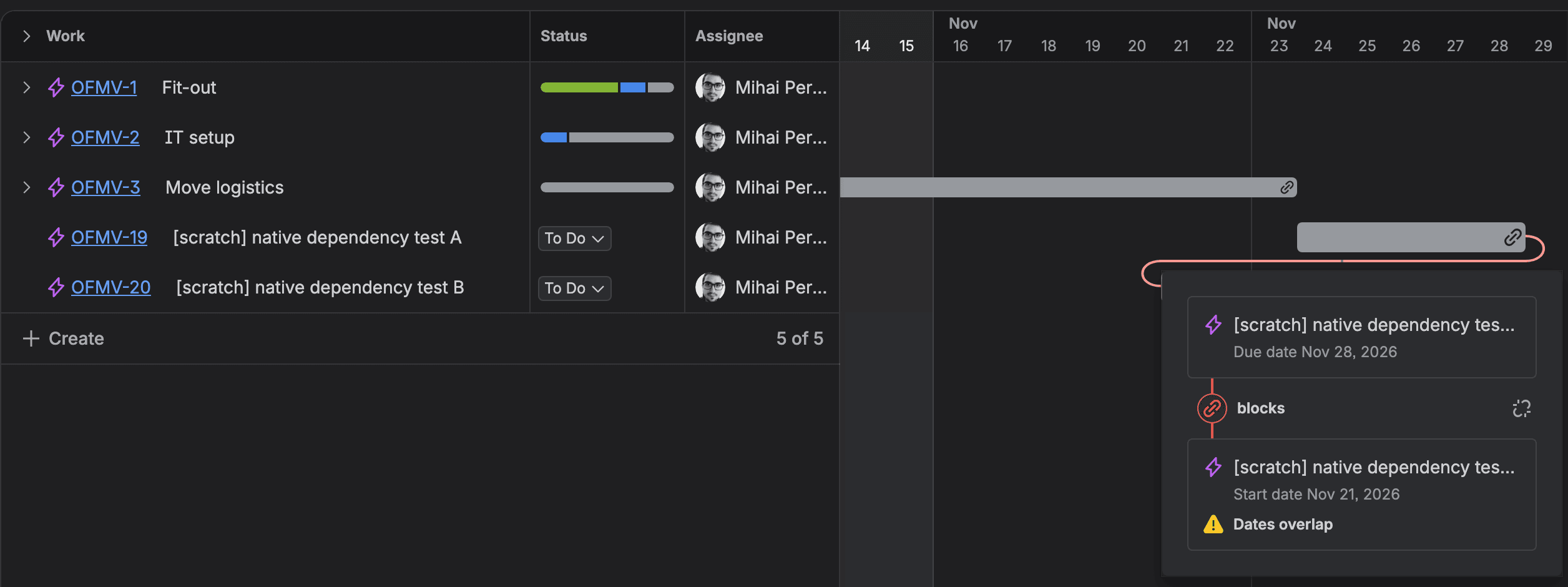
Then the line between them turned red. Clicking it opened a small card that ends in "Dates overlap". Jira showed no message and asked nothing. When we put A back over the API, the line went grey again and the warning disappeared, so the red means overlap and nothing more. Editing A's due date through the API instead of dragging gave the same result.
Atlassian's documentation only promises the warning. "In the event of overlapping dates, the dependency link turns red, signaling the potential for delay or risk." For moving linked work together, what I found is an Atlassian knowledge-base tip: select every bar with Ctrl or Cmd and a click, then drag them as one, "maintaining the same-day difference" (Atlassian KB). I'd use it for two or three bars. On a chain of eight you're doing the dependency maths in your head.
Someone asked for the automatic version in 2023. JRACLOUD-91659, "Move dependent issues when main issue is moved in timeline view", describes exactly our test ("dependent issues are not moved"). It was closed as "Not a bug".
Jira Plans auto schedule: what it moves and what you still accept
For Plans we built the same thing with three work items, A blocks B blocks C, each five working days long, Monday to Friday, back to back from 16 November. We put them in a scratch plan on our Premium test site and gave each an estimate of five days, because by default the auto-scheduler works on estimated work.
A manual drag in Plans moves only what you drag
We dragged A one week later, to 23 to 27 November. B and C stayed where they were, in the plan's timeline and in its list view. Up in the header: "Unsaved changes 1".
Jira still had the old dates. A read from the API at that moment showed A on 16 to 20 November. Plans keeps your edits in the plan until you save them. Atlassian's page calls it "a sandbox environment meaning that any changes you make won't be committed back to your Jira work items until you choose to do so" (Autoschedule work items on your plan).
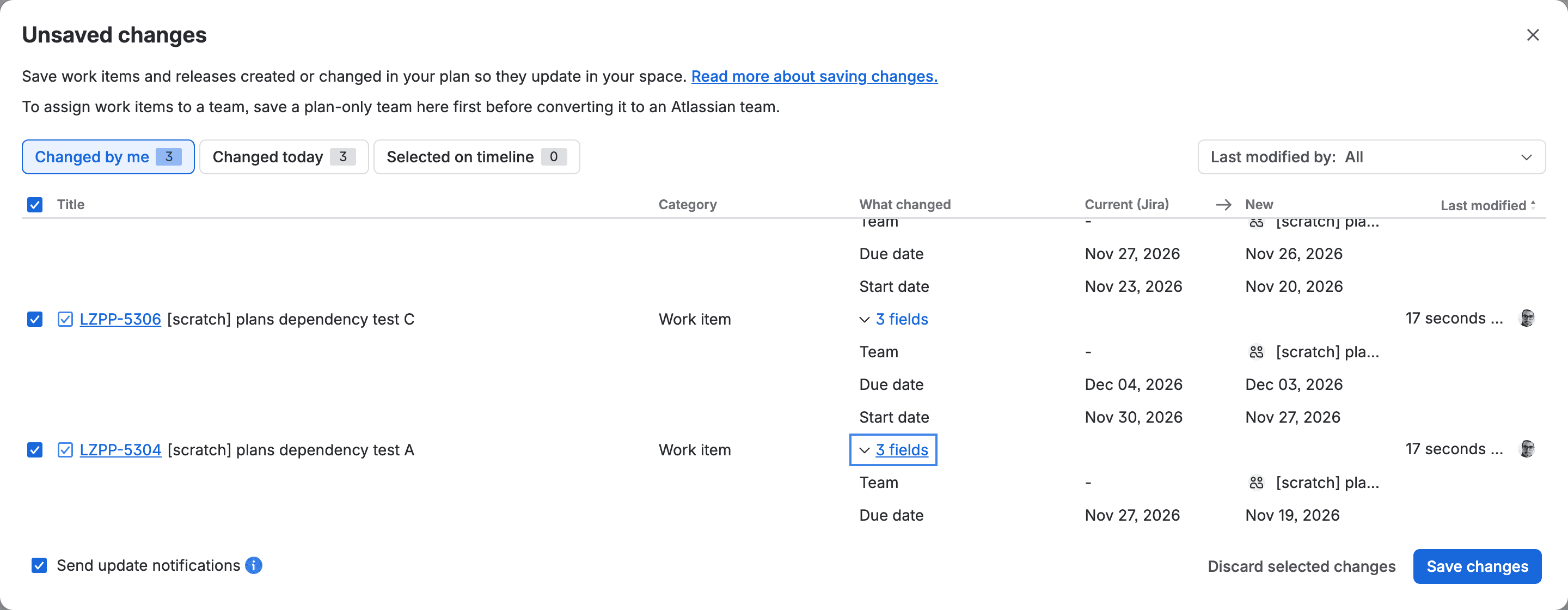
Unsaved changes listed one work item with 2 fields, old value and new value side by side. We pressed Save changes. In Jira, A now ran 23 to 27 November. B and C hadn't changed, down to their last-updated times.
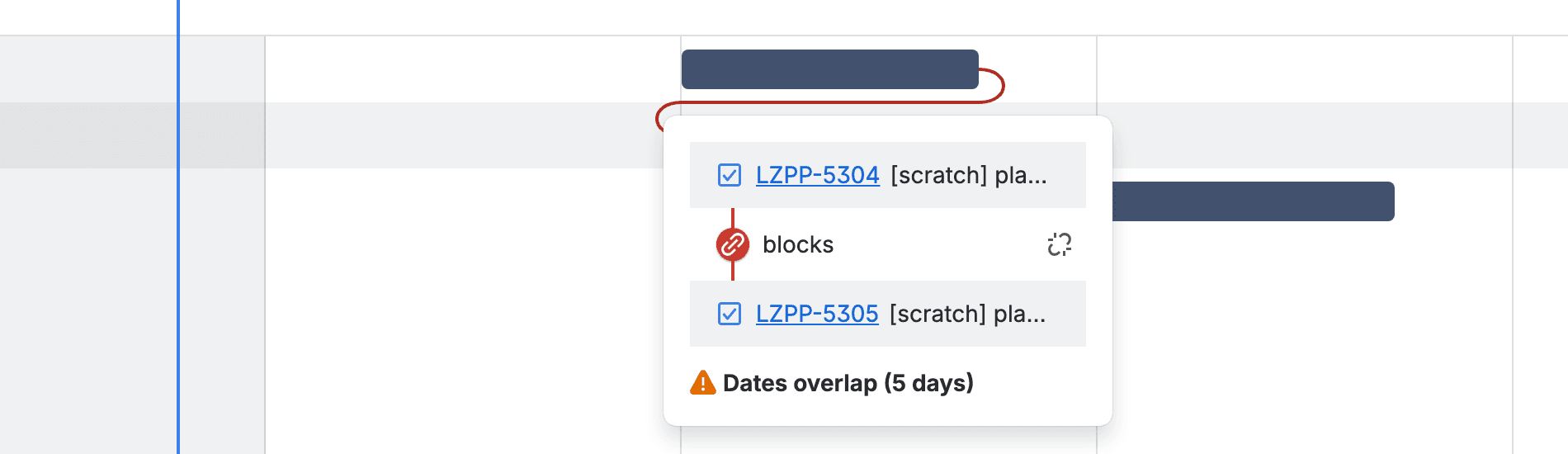
I find Plans more precise about the problem than the Timeline. The card says "Dates overlap (5 days)", and the Dependencies tab, a view that lays the work items out as cards joined by arrows, labels each link with its gap.

I like that view. You see the slip at a glance. Moving B and C is still your job, and the docs say so plainly: "To resolve this, change the start or end date associated with the dependency" (Change how your plan timeline displays dependencies).
The auto-scheduler re-dated the chain, and more than we asked for
The auto-scheduler is the Plans feature that works dates out for you. Atlassian says it "balances a range of different values from the dates assigned to a work item, work item estimates, a team's capacity and velocity, and any dependencies between work items" (How does the auto-scheduler in my plan work?).
Our first click on Auto-schedule did nothing but show a flag: "Add a team to your plan to auto-schedule work items". So we added a plan-only team (a team that exists in the plan and not in the rest of Jira) and assigned it to all three. Then we clicked again. This time a popup opened, and it read: "By default, the Auto-scheduler schedules all work items in your plan" and "Based on your current settings, the Auto-scheduler will only add data to empty fields in your plan."
Our first preview stretched each bar to 56 days because of the team's capacity, which we had set to 5. We cancelled it. So we set the capacity to 40, and the bars went back to a week each. I think the number means hours per week in a plan estimated in days. We found no Atlassian page that says so, so check it on your own plan before you trust it.
Our second try was much tidier. A on 13 to 19 November, B on 20 to 26 November, C on 27 November to 3 December. One after the other in link order, no overlap. I liked that part. A banner said "You'll still need to review and save all changes in your plan to Jira", and the dates appeared in the plan only after we pressed Accept changes.
Two things in that result surprised me. All three work items already had dates, and the auto-scheduler rewrote them anyway, while the overwrite setting said "Only add values to empty fields" for everything. The settings page hints at why: its overwrite choice lists sprints, teams and releases, and dates aren't among them. Atlassian's docs agree, once you find the sentence: "By default, the auto-scheduler schedules all work items in your plan, regardless of whether you've set dates for them."

And A went backwards. We had moved it to start on 23 November and the auto-scheduler started it on 13 November. That was the date in UTC (coordinated universal time) when we ran it, while on our own clock it was already the 14th. An open request, JRACLOUD-88004 "Respect fixed start date when auto-scheduling" (81 votes), describes the same habit of "adjusting it to today's date". One run can't show which of the two it counts from. I wouldn't run it on a live plan without trying it on a copy first.
Save changes then wrote all three: "3 changes were successfully saved in Jira." With the box ticked, Jira sends its usual update notifications for those work items (we didn't check who received them).
If your teams don't work weekends, read JRACLOUD-88065, "Option to exclude non-working days or weekend in Auto-schedule", before you plan around it. It had 267 votes on 14 November. Our one-week items can't show whether the auto-scheduler skips weekends.
Shift blocked tasks when changing the end date: what Atlassian's tracker says
Put the two tests together and the pattern is simple. Jira treats a blocks link as information. It draws it, colours it red when the dates disagree, and leaves the decision with you. Plans adds a planner that can re-sequence everything, but as a batch you run on purpose. It has its own rules about teams and capacity, and a habit of starting from today.
Plenty of people want the third option (me included), where the blocked work follows the blocker the moment it slips. That's JRACLOUD-88193, open since July 2022 with 119 votes and still marked Gathering Interest. Its sibling for working days in plans, JRACLOUD-88154, has 341. A critical path, the longest chain of dependent work that sets the finish date, isn't in either product. Atlassian's tracker has requests for it: JRACLOUD-88163 (99 votes, since 2021) and JRACLOUD-88103 (90 votes, since 2014). We searched the eight Atlassian pages we re-read on 14 November for the phrase and found it on none of them.
I think Atlassian's choice makes sense for them. A Jira site is shared by many teams, and a date that rewrites other teams' dates by itself would surprise people. So people who want the automatic version add a Gantt app on top of Jira, and there are plenty of those. A Marketplace search for "gantt" on 14 November returned 82 Jira Cloud apps, and 39 have Gantt in the name.
A Gantt app that moves dependent dates: LeanZero Management
LeanZero Management is ours. It's a Gantt and planning app for Jira Cloud, free on the Marketplace, and version 6.19.0 (released 6 November 2026) is current. It reads the same Jira blocks links as the Timeline and Plans, and a drag moves the work that waits on it.
On our demo plan on 10 November we dragged one work item five working days later. The 7 work items that waited on it moved five working days each, each keeping its length, with the weekend skipped. Each one starts on the working day after its blocker finishes, plus any lag on the link (a wait you add to the link), counted in working days. A strip said how many work items moved, and a Why did this move? list named the blocker behind each one.
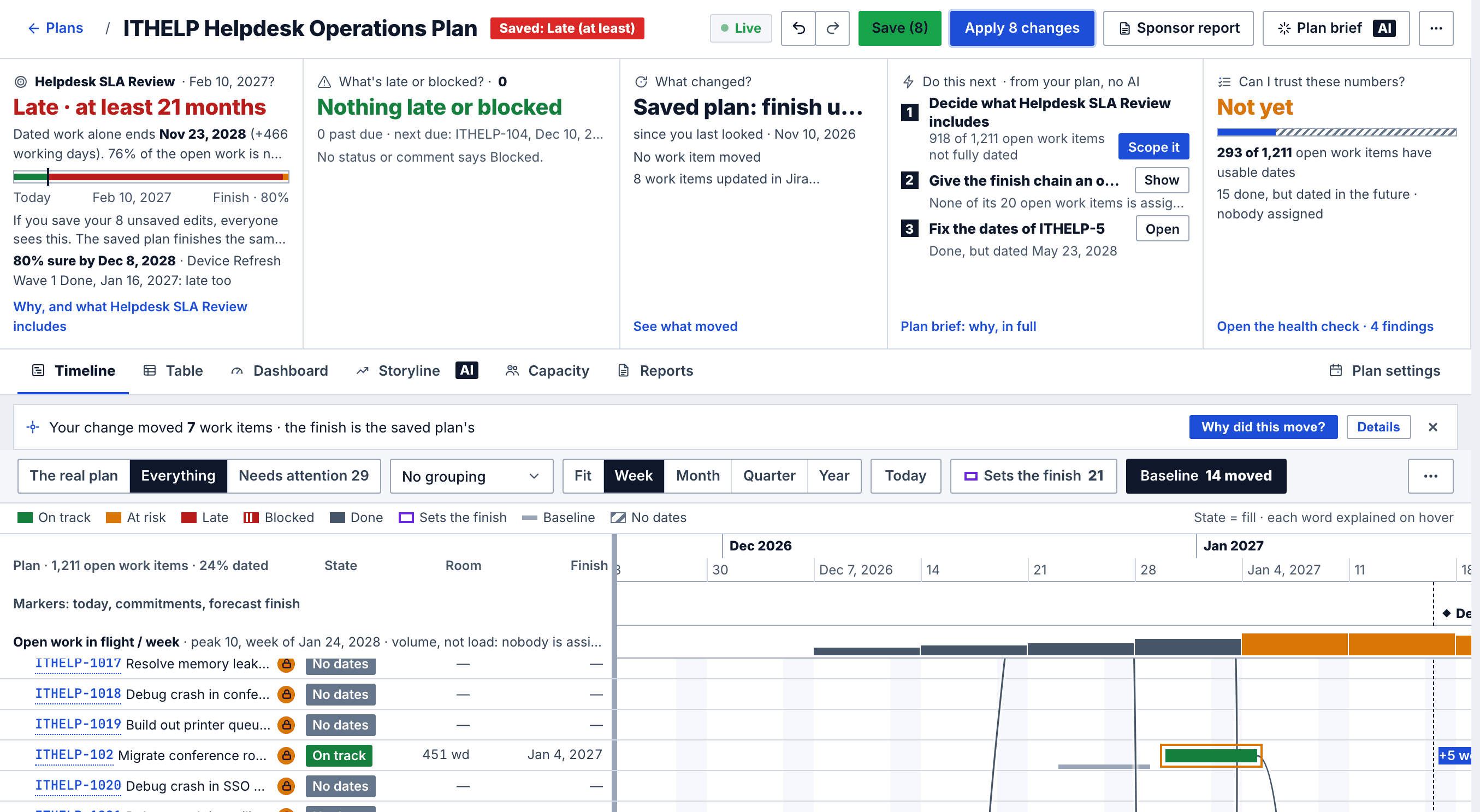
Jira isn't touched until you press Apply, the button that writes the plan's dates to Jira. Then a review lists the old and new dates. Our Apply wrote the 16 new start and due dates of all 8 work items in about 22 seconds, reading each one back from Jira. It writes with notifications off, so the people watching those work items don't get eight emails for one slip. The step-by-step tutorial walks the whole run, and the critical path tutorial covers reading the chain that sets your finish date.
What it doesn't do. There's no resource levelling, so it reports when one person has too much work and never moves anyone's dates to fix it. An Apply isn't one transaction: if it stops at work item 4 of 8, the first three stay written and Resume carries on from there. You also install an app and build a plan in it, which is more setup than switching on the Timeline. Our product page has the manual and the short videos, and an earlier post, the Jira dependency that moves dates, explains how the chain is worked out.
Timeline, Plans or a Gantt app: which one fits your team
I'd stay on the space Timeline if your dependencies live in one space and you only need to see them. Its red line is a reliable warning. And the Ctrl or Cmd multi-select drag is enough for a short chain.
I'd use Plans if you're already on Premium and your teams plan with estimates and capacity. Select the work items you want re-dated before you run the auto-scheduler. Its popup says it then works on those (we ran it on all three). Read the rows in Unsaved changes before you save, and untick Send update notifications if you don't want the noise. Expect it to rewrite dates you set by hand. It rewrote ours.
I'd add a Gantt app if you want the blocked work to follow a slip on each edit and you'd rather review the result than rebuild it. If that's your main reason for looking at Premium, try an app on Standard first and compare the bill.
I'm curious how other teams live with this. If you plan in Jira, what do you do on the day a blocker slips: drag everything by hand, run the auto-scheduler, or keep the real schedule somewhere else? Tell me in the comments under this post.
Comments
0Add a comment