
Jira Gantt Dependencies in LeanZero Management: Drag One Date, Apply the Chain

14 min readNovember 13, 2026
Key takeaways
- A drag of five working days on ITHELP-102 moved the 7 work items waiting on it five working days each. None got shorter or longer.
- Apply wrote 16 start and due dates on 8 work items in about 22 seconds, then read each one back from Jira.
- On Jira's own timeline a drag of eight days left the blocked work item where it was and drew a red line with a Dates overlap warning.
- A drag stays in the plan until you press Apply. On ours the review listed the old and new dates of all 8 work items first.
- An Apply that stops halfway is not rolled back: the written work items stay written and the app never writes one twice.
On 1 June 2026 a Jira user asked the Atlassian Community whether Microsoft Project-style auto-scheduling was possible in Jira Plans. They summed up the problem in one line: "While JIRA supports dependencies, it doesn't automatically adjust start/due dates when upstream tasks shift—so updates are manual." The feature request for exactly that, JRACLOUD-88193, has been open since July 2022 and had 119 votes when we read it on 10 November 2026.
This tutorial shows Jira Gantt dependencies that move dates. In LeanZero Management, our Gantt and planning app for Jira Cloud, you drag one work item a week later and the work items that wait on it move too. On our demo plan one drag moved 7 waiting work items by five working days each. Apply then wrote the new start and due dates of all 8 work items back to Jira in about 22 seconds. Nothing reaches Jira before you press Apply, and the links that drive the move are Jira's own blocks links.
We make the app, so I'm not neutral. We checked what Jira does without it first, on our test site, and that part is the first section below. There's a 73-second video of this walk, recorded on 1 October 2026. We ran the steps again on 10 November on version 6.19.0. Two things differ from the video. The video drags the work item two working days in The real plan view, and we dragged it five in the Everything view, which lists every row. And the Review changes dialog is now in sentence case: it says "Apply 8 changes" where the video shows "Apply 8 Changes".
Before you start
- Jira Cloud with LeanZero Management installed. It's free on the Marketplace today. We ran this on 6.19.0, released 6 November 2026.
- One plan in the app whose work items have start and due dates and are joined by Jira "blocks" links. A blocks link is Jira's standard way to say "this work item can't start until that one is done", and the app follows those links. The product page has the app's manual if you still need to set up a plan.
- The Editor role (or higher) on the plan, plus Browse Projects and Edit Issues in Jira on every work item you change, and Schedule Issues if your plan uses Jira's own Due date field. The app checks these before it writes.
- A desktop browser. Our window was 1,675 by 1,250 px.
- When you're done you'll have moved one slipped work item, seen why each of the others moved, and written the new dates to Jira with a record of each one.
- 1
Open the plan on the Timeline at Week zoom
you see the bars and the dates.
- 2
Find the work item that slipped
its card shows its dates and its room.
- 3
Drag it a week later
the strip says how many work items moved.
- 4
Click Why did this move?
one line per moved work item, with what it waits on.
- 5
Click Apply 8 changes and read the review
old dates struck through.
- 6
Click Apply 8 changes again
the app writes each work item and reads it back.
- 7
Check that Jira holds the new dates
the bar card says so.
What the Jira timeline does with dependencies, and what it leaves to you
We tested this on wolfaenpak, our test site, with no app involved. Two work items in a team-managed space, A and B. A blocks B. B starts the day after A ends. We dragged A eight days later on the space's Timeline and read both back over the Jira REST API (the web interface programs use to read and change Jira data).
A moved. B didn't. Not by a day. Its dates, its last-updated time and its history were exactly as before. The dependency line turned red, and clicking it opened a card with a warning: "Dates overlap". A due date changed over the REST API instead of a drag did the same: B stayed put and the line went red.
The red line was expected. What surprised us is that nothing else happened: no message came up, and the words "Dates overlap" only show if you go and click the line. On a plan with a few hundred links I'd want more than that.

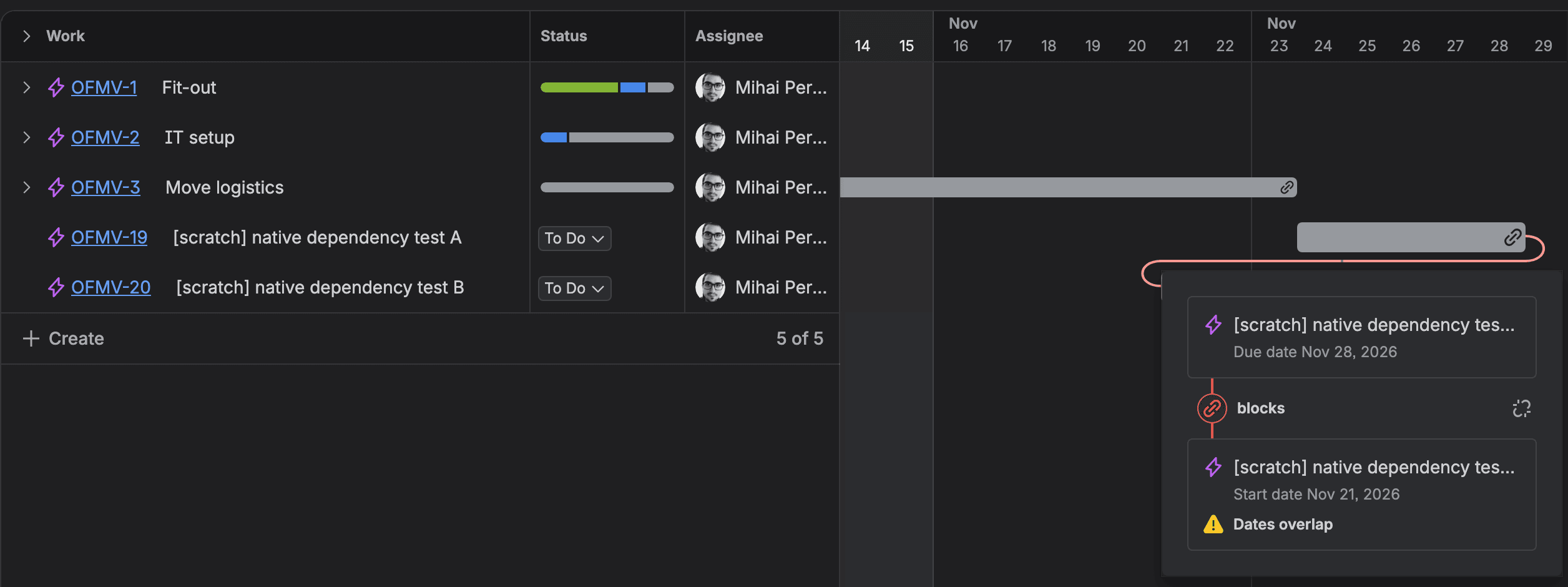
That matches Atlassian's page What are dependencies on the timeline?: "In the event of overlapping dates, the dependency link turns red, signaling the potential for delay or risk." I think that's a fair warning. The same page says the timeline "can only show work items with the Blocks work item link type and link work items from a single space". Atlassian's own knowledge-base answer for moving a chain is manual: select the bars with Ctrl or Cmd and drag them together. That works when you know which bars to select. On a plan with 1,226 work items I wouldn't trust myself to find all seven.
Jira plan auto schedule: what it does with dependencies
Jira Plans (the advanced planning in Premium and Enterprise) has an auto-scheduler, and it does use dependencies. Atlassian says it balances "the dates assigned to a work item, work item estimates, a team's capacity and velocity, and any dependencies between work items". You select Preview results, then Accept changes, and nothing reaches your Jira work items until you save, because the plan is "a sandbox environment". So Plans also lets you review before you write. If you're on Premium I'd try it first.
Atlassian lists the limits on its autoschedule page: by default it works only on work items "that have an estimation value", and it "will not overwrite any data for work items in an active sprint". The how-it-works page adds that it ignores work items in a Done status. It also weighs all of that at once, so I think one late work item probably won't give you one predictable push down its chain. That push is what the 119 votes on JRACLOUD-88193 ask for: "automatically shift blocked tasks when changing end date".
Automatically shift the dates of dependent issues when a blocker slips
The app's rule is a finish-to-start dependency, the standard kind in project scheduling: the blocked work item can start on the first working day after its blocker's due date. If one work item waits on several others, it starts after the latest of them. A lag on the link (extra working days between the two, set in the app) is added per link before the latest one is picked. Working days come from the plan's calendar, Monday to Friday unless you change it. Weekends don't count. A push moves a work item's start and keeps its length, so its due date moves by the same number of working days. The rule works in both directions: a waiting work item is placed exactly on the first day its blockers allow, so pulling a blocker earlier pulls the work items behind it earlier too. There are three exceptions: a work item that is Done never moves, one that is In Progress in Jira keeps its Jira dates, and work not started is never pulled onto today or a day that has passed. In the plan below, Dec 25 and Jan 1 count as working days, so the only days the example skips are weekends.
If you want the reasoning behind that rule and where it gets subtle, Gabriela wrote the concept piece on the Jira dependency that moves dates. Here we only use it.
Our demo plan is the ITHELP Helpdesk Operations Plan on our demo site. ITHELP-102, "Migrate conference room AV" (the audio-visual kit), runs Dec 23 to Dec 28, 2026. Seven work items wait on it in one straight line: ITHELP-124, 131, 133, 139, 146, 148 and 149. The last one was due Feb 24, 2027. We'll pretend the AV hardware arrives a week late. Hardware does that.
Step 1: Open the plan on the Timeline at Week zoom
- In Jira's top bar, open Apps and select LeanZero Management. The Plans page opens.
- In Find a plan or project key at the top of the Plans page, type the plan's name or its Jira project key, then select the plan. We typed ITHELP. The plan opens on its summary cards, about 7 seconds for our plan of 1,226 work items (1,211 of them open).
- Below the cards, select the Timeline tab. The bars appear with a toolbar above them.
- In the Timeline toolbar, select Everything, then Week, then Today. Everything shows one row per work item, Week sets the scale to days, and Today scrolls to today's date.
You should see a row per work item with State, Room and Finish columns. Room is how many working days it can slip before it moves the plan's finish. The plan header should read "Saved" with no Apply button. If an Apply button is already there, the plan already holds changes that Jira doesn't have: edits someone saved, or your own autosaved draft. Your Apply would write those too, so find out whose they are before you drag.
Step 2: Find the work item that slipped and read its card
- Scroll the Timeline down to the work item's row and across to its dates. In the Everything view rows are sorted by key as text, so ITHELP-102 sits between ITHELP-1019 and ITHELP-1020.
- Hover over its bar. A hover card opens. Ours read "ITHELP-102 · Migrate conference room AV / On track · Submitted · Dec 23, 2026 → Dec 28, 2026 (4 wd) / 456 wd of room before it moves the finish". The wd stands for working days.
- Optional: to see the link lines, open the ⋯ menu at the right of the Timeline toolbar and select Show all connectors. Lines are drawn from each bar to the work items it blocks.
On a big plan the seven waiting work items are hundreds of rows away from the one you hover, so you won't see them on one screen. Step 4 lists them for you, and on a big plan I'd skip the hover and go straight there.
Step 3: Drag the work item a week later on the Jira Gantt chart
- Drag the bar to the right by one week. At Week zoom that's five working days. Release it. Within about 2 seconds a strip appears above the Timeline toolbar: "Your change moved 7 work items · the finish is the saved plan's", with Why did this move?, Details and a close button.
- Look at the plan header at the top. It now shows Save (8) and Apply 8 changes: the work item you dragged plus the seven that followed it.
Jira hasn't changed. Not yet. The new dates sit in your private draft, which the app saves for you and nobody else sees. Save puts them into the shared plan everyone sees, and only Apply writes them to Jira. I like it this way: I can try a date, look at what it does to the chain and throw it away.
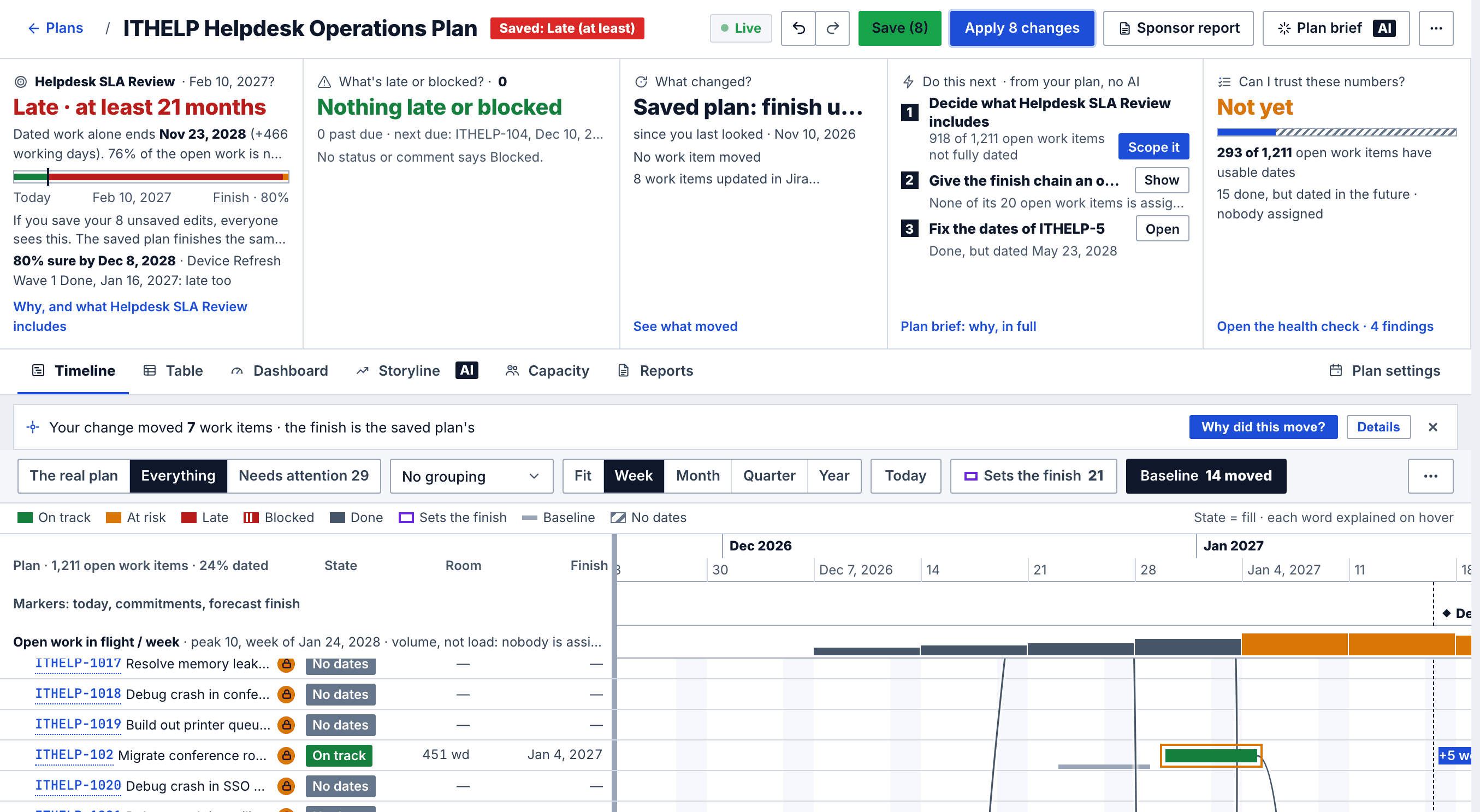
After the drag the plan's first card read "Late · at least 21 months". The demo plan was already 466 working days past its commitment (a date the plan promised someone, here "Helpdesk SLA Review" on Feb 10, 2027). One more week on the AV migration doesn't change that. On your own plan, I'd read that card after each drag. If your drag pushes a commitment, it says so there.
Step 4: Click Why did this move? to see each finish-to-start dependency
- In the strip, select Why did this move?. A dialog opens with one row per work item that moved.
- Read each row's second line. It names the date the work item now starts and the work item it waits for.
- Close the dialog with the × in its corner. Closing it changes nothing.
You should see a first row like ours, with your own keys and dates:
1ITHELP-124 Automate mailing list surfaced in the postmortem  +5 wd
2  now starts Jan 5, 2027 — can't begin until ITHELP-102 finishes Jan 4, 2027
Why did this move? A finish-to-start dependency in Jira, item by item
Our dialog opened with "You rescheduled ITHELP-102 to Dec 30, 2026 → Jan 4, 2027 (was Dec 23, 2026 → Dec 28, 2026)", then "7 issues moved", then the seven rows. Each row read "+5 wd" with a line like "now starts Jan 5, 2027" followed by "can't begin until ITHELP-102 finishes Jan 4, 2027". So each work item in the chain starts on the first working day after the one before it finishes.
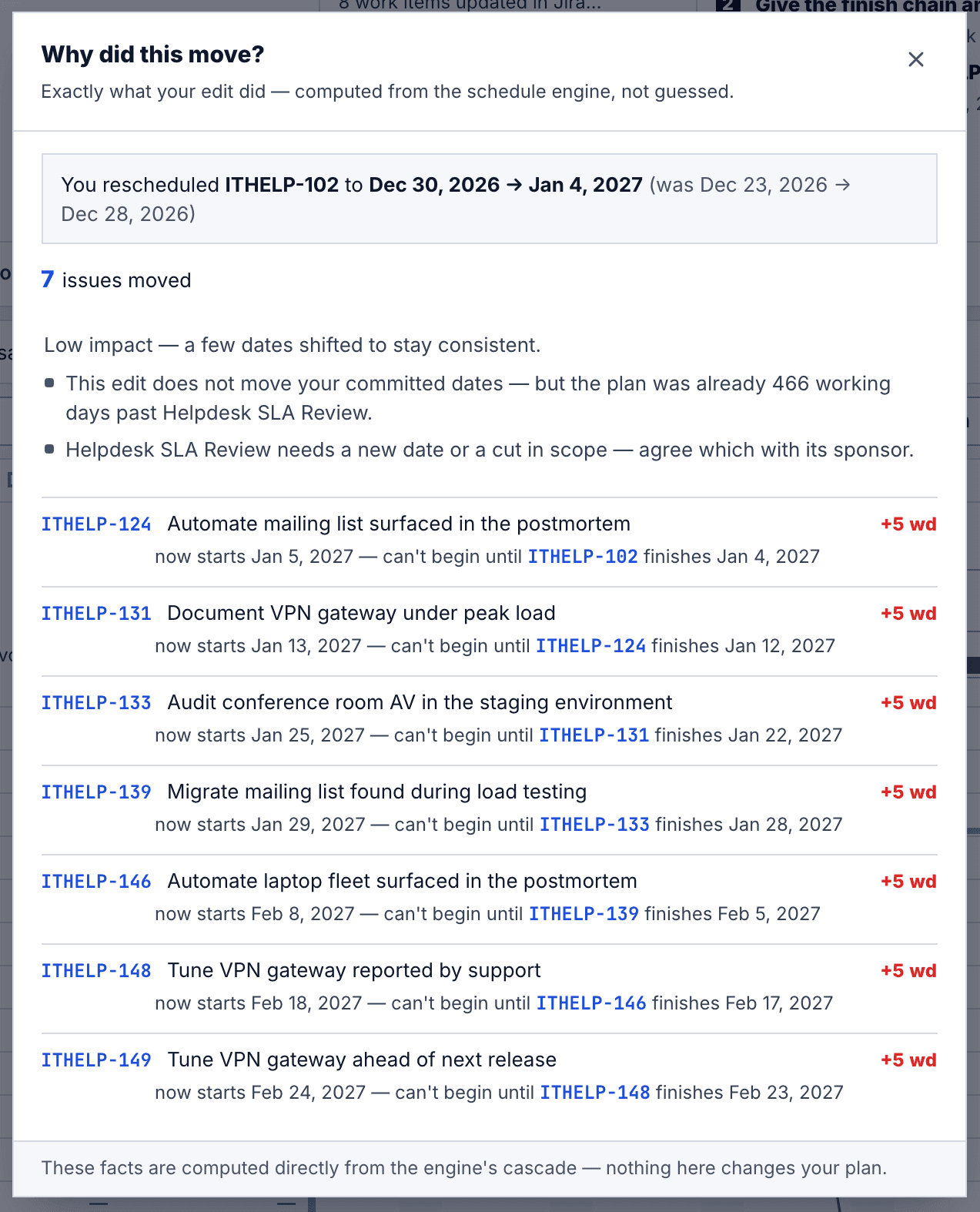
This list comes from the app's own schedule calculation, with no AI involved. The footer says "These facts are computed directly from the engine's cascade — nothing here changes your plan." The dialog and the Apply progress say "issues" where the strip says "work items". They're the same thing. It's also the screen I'd send a colleague who asks why their date moved.
Step 5: Click Apply 8 changes and review every date before it reaches Jira
- In the plan header, select Apply 8 changes. The Review changes dialog opens, headed "8 changes will be written to Jira". Ours was ready in 0.2 seconds.
- Read the box at the top, What this does to your commitments. Ours said "No commitment moves."
- Read Date changes 8/8. Each row has a ticked checkbox and the Start and Due dates, the old one struck through and the new one beside it.
- Optional: to leave one work item as it is in Jira, untick its row. The count drops by one.
I read the commitments box first. If it says a commitment moves, I'd stop and talk to whoever owns that date before pressing Apply.
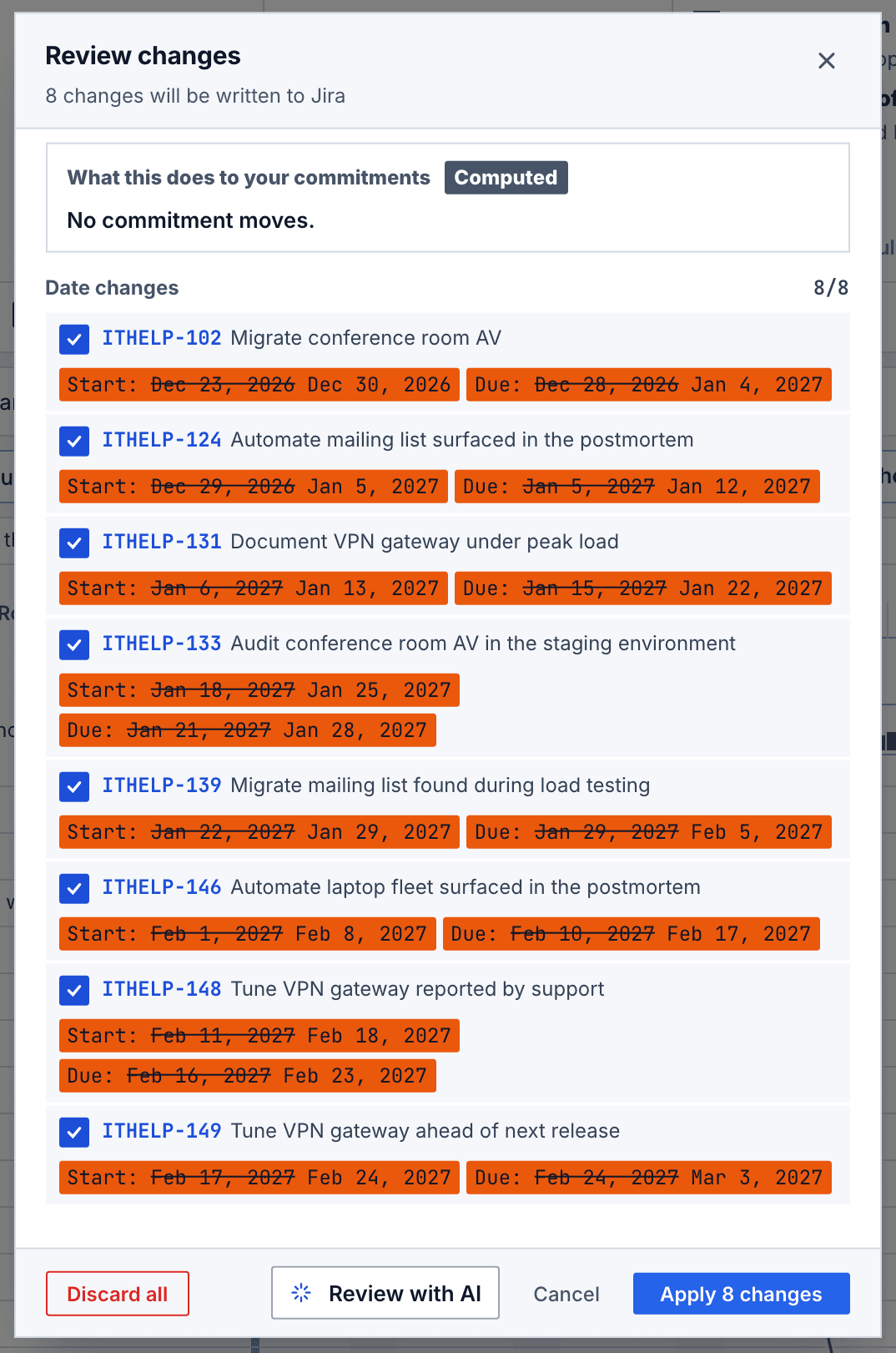
At the bottom are four buttons. Discard all throws the eight changes away. Review with AI asks the app's AI for a second read of the dates and appears only when AI is turned on in the app's settings (we didn't use it here). Cancel closes the dialog and keeps your changes. Apply 8 changes starts the write. I'd keep Review with AI for the bigger Applies, as a second opinion rather than a check: it reads up to 120 of the plan's rows, so on a plan like ours it doesn't see everything either.
Step 6: Apply the new start and due dates to Jira
- In the review, select Apply 8 changes. A progress dialog opens with four stages: Starting, Writing, Verifying and Complete.
- Watch the line under the progress bar. It names each work item as it's written, for example "Writing ITHELP-133 · 4 of 8", and each finished key turns into a green chip.
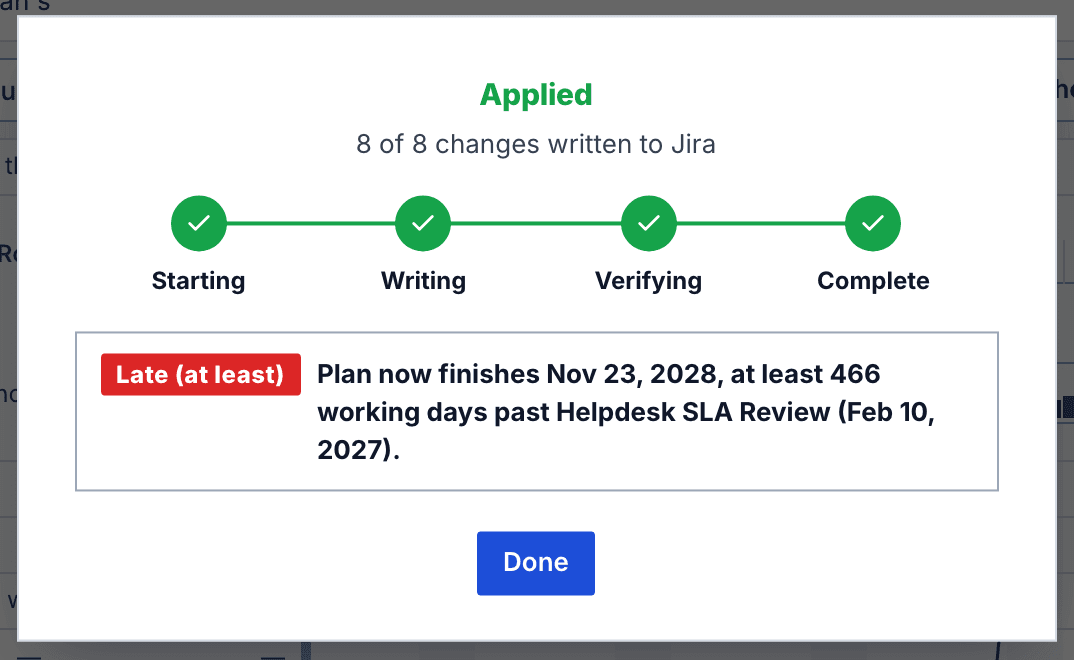
- When the title says Applied and "8 of 8 changes written to Jira", select Done. The plan header goes back to "Saved" and the Apply button disappears.
You should see something like this once the box under the stepper stops saying "Working out the plan's finish after this Apply…". The last line is our plan's finish; yours names your own plan's finish and commitment:
1Applied
28 of 8 changes written to Jira
3Plan now finishes Nov 23, 2028, at least 466 working days past Helpdesk SLA Review (Feb 10, 2027).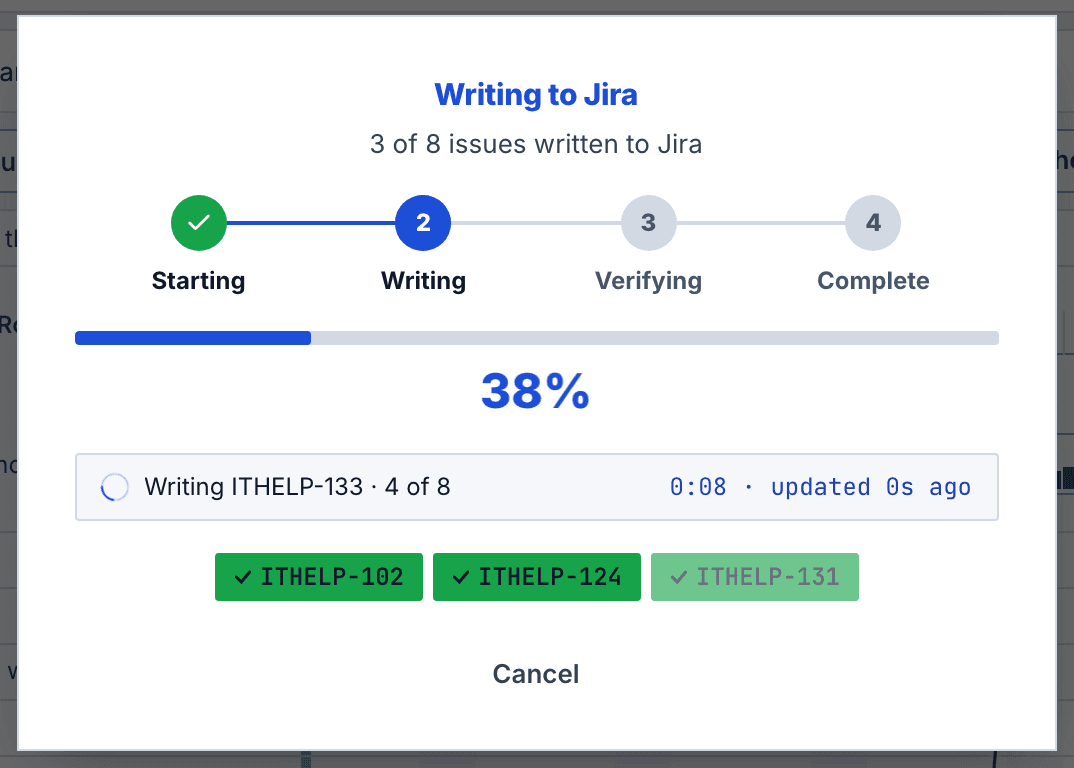
From the click to "Applied" took about 22 seconds. That sounds slow for eight work items. I'm fine with it, because the time goes on taking the lock, checking each work item before its write and reading all eight back after. Roughly 6 went on Starting, where the app takes a lock on the plan so nobody else can write it at the same time. The lock is renewed while the Apply runs, and frees itself 5 minutes after a writer's window disappears. About 11 went on Writing, around 1.3 seconds per work item. In the last 3 or so, Verifying, the app reads the eight work items back from Jira and refreshes its copy of the plan.
Before each work item, the app asks Jira whether you may edit it and re-reads it. If its dates changed in Jira since you opened the review, it stops there. I think that check matters more than the speed. It writes as the app with notifications off, so Jira's history names the app and watchers get no email for each date.
Step 7: Check that Jira holds the same dates as the plan
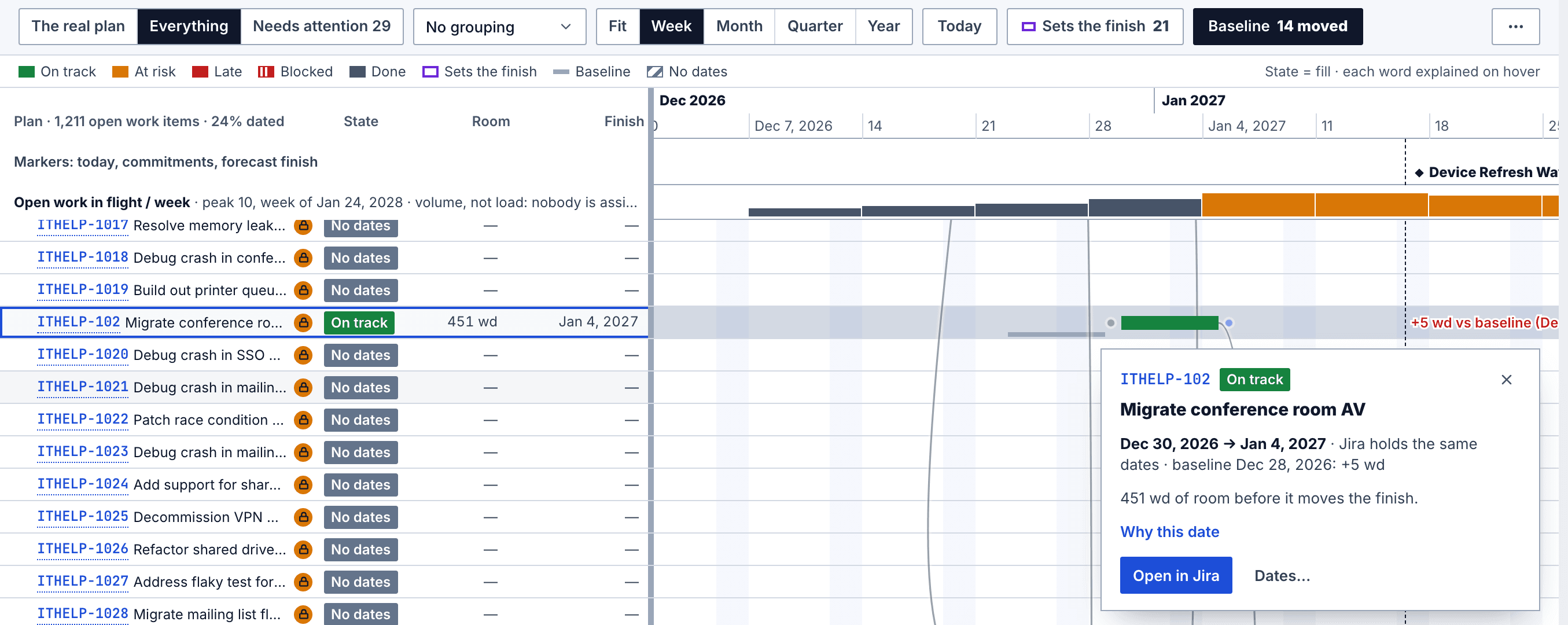
- On the Timeline, click the dragged work item's bar. Its card opens.
- Read the dates line. Ours said "Dec 30, 2026 → Jan 4, 2027 · Jira holds the same dates · baseline Dec 28, 2026: +5 wd".
- Optional: on the card, select Open in Jira. The work item opens in Jira.
- Optional: in Jira, read the Start date and Due date fields. They match the card. After a big Apply I'd open the last work item in the chain, ITHELP-149 here, since it's the date a sponsor asks about.
We also read all eight work items back from the Jira REST API right after Done. All 16 values matched the review row for row, ITHELP-102 at 2026-12-30 to 2027-01-04 and ITHELP-149 at 2027-02-24 to 2027-03-03. The plan's Duration field was empty on all eight before and after. The app doesn't write a Duration nobody typed.
To check which version of the app the Marketplace serves today, ask its REST API. It should print three lines (you need curl and jq):
1curl -s https://marketplace.atlassian.com/rest/2/addons/com.leanzero.jira.leanzeromanagement/versions/latest | jq -r '.name, .release.date, .paymentModel'16.19.0
22026-11-06
3freeUndo a drag before Apply, and put dates back after it
Before Apply, undo is easy. Use the undo arrow in the plan header, or Cmd+Z on a Mac and Ctrl+Z on Windows. The plan keeps the last 50 steps. If a single change moves more than 50 work items, a message "This moved N items." also appears with its own Undo button. Ours moved 7, so we didn't get it.
After Apply, undo can't help: Apply, Discard all, a reload and a refresh of the plan all start the history over. I think that's right. The app's own answer is in its manual: "After a bad Apply, set the dates you want and apply again." Dragging the bar back five working days does that, and because each waiting work item sits exactly on the first day its blockers allow, the chain follows it back. We didn't test that route, so read the old and new dates in the review before you Apply. What we did test was the Jira route: put the old dates back in Jira in chain order, starting with the work item that slipped. That way plan protection never sees a work item start before the one it waits on. Then select Refresh from Jira now from the ⋯ menu at the right end of the plan header, next to Plan brief (not the Timeline toolbar's ⋯). We did that on our demo site with a script over the Jira REST API. Then we read all 24 values back (start, due and Duration for each), and 24 of 24 matched the dates from before the test. I'd like a one-click restore here, and I don't have one to show you.
If it didn't work
You hover the bar and can't see the work items that wait on it. The hover card covers only that bar, and in the Everything view the waiting work items can be hundreds of rows away. Link lines show only after ⋯ (Timeline toolbar), Show all connectors. Drag anyway and read the list in Why did this move?.
The Timeline is empty around the date you need. It only draws the rows near the part you're looking at, and Today jumps to today's date. Scroll down to the row first, then across to its dates.
The Apply stopped with "ITHELP-131 Due date changed in Jira. Apply stopped before this issue was written." (with your own key and field). Someone edited that work item in Jira after you opened the review. The work items before it are already in Jira and stay there. Select End Apply here (what's written stays in Jira), check the change in Jira, then select Apply again for the rest.
"Your Jira account may not edit ITHELP-131 (Jira's Edit Issues permission), so nothing will be written for it." Your account lacks that permission on the work item (Schedule Issues when the plan writes Jira's Due date field). Ask your Jira admin, then select Resume saved Apply.
"Jira could not confirm that your Jira account may edit ITHELP-131, so it was not written. Resume to try again." Jira didn't answer the permission check. Nothing was written for that work item. Select Resume saved Apply.
"You do not have permission to perform this action." The Apply checks your plan role again, and you're no longer an Editor on this plan. Ask the plan's owner.
"Jira did not retain Due date on ITHELP-131. Your intended schedule is retained." Jira accepted the write but read back a different value, so something in Jira changed it after the write. The Apply pauses and keeps your dates so you can find the cause and resume.
An Apply isn't one transaction. If it stops at work item 4 of 8, the first three are in Jira and stay there, and the app never writes the same work item twice when you resume.
What it doesn't do
A drag never writes to Jira; only Apply does. There's one exception, plan protection, which is on for a new plan. Say someone moves a work item's start in Jira to before its blocker finishes. The app puts the old start back and adds a comment headed "LeanZero Management: Date change reverted".
It follows blocks links, including a link into an epic, which binds the work items under that epic. We tested one straight chain inside one project. A work item that waits on two others starts after the later of them, but our chain had no such fork, so this run doesn't show it. If your plan has forks, I'd try one drag and read Why did this move? before you Apply.
We didn't test a buffer, and I'd have liked to show you one. A buffer is a work item you mark to absorb slip: its due date stays put and it shrinks until it's used up. The ITHELP plan has none, so the drag above passes straight through. The product page documents buffers, and the critical path tutorial shows how to find the chain that sets your plan's finish before you start dragging.
What you have now
Key takeaways
- A slipped work item moved five working days on the Timeline, and the 7 work items that waited on it moved five working days each, with their lengths kept.
- A Why did this move? list with one line per moved work item and the work item it waits for.
- 16 start and due dates reviewed, then written to Jira and read back in about 22 seconds.
- A bar card that says Jira holds the same dates as the plan.
- Not covered here: a work item with two blockers, and buffers.
You moved one late work item on a Jira Gantt chart and the seven that depended on it moved with it, five working days each, with the weekend skipped and their lengths kept. You read why each one moved, checked all 16 dates before they reached Jira, wrote them in about 22 seconds, and confirmed Jira holds the same dates as the plan.
My advice: open Why did this move? before you Apply. On a big plan it's the quickest way I know to see the whole chain at once, and it's where you'll catch the work item you didn't expect to move.
Comments
0Add a comment