
Decommission Jira Data Center after migration: what to keep, when to switch it off

14 min readNovember 19, 2026
Key takeaways
- A Jira Data Center license for 1,000 users lists at USD 100,000 a year, about USD 8,333 a month, and it is billed as a 12-month term. Decommission the old Jira before the renewal date and you skip the whole year.
- Atlassian extends the Data Center subscription for up to six months at a 100% discount, but only with an annual Cloud Premium or Enterprise purchase of 1,000 or more users. Smaller teams pay for the overlap themselves.
- The ID mapping report can only be downloaded or rebuilt while the old Jira runs. The audit log export stops at the newest 100,000 events, and the XML backup leaves out attachments.
- An expired license still lets users comment on and transition existing issues. The native read-only mode (Jira 10.3.23, 11.3.8 and 12) blocks those, but automation rules keep running and mail handlers can still create issues.
- On a Cloud to Cloud move, Atlassian says to keep the old site a few months. Once its paid period ends you have 15 days of access, then the data is kept for 60 days and deleted.
On 30 March 2026 Atlassian stopped selling Data Center subscriptions to new customers, and its end of life page gives 28 March 2029 as the day Jira Data Center ends for everyone else. Atlassian's post-migration tasks page lists four jobs for after a move to Cloud: integrate apps, fix links, download the ID mapping report and merge user accounts. It never tells you to decommission the old Jira Data Center, or when.
My answer to "when" is a list. Switch the old Jira off once five things are out of it and checked: a clean comparison between old and new, the ID mapping file, the configuration the migration tool didn't move, the audit log, and a backup you've restored once. Try to get there before your next Data Center renewal date. At list price a 1,000-user license costs USD 100,000 for the year, about USD 8,333 a month, and the server and the people who patch it come on top.
Atlassian gives no number of months for Data Center. I don't have one either. Without a list, the old Jira stays on "just in case" until the next renewal arrives. If you look after the budget, the list below is what to ask your admin for. If you're the admin, the 12-step checklist at the end is yours.
Most of this is about Data Center to Cloud. A move from one Cloud site to another works differently, and I cover it before the checklist.
What I found, in short
- Atlassian publishes no figure for how long to keep the old Jira Data Center. For Cloud to Cloud it says "a few months".
- The overlap is free only for large customers. Dual licensing covers up to six months, and it needs an annual Cloud Premium or Enterprise purchase of 1,000 or more users.
- "Read-only" means three different things on Atlassian's own pages, and the mildest of them still lets people comment on issues.
- The read-only mode that Jira now has doesn't stop automation rules, incoming mail, bulk changes or system administrators.
- On Cloud to Cloud, links inside the new site keep pointing at the old one, and a deactivated site's data is deleted for good 60 days after access ends.
When to switch off the old Jira Data Center: the decision in one table
Prices are Atlassian's list prices from its Data Center pricing tables, in force since 17 February 2026. The monthly figure is the annual price divided by twelve. Your real renewal price will differ. The table counts the Jira license only, and 500 users is the lowest row Atlassian prints.
Your situation | License cost of keeping the old Jira | Switch it off when |
|---|---|---|
Annual Cloud Premium or Enterprise for 1,000+ users (qualifies for dual licensing) | Nothing for up to six months | The decommission checklist is done, and before the six months end |
500-user Data Center tier, no dual licensing | USD 59,000 a year, about USD 4,917 a month | The checklist is done, and before the next renewal date |
1,000-user tier, no dual licensing (for example Cloud Standard) | USD 100,000 a year, about USD 8,333 a month | The checklist is done, and before the next renewal date. If it must stay, renew at a lower user tier |
2,000-user tier, no dual licensing | USD 182,000 a year, about USD 15,167 a month | The checklist is done, and before the next renewal date |
Cloud to Cloud, both sites on a paid plan | You're billed on both sites | After "a few months" (Atlassian's words) and a downloaded backup |
Anyone still running it on 28 March 2029 | The license expires that day | Before that date, or take it off the internet |
Data Center is sold in 12-month terms, so the money isn't due month by month. It's due at renewal. I think that makes your next renewal date the real deadline. Finish before it and you skip a whole year. Miss it and you've bought another twelve months. The pricing pages I read don't mention refunds for unused months. The end of life page does offer "qualified customers a credit equal to the pro-rated value of unused Data Center maintenance contracts" when they move to Cloud, and it doesn't say who qualifies. Ask your account manager before you count on it.
The last row comes from one sentence on the end of life page: "We strongly advise against keeping your product running in a read-only mode while connected to the internet, since no new security bug fixes will be provided after the end of life date for Data Center."
What to keep before you decommission: backups, exports and audit records
I've written about the migrations themselves in Atlassian Data Center to Cloud: 10+ migrations. The first three items below come from the notes we keep on that work, where we wrote down each reason we had to go back to the old Jira after cut-over (the day users move to Cloud). The backup and the audit log come from Atlassian's documentation.
The old Jira is the only way to prove nothing was left behind
JCMA (the Jira Cloud Migration Assistant, Atlassian's app that moves projects from Data Center to Cloud) can leave issues behind without an error. We find them by comparing the full set of issue keys on the old Jira with the set on Cloud. Then we pull the missing ones from the old Jira with their full history and attachments. Descriptions longer than about 65,000 characters get cut by the tool, and the full text is recovered from the same place.
An admin can start without a script. Search project = ABC on both sides and compare the totals, project by project. Why the migration report alone can't tell you this is in Why a Jira migration report cannot verify itself.
None of that works once the old Jira is off. So the comparison has to come back clean before anyone sets the date. Run it once after the migration. Run it again after the old Jira is in read-only mode, because until then people can still change it.
The ID mapping report can only be made on the old Jira
Projects and custom fields get a new numeric ID on Cloud. So do filters and boards. Any integration or saved query that used the old IDs breaks. Atlassian's ID mapping report is a CSV file (a plain spreadsheet file) that pairs each old ID with its new one.
Atlassian is still rolling this report out. If your migration plan shows no ID Mapping Report row, Atlassian says the mappings can be fetched through an API instead, and that is a job for whoever ran the migration.
You download the report "in your source Jira site", from the plan's Logs and Reports tab. A stored report is kept for 14 days. After that you select Generate to rebuild it, which only works while the old Jira and JCMA are still running. So the deadline is the switch-off. Download the file before then. Keep it with the project documents. Whoever later repairs a filter or an integration that used the old IDs will need it.
What the migration assistant leaves behind
Atlassian's list of what JCMA migrates has a "What isn't migrated" column. Mail handlers are on it, and they turn incoming email into issues. Global permissions are on it too, and they say who is an administrator. General configuration, issue collectors, Jira user properties and the activity stream are on the list too. So is the history of asset custom fields, the fields that point at records in Assets (the asset database that comes with Jira Service Management). After the migration these exist only on the old Jira.
Two things depend on an option somebody picked in the migration plan, so check which one was used.
Filters first. "All filters and cross-project boards" moves every filter. The narrower option leaves behind filters that are private or public, filters shared with particular users or groups, and filters shared with a project that wasn't migrated. The third option, None, moves no filters.
Automation rules work the same way. JCMA can migrate them, and "All automation flows" is the only option that includes global rules. The migration leaves out the rule actors, the automation audit log and the global settings. Steps it doesn't support have to be rebuilt, and migrated rules arrive disabled. I'd export the rules from the old Jira's Automation page to a JSON file anyway, so you have the originals. Our notes say Data Center has no way to do that from a script, so it's a manual export.
App data is the vendor's job. Atlassian says Marketplace partners "need to provide an automated migration path". Ask each vendor before the switch-off whether anything of theirs still lives only in the old database.
The backup is two parts, and the XML file isn't enough
Atlassian's backup page for Jira Data Center says a complete backup "involves both backing up the database and the Jira application [shared] home directory". The built-in XML backup (one file with the database contents) is allowed as a one-off snapshot, but "it doesn't include your attachments directory". If your Jira runs on several servers (a cluster), each server's local home directory has to be backed up as well as the shared one.
For a large installation Atlassian recommends the database's own backup tool over the XML file, because an XML backup taken while people are working can be inconsistent and Jira won't warn you. Taking the backup after read-only mode is on, with automation rules and mail handlers disabled, lowers that risk.
I found no Atlassian page that says whether that backup can still be restored into a working Jira after the license has expired, or after 28 March 2029. Today an expired license still lets people log in and read, so I think a restored copy on the same Jira version should open. Nobody at Atlassian has written that down. Ask your account manager in writing. And restore the backup once on a spare server while the license is still valid. Open three old issues with attachments. Write down how long it took.
The audit log doesn't fit in one export
The audit log is the record of who changed which setting and when. On Jira Data Center it lives in the database, up to 10 million records. The default retention is 20 years if your Jira was upgraded from an older version and 3 years on a new install.
The export is much smaller. You can export up to 100,000 events as a CSV file, and if there are more, only the newest 100,000 are included. So a busy Jira can't hand over its whole audit log through the export button. The full log travels inside the database backup. Jira also writes it to files in the log/audit folder on each server, capped at 100 files of 100 MB, and Atlassian suggests backing those up "for compliance purposes".
Atlassian's migration scope page doesn't list the Data Center audit log as migrated or as not migrated. It probably stays behind, so plan for that.
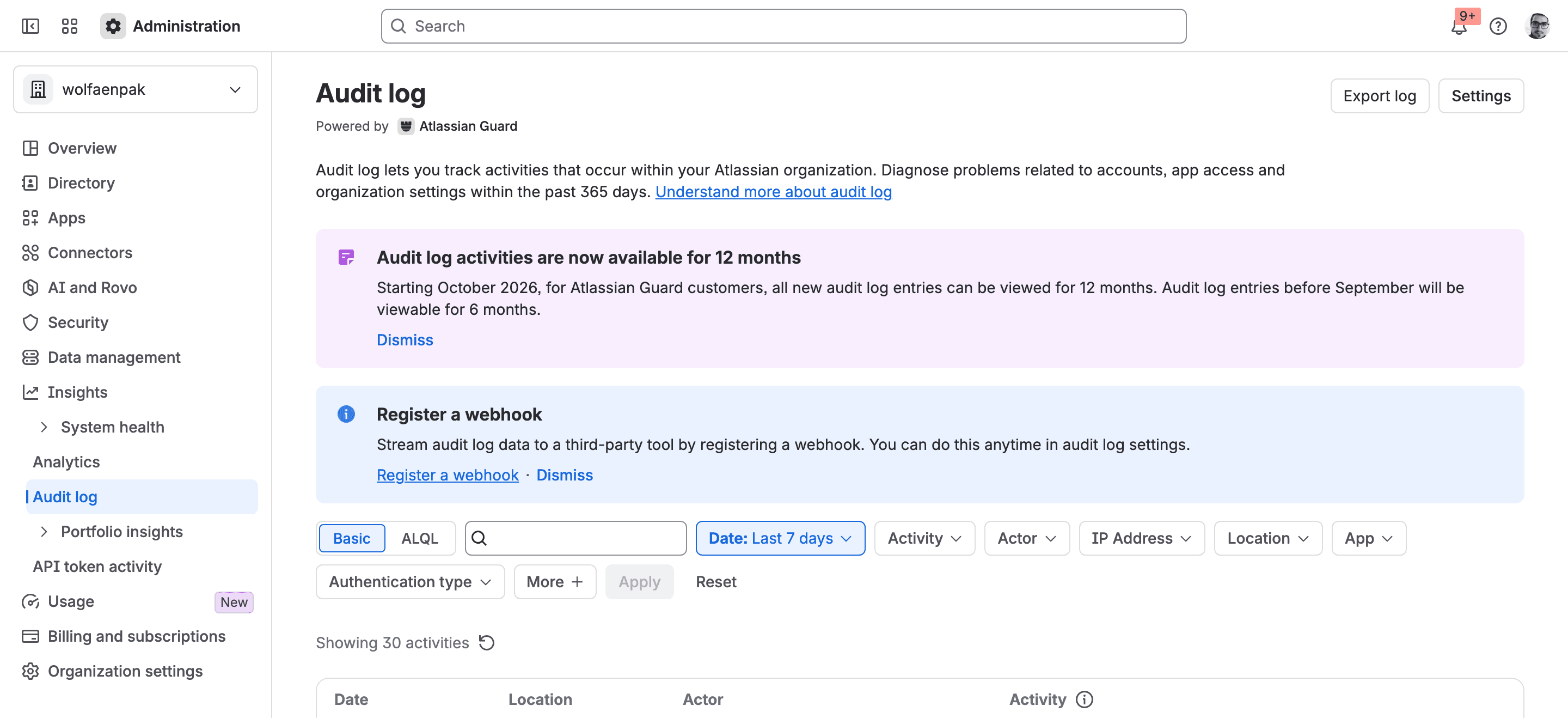
The Cloud logs won't replace it. Jira Cloud's own audit log has a retention period the admin sets and the same 100,000-event export. The organization audit log is available for 180 days, or 365 days with Atlassian Guard (Atlassian's paid security add-on), and its export "will include up to 10,000 activities from the past 180 days".
How long is a legal question, and I can't answer it for you
No source I found sets a retention period for Jira issues as such. The period comes from your regulator and from your own contracts. The US rule 17 CFR 210.2-06 (CFR is the Code of Federal Regulations) makes an accountant keep audit and review records for seven years. It binds the auditor. It says nothing about a company's Jira. The EU's GDPR (the data protection regulation) pulls the other way. Article 5 says personal data must be kept "for no longer than is necessary", and an old Jira is full of names.
Ask whoever owns records retention in your company for the number. Get it in writing before anything is deleted.
What the old system costs while it stays up
The license is the part with a published price. Atlassian uses fixed tiers, so 450 users pay the 500-user price and 525 users pay the 1,000-user price. The 17 February 2026 update moved the Jira Data Center rows like this:
Users | Annual list price before | Annual list price now | Increase |
|---|---|---|---|
500 | USD 51,000 | USD 59,000 | 15.7% |
1,000 | USD 87,000 | USD 100,000 | 14.9% |
2,000 | USD 158,000 | USD 182,000 | 15.2% |
The percentages are my arithmetic on Atlassian's table. Atlassian's pricing FAQ gives USD 95,000 for the 1,000-user tier in one example while the table says USD 100,000. I used the table.
Two rules on the end of life page help if the old Jira has to stay for a while. A renewal "cannot extend beyond March 28, 2029" and is prorated to that date. And you can downgrade the user tier until 28 March 2029, while expansions and upgrades stop on 30 March 2028. An archive that five admins look at doesn't need the 2,000-user tier at its next renewal. The 500-user row, USD 59,000, is the lowest one in the table.
I have no figure for the server, the database, the apps or the staff time. Marketplace app prices for Data Center are set by each vendor, and those subscriptions expire on 28 March 2029 as well. If you're budgeting the Cloud side too, our usage-based pricing budget for 50 to 500 seats covers that half.
Atlassian dual licensing covers six months, for 1,000 users and up
The end of life page mentions dual licensing "for larger customers" and gives no terms. The terms are on Atlassian's separate dual licensing page:
Condition | What Atlassian's page says |
|---|---|
What you get | The existing Data Center subscription extended "for up to six months at a 100% discount" |
Cloud purchase needed | An annual Premium or Enterprise subscription. Standard plans and monthly billing don't qualify |
Size | 1,000 or more users for Jira or Confluence, 251 or more agents for Jira Service Management |
Tier | The same user tier as the Cloud subscription, or the next one up if Data Center has no such tier |
Data Center license | Active, or no more than 30 days past its expiry date |
When it ends | After six months at most. The Data Center subscription isn't renewed when the first Cloud year ends |
Apps | Marketplace apps can take part "for up to six months at no extra cost" if the vendor opted in |
The worked example on that page carries 2024 dates and the page shows no update date, so confirm the thresholds with Atlassian before you put them in a business case. A 600-user company doesn't qualify on size, whatever Cloud plan it buys. It pays the 1,000-user price itself if the old Jira is still licensed at renewal.
What happens when a Jira Data Center license expires
Some teams plan to let the license lapse and keep the old Jira as a free archive. Atlassian's support article on what happens when a Jira Data Center license expires, updated 12 February 2026, lists what stops:
After the license expires | Still possible? |
|---|---|
Log in, then comment on, transition and assign existing issues | Yes |
Create users, groups, projects, custom fields, workflows, automation rules | Yes |
Install new apps, use free apps and apps with a valid license | Yes |
Create new issues | No |
Browse Assets data in the screens (it stays in the database) | No |
Upgrade to a Jira version released after the expiry date | No |
So an expired license doesn't freeze much. People can keep commenting on and closing issues in a system you believe is frozen, and each of those changes exists only in the old Jira. Assets is the opposite problem: the data is there and nobody can open it.

The end of life page is stricter in its wording. It says that after expiry "you will not be able to add new data or perform new actions", and then links this same support article for the details. So the article is the nearest thing to Atlassian's answer, and its list is milder than the sentence that points to it. For 28 March 2029 the end of life page says only that the products become read-only. Neither page lists which actions stop on that day.
That gives "read-only" three meanings, depending on which Atlassian page you're reading:
End of life page wording | Expired license (support article) | Read-only mode (next section) | |
|---|---|---|---|
Create issues | No | No | No, except system administrators |
Comment on and transition existing issues | No ("not able to add new data") | Yes | No, except system administrators |
Automation rules and incoming mail | Not stated | Not stated | Keep running |
Admin changes (projects, fields, workflows) | No ("or perform new actions") | Yes | Yes for system and Jira administrators |
The support article adds one case. If Jira and Jira Service Management share an instance and only one of the two licenses expires, "the entire instance (all products) will enter read-only mode". It doesn't say which of the three columns that means.
Put Jira Data Center in read-only mode before you switch it off
Atlassian's page on read-only mode, last modified 13 July 2026, says the feature is "available since 10.3.23, 11.3.8 and included in Jira 12". Older answers still say it doesn't exist. Atlassian's own page on reducing migration downtime says there is 'no explicit "read-only" mode' for Jira, and the feature request MIG-1331 sat at "Gathering Interest" with 55 votes when I checked on 18 November 2026. On a version older than those three, that downtime page gives the fallback: create a permission scheme that only allows Browse and apply it to all projects.
I haven't run the toggle myself. We have no Data Center instance on those versions, so the steps below are Atlassian's documentation. You need the Jira System Administrator global permission.
- Go to Administration, then System. In the sidebar, under Advanced, select Read-only Mode. Jira asks for your password again before it lets you change this. The page's direct address is your Jira address followed by
/secure/admin/EditReadOnlyMode.jspa. - Turn on Enable read-only mode, write a Banner message that names the new Cloud address, and select Save. The mode applies at once on all servers.
- Disable the automation rules. Read-only mode doesn't stop them.
- Disable the incoming mail handlers. They can still create issues.
- Check it as a normal user. Open an issue: you should see the banner, and you shouldn't be able to comment or edit. From a script,
GET /rest/api/2/readonly-modereturnsenabledand the bannermessage.
The optional Estimated end time is only a label. Atlassian says it "does not turn read-only mode off automatically".
Atlassian describes this switch for maintenance and for the cut-over window, which it puts at 24 to 72 hours. It doesn't present it as a way to run an archive for months. The same page says the mode "is not a hard database lockdown" and that it works through project permissions. Its companion page on what the mode blocks and what it doesn't has the full list:
Blocked for everyone except system administrators | Not blocked |
|---|---|
Create, edit and delete issues | Automation rules and workflow post-functions ("Still run and make changes") |
Transition, resolve, close, assign | Incoming mail handlers, which may still create issues |
Add, edit and delete comments | Bulk change, which is controlled by a global permission |
Add and delete attachments | System administrators, who "can still change anything" |
Log work | Apps that write straight to the database, and user directory sync |
So the freeze for a system you're about to retire has three more steps than the toggle. Two are steps 3 and 4 above. The third is to ask each app vendor whether their app respects the mode. Atlassian's developer guide says an app that writes in the background isn't stopped by read-only mode unless its vendor built that in.

An XML export still runs in this state and changes nothing. Atlassian calls it "pure read".
Atlassian's dates: 30 March 2028 and 28 March 2029
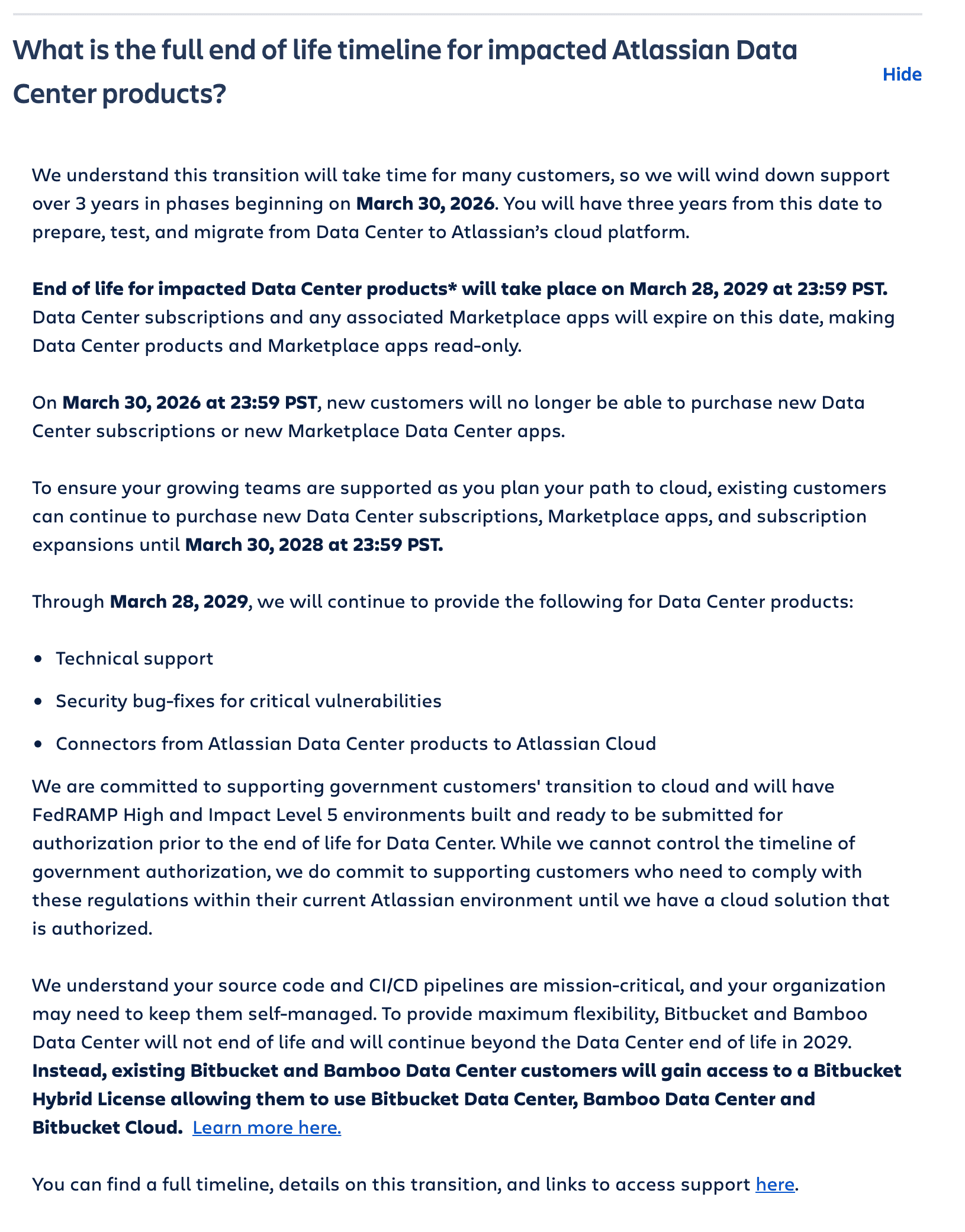
I read these dates on Atlassian's end of life page on 18 November 2026. Each one is given as 23:59 PST (Pacific time).
Date | What changes |
|---|---|
30 March 2026 | New customers can no longer buy Data Center subscriptions or Data Center Marketplace apps |
30 March 2028 | Existing customers can no longer buy new subscriptions, apps, expansions or upgrades |
28 March 2029 | End of life. Subscriptions and Marketplace apps expire, "making Data Center products and apps read-only" |
Until 28 March 2029 | Atlassian keeps providing technical support and security bug fixes for critical vulnerabilities |
Extensions past the date exist "by exception only", through your account executive. Atlassian publishes no criteria or price for them.
Cloud to Cloud: when to delete the old Jira Cloud site
A move from one Cloud site to another doesn't use JCMA. It's done with Atlassian's data transfer feature (called Copy product data until recently), which we walked through in Merge two Jira Cloud instances. You end up paying for two sites. The question is when to stop paying for the old one.
Atlassian does give a figure here. Its Transfer Jira data page says: "Once you've copied your data, we recommend you keep the app for a few months before canceling your subscription."
What you still need from the old Cloud site
Atlassian's list of what is copied, modified 11 November 2026, marks these as not copied for Jira: automation rules (including project-level ones), apps and app data, global permissions, general configuration, comment reactions, and some custom field types such as the project picker.
Links are the reason the old site still matters after the copy. That list says Confluence links "in destination site will continue to link to source site". The Transfer Jira data page adds that links users pasted as plain addresses into comments and descriptions break too, because they can't detect the new address. (Cloud now calls issues work items. I say "issue" throughout because Data Center does.)
App data needs the same question to the vendor as on Data Center, and there's one more case in our migration notes. An app built on Forge, Atlassian's app platform, stores its data against the old site's IDs, and after the move that stored data still refers to the old site. Ask the vendor how they re-point it before you deactivate anything.
Back up first, then deactivate
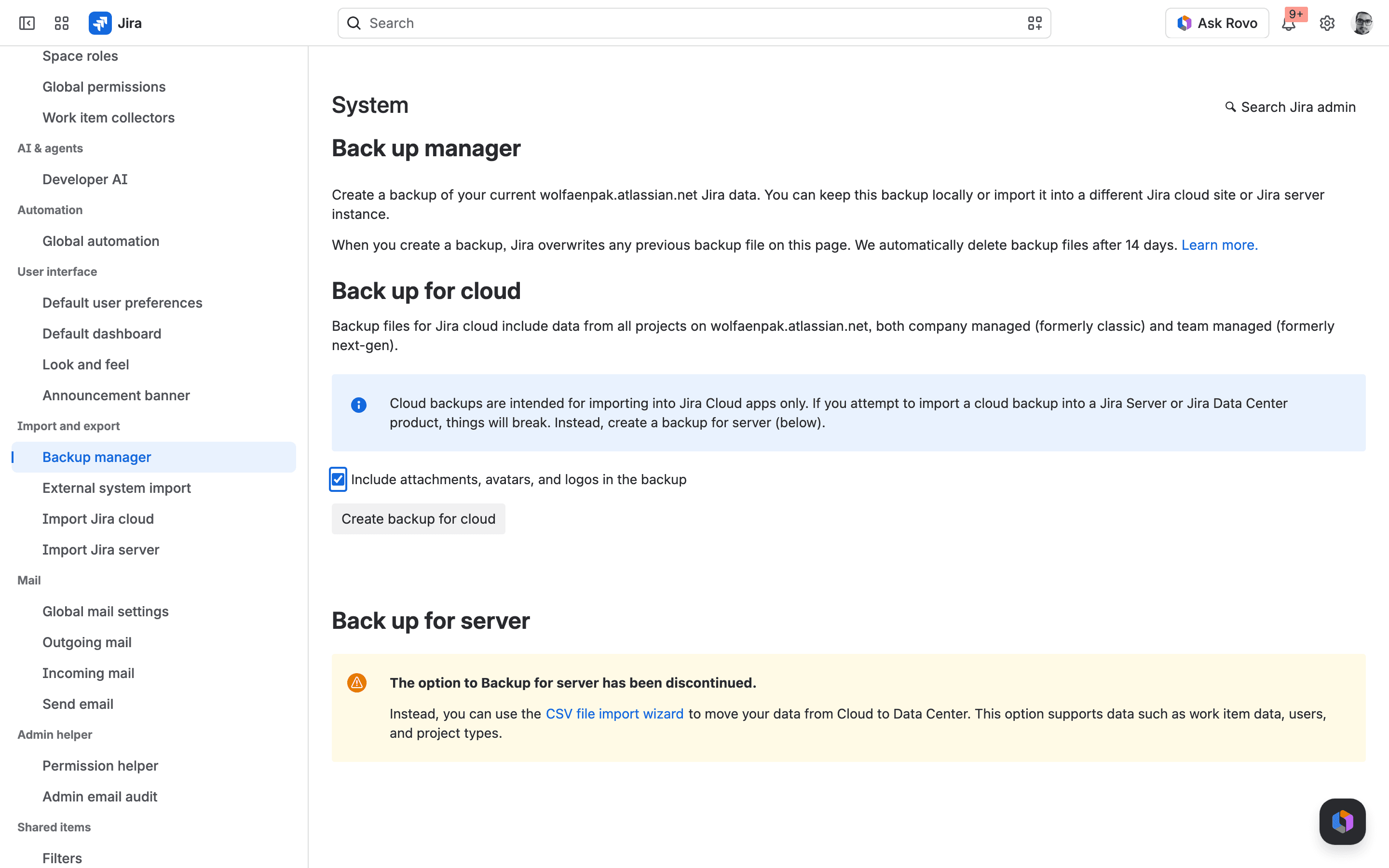
Download a backup of the old site before you touch the subscription. I opened the Backup manager on our test site to see what that backup is good for. Jira deletes the file after 14 days. Download it. And Back up for server has been discontinued, so this backup is for another Jira Cloud site. For Data Center the screen points to the CSV import wizard.
Then read one warning. Atlassian's storage page gives a 60-day retention period, and the same page says that if you unsubscribe from all Jira apps on a site, "your Jira data will be deleted immediately". That sentence sits under a question about removing one app from a subscription. I couldn't find which rule applies to which billing setup, so ask Atlassian support before you remove the last Jira app.
Atlassian's billing page for copies says of two paid sites: "You'll continue to be billed on both." When you're ready to stop, an organization admin or billing admin deactivates the old subscription. On the current billing experience the documented path is:
- Go to
admin.atlassian.com/billingand select your billing account. - Select Subscriptions, find the old site's subscription and select Manage.
- Select the more actions menu, then Deactivate, and confirm.
For a paid site the timeline after that click is:
Stage | How long | What you can do |
|---|---|---|
Paid period | Until the current subscription period ends | Use the site as before |
Access | 15 days after the period ends | Still open the site |
Retention | 60 days after the site is deactivated | Reactivate from the same billing screen |
After that | Nothing. Atlassian says the data "will be permanently deleted and cannot be recovered" |
On an annual plan the first row can be months long. Atlassian also says its own database backups can't be used to bring back a deleted site.
Atlassian's billing page suggests another route: "If you don't want to keep your source after migrating, change to a Free plan." Be careful with it. A subscription on the Free plan is "deactivated immediately" when you deactivate it, with no 15 days, and Atlassian's pages disagree on how long Free data is kept (one says 60 days, another 15).
Atlassian's reset procedure for a Cloud site doesn't remove users, and Atlassian warns that it won't let you reuse the site address on another site. If you planned to give the new site the old address, raise that with Atlassian support before you delete anything.
If you need to stop changes on the old Cloud site while it waits, we covered that in Make Jira Cloud projects read only, then revert.
Jira Data Center decommission checklist
This is the order I'd hand to a Jira admin after a Data Center to Cloud migration. The owner of each step is in brackets. The search in step 8 and steps 11 and 12 are my own additions. The rest follows the sections above.
Take the records out
- Download the ID mapping report (Jira admin). On the old Jira, open JCMA, open the plan, select View details, then the Logs and Reports tab, and download ID Mapping Report. If it has expired, select Generate first.
- Compare old and new (migration lead). Count the issues per project on the old Jira and on Cloud. Pull anything missing from the old Jira, and repeat until the totals match.
- Export what the plan left out (Jira admin). Export the automation rules to a JSON file from the Automation page. Write down the mail handlers, the global permissions, the general configuration and any filters the chosen JCMA option left out.
- Ask each app vendor (app owner) whether any data of theirs exists only in the old database, and how to get it out.
- Get the retention period in writing (budget owner) from whoever owns records retention in your company. Ask your Atlassian account manager in writing whether the backup can be restored after the license expires.
Stop changes and back up
- Turn on read-only mode (system administrator) on Jira 10.3.23, 11.3.8 or 12, with a banner that names the Cloud address. On older versions, apply a permission scheme that only allows Browse to all projects.
- Disable automation rules and incoming mail handlers (Jira admin).
- Run the comparison from step 2 again (migration lead). Before the backup in step 10, search for issues updated after the time read-only mode was switched on. It should return nothing. If it returns issues, a system administrator, a rule or a mail handler is still writing.
- Export the audit log (Jira admin for the export, system administrator for the folders). Use Export in the audit log for the newest 100,000 events, and copy the
log/auditfolder from each server. Doing it now means the export includes the switch to read-only mode. - Take the full backup and restore it once (system administrator). Back up the database with its own tool, plus the shared home directory, the attachments folder and each server's local home directory. Restore it on a spare server while the license is valid and open three old issues with attachments.
Switch off
- Take the old Jira off the network, then shut it down (system administrator). The tested backup is what you keep for the period from step 5. Don't renew the license for a server that is off.
- Cancel what was attached to it (budget owner). That means Marketplace app subscriptions, monitoring, the database license, DNS entries, and the scheduled jobs and integrations that still call the old address.
When the twelve steps are done you should be holding a clean comparison, the ID mapping file, the exported configuration, the audit log, a backup you've restored once, and three answers in writing (records retention, the app vendors and Atlassian on restoring after expiry).
What I'd do
If you qualify for dual licensing, plan the switch-off inside the six months. If you don't, find your Data Center renewal date today and put the checklist in front of it. The people who want to keep the old Jira "a bit longer" should see the renewal price next to their request.
I wouldn't use a lapsed license as the archive. It leaves commenting and transitions open today, and Atlassian hasn't said what it will leave open in 2029. The archive is the backup, and nobody has confirmed that it will still restore after March 2029, which is why I'd restore it once now and ask Atlassian the license question in writing.
If you've already done this, how long did your old Jira stay up after cut-over, and what was the last thing somebody needed from it? I have the list of things we went back for, but I never wrote down the durations, and I suspect the honest answer in most companies is "it's still running". Write to me at office@leanzero.net.
Comments
0Add a comment